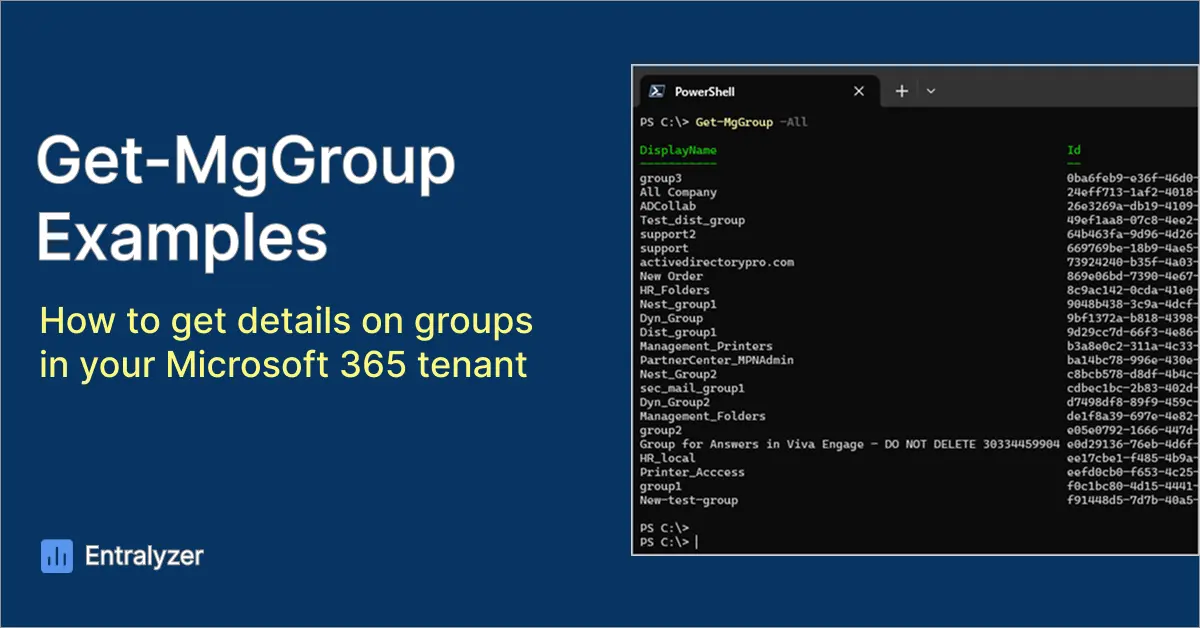
In this article, you will learn how to use the Get-MgGroup PowerShell cmdlet to get a list of groups in your 365 tenant.
The Get-MgGroup cmdlet is a simple tool for finding and managing Microsoft 365 groups. You can use it to get information about all groups or just specific ones. It is part of the Microsoft Graph SDK for PowerShell, which lets you manage different Microsoft services from one place.
First you must install and connect to Microsoft Graph PowerShell Module
Install-Module Microsoft.Graph -Scope CurrentUser
Connect to the Graph
Connect-MgGraph -Scopes "Group.Read.All"
Get-MgGroup Examples
Example 1: Get Single Group Using Group ID
If you know the groups Object Id, you can use the command below. The object ID can be found in the entra admin center.
Get-MgGroup -GroupId "GroupID"

Example 2: Get Single Group by Name Using -Filter
If you want to get a group by its name you will need to use the -Filter parameter. For some reason Microsoft did not include a parameter to get groups by their name. Very strange.
In this example, I search for the group named “HR_Folders” and have it show the DisplayName and ID.
Get-MgGroup -Filter "DisplayName eq 'YourGroupName'" | Select DisplayName, ID

Example 3: List All Groups
By default, the Get-MgGroup command only returns the first 100 items. To list all groups, use the -All parameter.
Get-MgGroup -All

Example 4: Get a Count of All Groups
If you want to know the total amount of groups in your 365 tenants use this command.
(Get-MgGroup -All).Count

Example 5: List groups by type
In this example, I show you how to get groups by their type (security, mail enabled and distribution).
Security Groups
Get-MgGroup -Filter "securityEnabled eq true and mailEnabled eq false"

Mail Enabled Groups
Get-MgGroup -Filter "securityEnabled eq true and mailEnabled eq true"

Distribution Groups
Get-MgGroup -Filter "mailEnabled eq true and securityEnabled eq false"

Example 6: Get All Group Properties
By default, Get-MgGroup does not show all properties, in order to get a list of all properties use the command below.
Get-MgGroup -All | Select-Object *
Example 7: Get Specific Properties
If you want to display specific properties, use Select-Object. In my example I displayed DisplayName, Mail, and Description.
Get-MgGroup -All | Select-Object DisplayName, Mail, Description

Example 8: Get All Cloud Groups
To get a list of cloud only groups use this command.
Get-MgGroup -Filter "GroupTypes/any(gt:gt eq 'Unified')" | Select-Object DisplayName, Mail

Example 9: Get Synced Groups Only
You can display all on prem Active Directory groups that are synced to your tenant by filtering “OnPremisesSyncEnabled eq true”.
Get-MgGroup -Filter "OnPremisesSyncEnabled eq true" | Select-Object DisplayName, Id, OnPremisesSyncEnabled

Example 10: Recently Created Groups
In this example, I’ll get a list of groups created in the last 7 days.
$days = 7
Get-MgGroup -All | Where-Object { $_.CreatedDateTime -gt (Get-Date).AddDays(-$days) }
Conclusion
In conclusion, the Get-MgGroup command is a simple tool for retrieving and managing Microsoft 365 groups. Whether you need details about all groups or specific ones, it gives an easy way of accessing your group properties.