In this article, I’ll show you how to use Get-MgUser cmdlet to retrieve Entra ID user details from Microsoft 365. I’ll show you examples of how to get all Entra ID users or query for specific users with the filter parameter.
Get-AzureADUser vs Get-MgUser
When managing users in Microsoft’s cloud services, you will come across two similar commands. Get-AzureADUser and Get-MgUser (Also Called Get Entra User). Both are used to find user information like names, email addresses, and IDs, but they are built on different systems.
Get-AzureADUser is from an older toolset called the Azure AD PowerShell module, which is no longer being updated. Get-MgUser belongs to the newer Microsoft Graph PowerShell module, part of a modern platform called Microsoft Entra that combines identity and security features.
Microsoft recommends using Get-MgUser because it connects to the latest technology, works better with other Microsoft services, and will continue to get more updates
For this article I’ll be using the Get-MgUser cmdlet in all examples.
What is Get-MgUser
Get-MgUser is a command in Microsoft Graph PowerShell, used to retrieve information about user accounts in Microsoft 365 environments. It provides access to user properties such as names, email addresses, roles, and more from the Microsoft Graph API, which centralizes management of Azure Active Directory resources. Administrators and developers use this cmdlet to automate tasks related to user management, reporting, or system integration. By running Get-MgUser you can filter, search, and specify fields to return specific data.
Requirements to run Get-MgUser
To use the Get-MGUser cmdlet you need the Microsoft Graph PowerShell module installed.
The Microsoft Graph PowerShell module is a set of PowerShell cmdlets, which includes Get-MgUser, that allows administrators, developers, and IT staff to interact with data in Microsoft 365, Azure Active Directory, and other cloud services through the Microsoft Graph API. Microsoft Graph provides access to organizational data, including users, groups, mail, files, devices, and is required to use Get-MgUser.
To install Microsoft Graph Module, follow these steps.
Step 1: Install Microsoft Graph
Install-Module Microsoft.Graph -Scope CurrentUser
The -Scope parameter is used to specify which users to install the module for.
Step 2: Connect to Microsoft Graph
With the module installed you can now connect to MS graph. We will only retrieve user data, so you can connect with the User.Read.All scope.
Connect-MgGraph -Scopes "User.Read.All"
Syntax
Here is an overview of the syntax for the cmdlet.
Get-MgUser
   [-ExpandProperty <String[]>]
   [-Property <String[]>]
   [-Filter <String>]
   [-Search <String>]
   [-Sort <String[]>]
   [-Top <Int32>]
   [-ConsistencyLevel <String>]
   [-ResponseHeadersVariable <String>]
   [-Headers <IDictionary>]
   [-PageSize <Int32>]
   [-All]
   [-CountVariable <String>]
   [-ProgressAction <ActionPreference>]
   [<CommonParameters>]
Examples Using Get-MgUser
Example 1: Get A Single User
This command retrieves information about a specific user who’s from Entra ID. It will return the users DisplayName, ID, Mail, and UserPrincipalName.
Get-MgUser -UserId "hayden@activedirectorypro.com"

Example 2: Get All User Properties
To view all properties for a user run this command. (This will not show the value, and you must use -property to display the value of the property you want. Microsoft Graph API requests do not return all properties by default. You need to explicitly specify which properties you want to retrieve)
Get-MgUser -UserId "hayden@activedirectorypro.com" | fl

Example 3: Get All Users
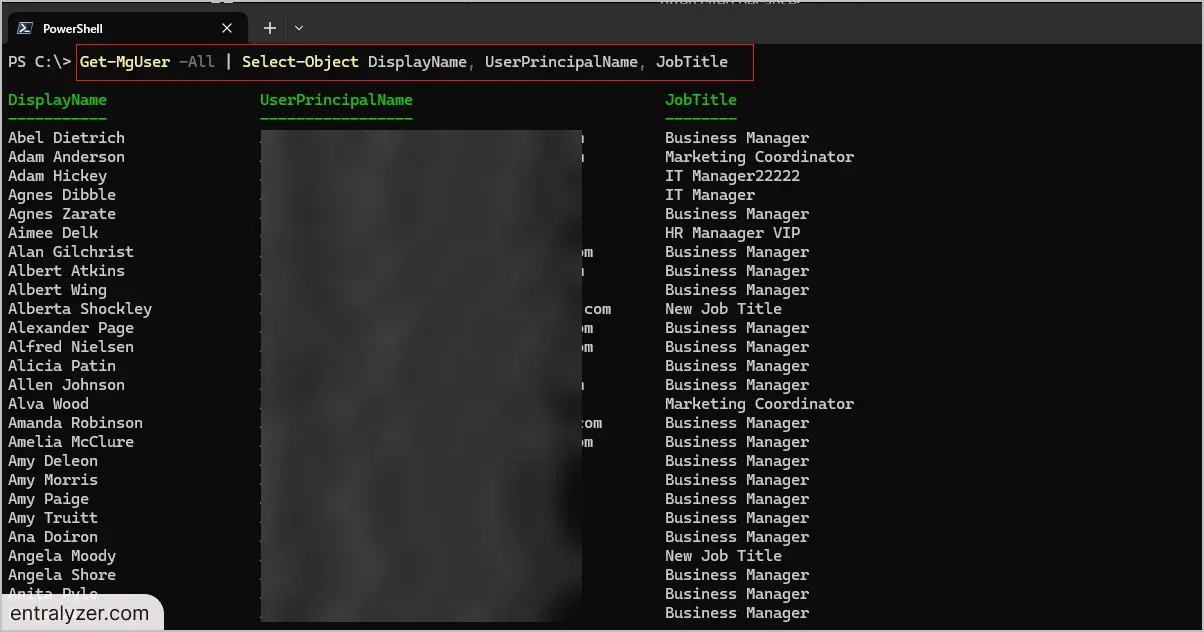
To get all Entra ID users you can use the -all parameter.
Get-MgUser -All

Example 4: Get Specific Properties of a User
If you want to display additional properties for users, you must use the -property parameter and the property name.
The command below grabs the DisplayName, UserPrincipalName, and JobTitle of a specific account by using Select-Object.
Get-MgUser -UserId "hayden@activedirectorypro.com" -property DisplayName, UserPrincipalName, JobTitle, AccountEnabled | Select-Object DisplayName, UserPrincipalName, JobTitle, AccountEnabled

Example 5: Get All Users Account Status
To get the account status of your Entra ID users you can query the AccountEnabled property.
All
This command retrieves all users including their UserPrincipalName and AccountEnabled properties.
Get-MgUser -all -property UserPrincipalName, AccountEnabled | Select-Object UserPrincipalName,AccountEnabled

Enabled
Get-MgUser -All -Filter "accountEnabled eq true" -Property DisplayName, UserPrincipalName, AccountEnabled | select DisplayName, UserPrincipalName, AccountEnabled
Disabled
Get-MgUser -All -Filter "accountEnabled eq false" -Property DisplayName, UserPrincipalName, AccountEnabled | select DisplayName, UserPrincipalName, AccountEnabled
Example 6: Get All Cloud Users
This command retrieves all cloud-only by filtering the OnPremisesSyncEnabled property and checking if it is not true (meaning they are not synced from On-Prem Active Directory).
Get-MgUser -All -Filter "OnPremisesSyncEnabled ne true" -ConsistencyLevel eventual -CountVariable CountVar
Example 7: Get All On-Prem Synced Users
This command retrieves all on-premises synchronized users by filtering for users where the OnPremisesSyncEnabled property is set to true.
Get-MgUser -All -Filter "OnPremisesSyncEnabled eq true"
Example 8: Get Guest Users
This command retrieves guest users by filtering for users where the UserType property is set to “Guest”.
Get-MgUser -All -property UserType, Displayname -Filter "UserType eq 'Guest'" | select-object DisplayName, UserType

Example 9: Get Licensed Users
This command retrieves all licensed members from Entra ID by filtering for users with a 1 or more count of assigned licenses. If assignedLicenses is not equal to zero, it means the user has at least one license assigned.
Get-MgUser -All -Filter "assignedLicenses/`$count ne 0 and userType eq 'Member'" -ConsistencyLevel eventual -CountVariable Records

Example 10: Search For User by DisplayName
In this example, I’ll search for a user by filtering on the DisplayName.
Get-MgUser -Filter "DisplayName eq 'Hayden Roberts'"

Example 11: Search for Users by Email Address
In this example, I’ll search for a user by filtering for a specific email address.
Get-MgUser -Filter "UserPrincipalName eq 'hayden@activedirectorypro.com'"

Conclusion
In conclusion, using Get-MGuser to retrieve Entra ID users offers a good solution for managing and querying user data. In my opinion, using PowerShell to get Entra ID users is faster and more flexible than using the Microsoft 365 admin center.
By understanding how to utilize parameters like -Filter, -All, and specific properties such as UserPrincipalName and AssignedLicenses, you can easily search for users, retrieve detailed information, and even speed up the process of reporting or exporting data. Whether you’re working with cloud-only users, licensed users, or specific attributes, knowing how to use Get-MgUser in PowerShell makes it simpler to manage your Entra ID environment, save time and simplifying tasks.