To add a UPN suffix in Active Directory, use the Active Directory Domains and Trusts console that is installed on a domain controller. In this article, I’ll show you the exact steps for adding a UPN suffix in Active Directory.
What is a UPN suffix
A UPN suffix (User Principal Name) in Active Directory (AD) is the part of a user’s logon name after the “@” symbol. For example, a user named Bob Smith in the entralyzer.local domain would have the UPN logon name bob.smith@entralyzer.local. If you want bob to sign in as bob.smith@entralyzer.com you would need to add a custom UPN suffix to Active Directory.
Why Add a Custom UPN Suffix to Active Directory
- Simplify user logon
- Most organizations want users to log in with the same name as their email address.
- Microsoft 365 Integration
- When syncing accounts to Microsoft 365 with the Entra Connect, the UPN should match a verified domain in the cloud.
- Support multiple organizations or domains
- If you merge companies you would need to add the new companies UPN suffix to your Active Directory.
- Add verified domain for Entra ID
- When you synchronize your on-premises directory with Microsoft 365, you have to have a verified domain in Microsoft Entra ID. Refer to the Microsoft document Prepare a nonroutable domain for directory synchronization for more details.
Adding a UPN Suffix to Active Directory
-
Log in to a Domain Controller with a domain administrator account.
-
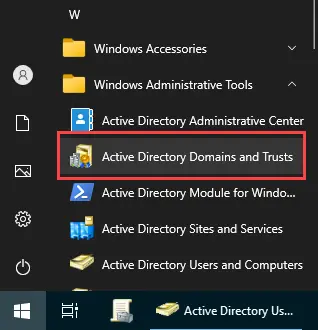
Click on Start select Windows Administrator Tools and then Active Directory Domains and Trusts
-
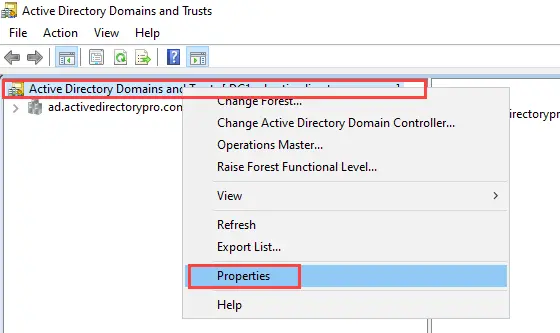
In the console, right-click Active Directory Domains and Trusts in the left pane and select Properties from the menu.
-
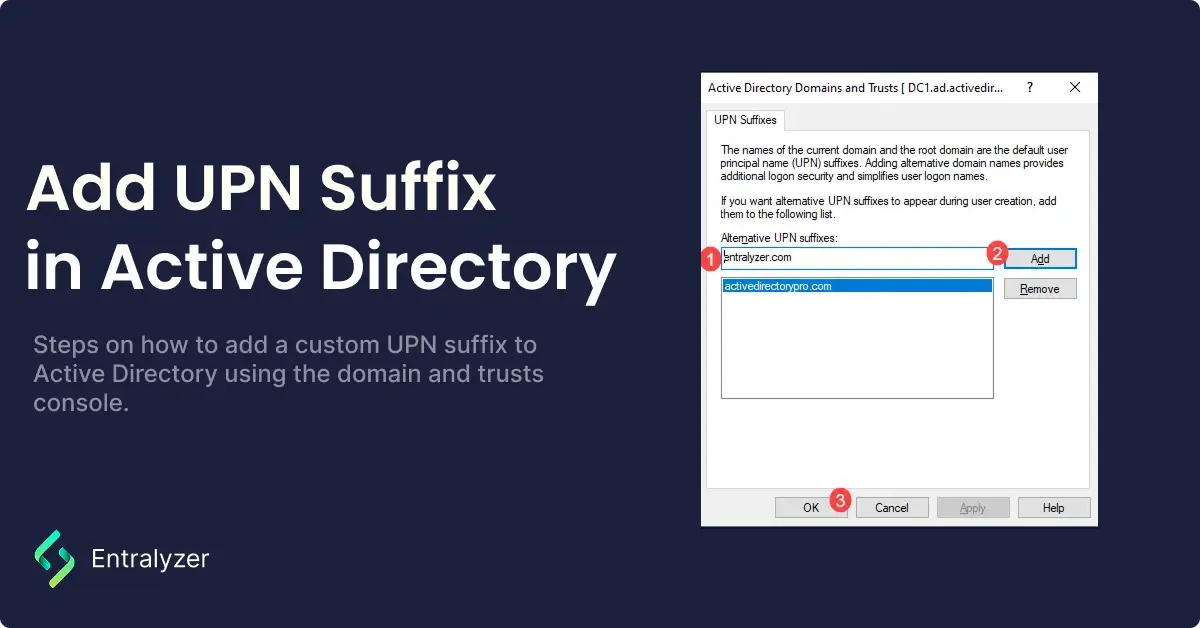
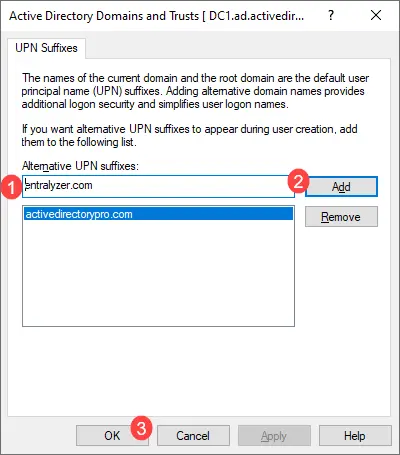
In the Alternative UPN suffixes box enter the UPN suffixes you want to add then click the Add button and Ok. In this example, I’m adding the UPN suffix entralyzer.com
-
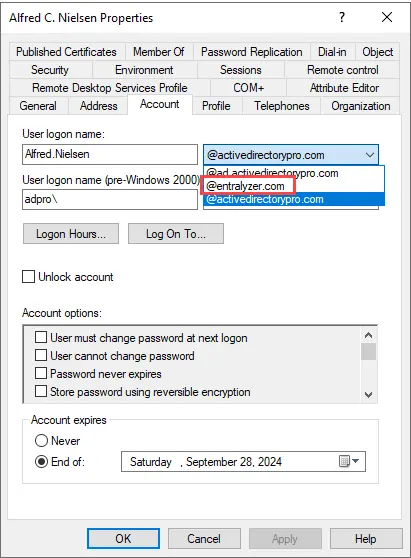
Now when you add a new user or want to modify an existing one you should see the new UPN suffix.
That was easy, right?
Adding a custom UPN suffix in Active Directory helps create a consistent and user-friendly logon that aligns with your organization’s domain name. It can also be needed when synchronizing on-premises Active Directory to Microsoft 365 using the Entra Connect sync client.