In this post, I’ll show you how to retrieve the last sign-in date of Microsoft 365 users using PowerShell and the Microsoft 365 Admin Center.
Getting 365 users last sign-in date get help identify inactive or unused accounts in your tenant. Reviewing this information helps you clean up old licenses, improve security by disabling stale accounts, and understand overall user activity.
Sign-in Log Requirements and Retention
- To access the
lastSuccessfulSignInDateTimeproperty using Microsoft Graph, you need a Microsoft Entra ID P1 or P2 license. - Entra ID Free version sign in log retention period = 7 Days
- Entra ID P1 and P2 sign in log retention period = 30 days
- In the Microsoft admin centers, the last sign-in activity of the users updates instantly, but with PowerShell, it could take up to 6 hours.
SignInActivity Property Details
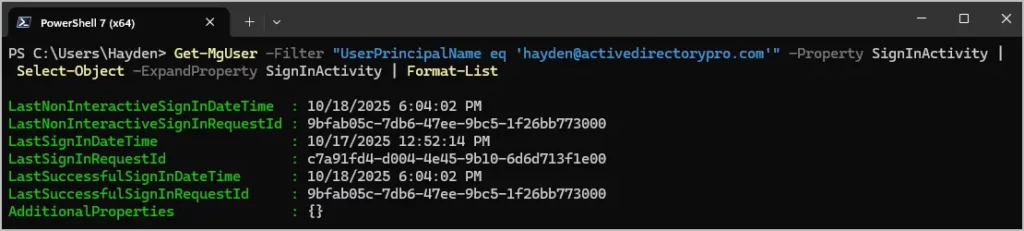
When using PowerShell (example below) the SignInActivity property includes the following fields:
- lastNonInteractiveSignInDateTime - The last non-interactive sign-in date for a specific user.
- lastNonInteractiveSignInRequestId - Request identifier of the last non-interactive sign-in performed by this user.
- lastSignInDateTime - The last interactive sign-in date and time for a specific user.
- lastSignInRequestId - Request ID for the last interactive sign-in.
- lastSuccessfulSignInDateTime - Last successful sign-in (interactive or non-interactive).
- lastSuccessfulSignInRequestId - The request ID of the last successful sign-in.
For full details refer to the Microsoft article signInActivity resource type
How to Get 365 Users Last Sign-in Date using PowerShell
Step 1: Install Microsoft Graph Module
Install-Module Microsoft.Graph -Scope CurrentUser
Step 2. Connect to Graph with the following permissions
- AuditLog.Read.All
- User.Read.All
Connect-MgGraph -Scopes "User.Read.All", "AuditLog.Read.All"
Step 3: Get a single users last sign-in date
Change UserPrincipalName for the account you want to query.
Get-MgUser -Filter "UserPrincipalName eq 'hayden@activedirectorypro.com'" -Property SignInActivity | Select-Object -ExpandProperty SignInActivity | Format-List
Step 4: Get all users last sign in date and export to CSV
Run the PowerShell script below to export a full report of all the users last sign-in date and time.
$Users = Get-MgUser -All -Property Id, UserPrincipalName, DisplayName, UserType, SignInActivity, Mail, AccountEnabled |
Select-Object Id, UserPrincipalName, DisplayName, UserType, Mail, AccountEnabled,
@{n = "LastSuccessfulSignInDateTime"; e = { $_.SignInActivity.LastSuccessfulSignInDateTime } },
@{n = 'LastNonInteractiveSignInDateTime'; e = { $_.SignInActivity.LastNonInteractiveSignInDateTime } },
@{n = 'LastSignInDateTime'; e = { $_.SignInActivity.LastSignInDateTime } },
@{n = 'DaysSinceLastSuccessfulSignIn'; e = { (New-TimeSpan -Start $_.SignInActivity.LastSuccessfulSignInDateTime -End (Get-Date)).Days } }

$Users | Export-Csv -Path "C:\IT\LastSignInActivity.csv" -NoTypeInformation -Encoding utf8

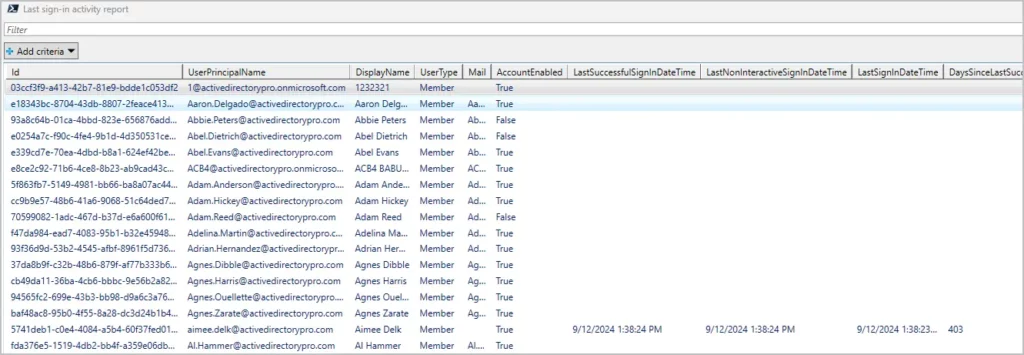
If you want to view the results where you can search and filter the properties run the below command.
$Users | Out-GridView -Title "Last sign-in date report"
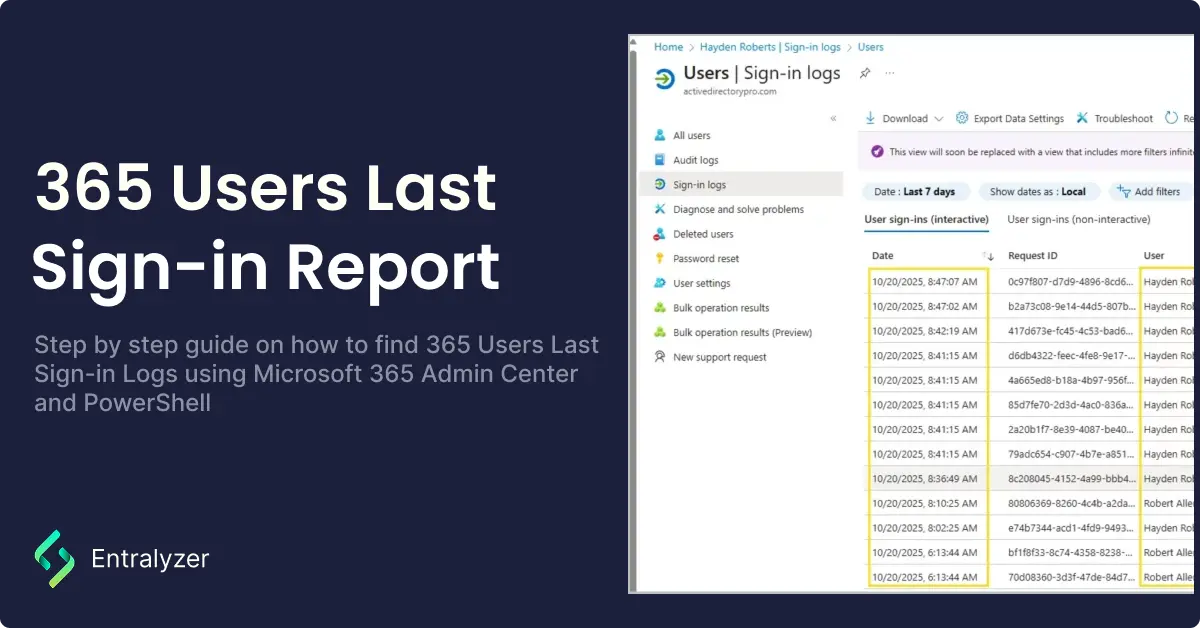
Get All 365 Users Last Sign-in Date using Entra Admin Center
Step 1: Log in to Microsoft Entra admin center
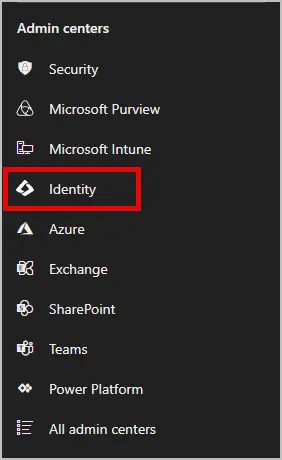
Step 2: On the left side, select “Identity” under Admin Centers
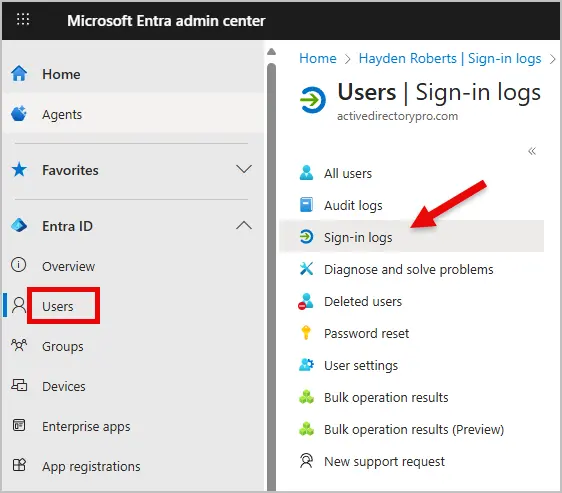
Step 3: In the left-hand menu, go to “Users” under Entra ID
Then click “Sign-in Logs” to view each user’s most recent login activity.
It may take a few seconds to load for all your users to show up.
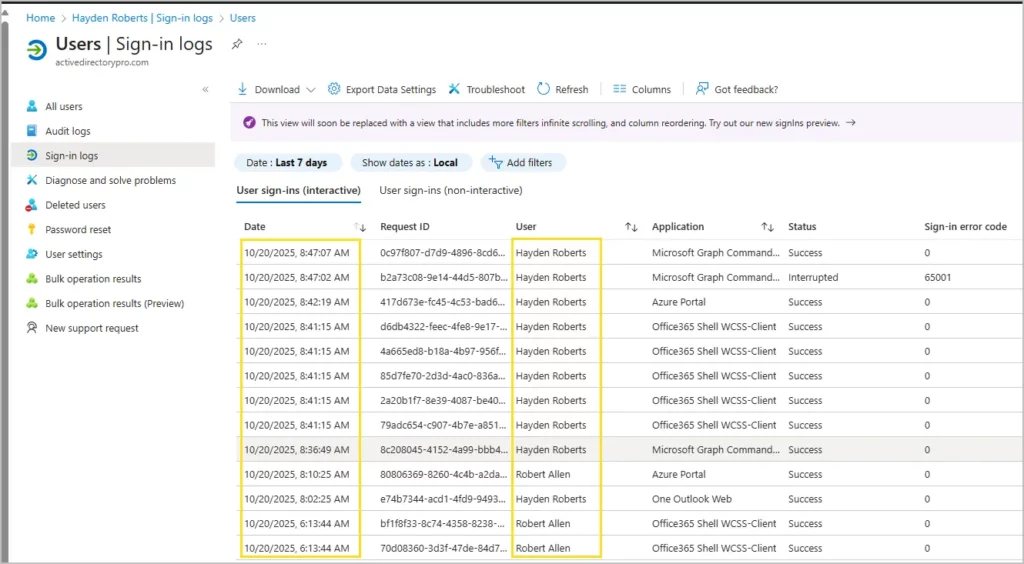
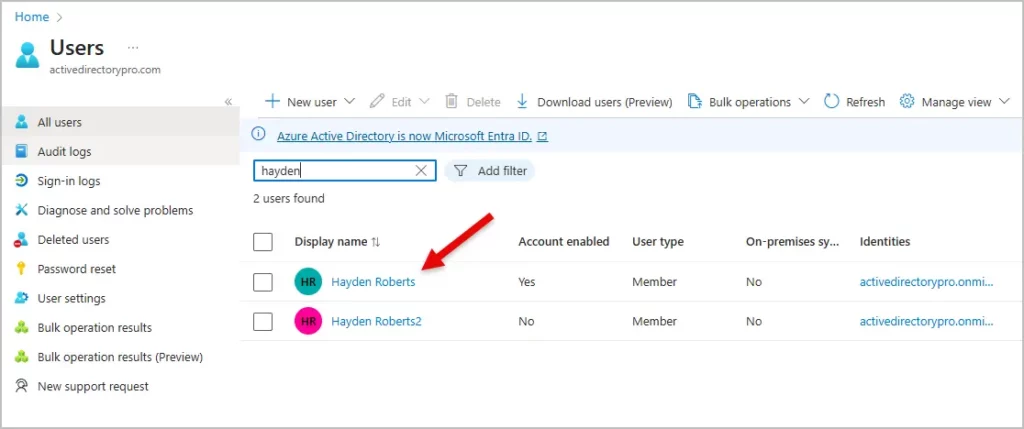
Retrieve the Last Sign-in Date for a Single User in Microsoft 365
Step 1: Go to the “All Users” tab and search for the specific user account whose sign-in activity you want to view.
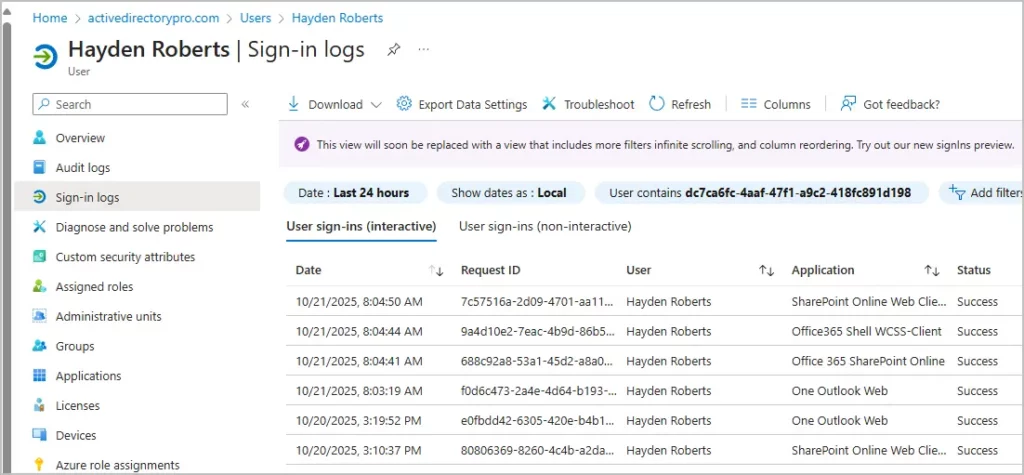
Step 2: Select “Sign-in logs” as you did for all users. The user’s most recent logon information will then be shown.
Conclusion
In this article, I showed you how to get Microsoft 365 Users last sign in date using PowerShell and the Entra Admin Center. Regularly reviewing the sign in logs can help track down inactive accounts and stay in security compliance. The Entra Admin center may not show the users full sign in history so you may need to user PowerShell to export sign in activity.
Remember that Microsoft has limitations on log retention depending on what license you have.