There may be times when you need to export an Office 365 mailbox to a PST file. This may happen when an employee is leaving the company, for legal purposes, or when you need to move the mailbox to another email system. Individual users can export their own mailboxes with the Outlook application. Administrators can quickly and easily export mailboxes from the Microsoft 365 Admin Center.
Note
To export an Office 365 (Exchange Online) mailbox to a PST file, you can’t directly do it with PowerShell anymore. Microsoft requires you to use the Microsoft Purview Compliance portal for exporting mailboxes to PST.
Requirements to Export Mailbox to PST
You need to be assigned the eDiscovery Manager role in order to export mailboxes to a PST file in Office 365. This role allows you to search mailboxes and use the export feature in the Microsoft Purview Compliance portal. If you don’t have this role assigned, you won’t be able to download or export mailbox data to a PST file.
Steps to Assign eDiscovery Manager role
Step 1. Log in to Microsoft Entra admin center
Step 2. Select Microsoft Purview under “Admin Centers”
Step 3. Select Settings
Step 4. Expand “Roles and Scopes” and select Role Groups
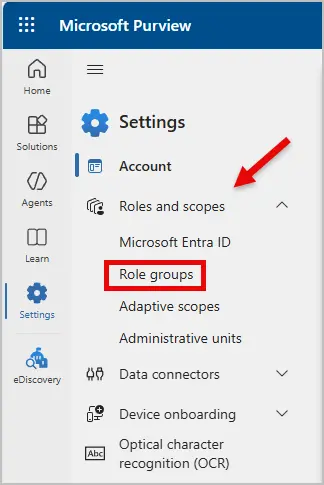
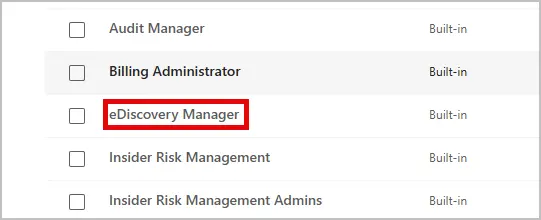
Step 5. Select eDiscovery Manager
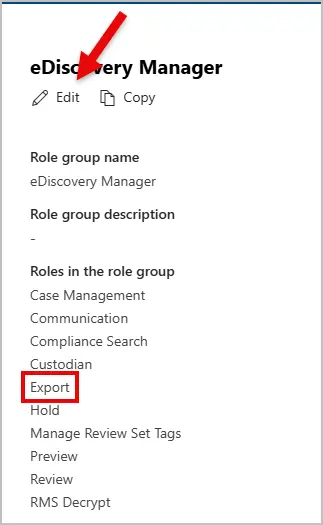
Step 6. Make sure Export is under Roles in the role group, then click edit.
Step 7. Click Next skipping the eDiscovery Manager page.
Step 8. Select Choose users and add your account.
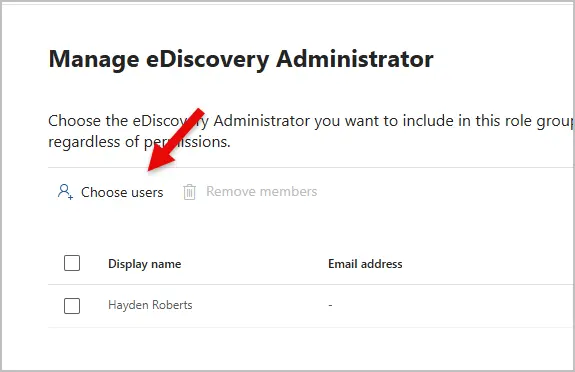
8. Click Next, then Save.
We now have the right permissions to run a Content Search and export an Office 365 mailbox to a PST file. To make sure the new permissions take effect, log out, close the tab, and then log back in.
How to Export 365 Mailbox to PST
To export a mailbox from Office 365, you first need to create a Content Search to gather all emails for the selected user. Once the search is complete, you can export the results to a PST file and download it through the Content Search Process Manager.
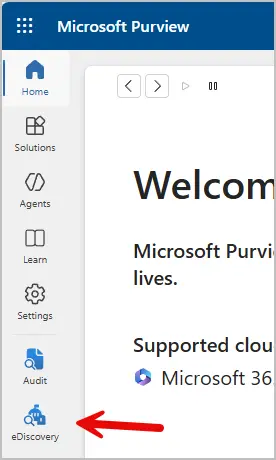
Step 1. Log into Microsoft Purview and select “eDiscovery”
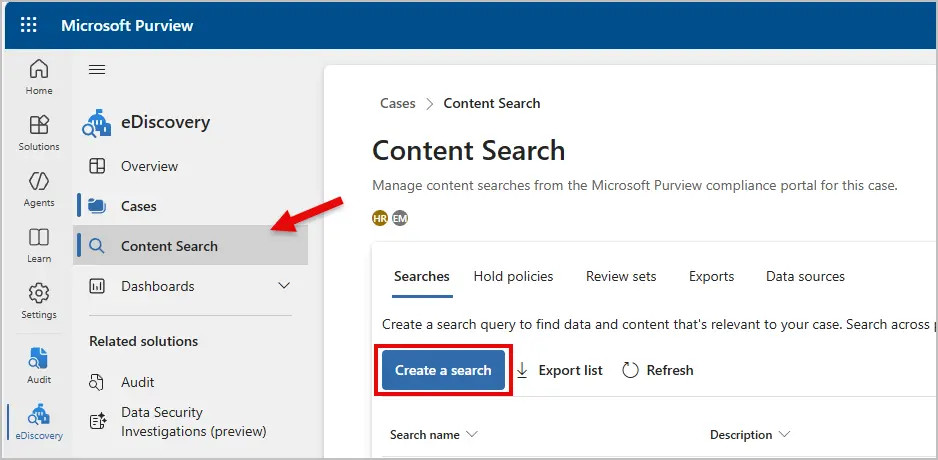
Step 2. Select Content Search then click “Create a Search”
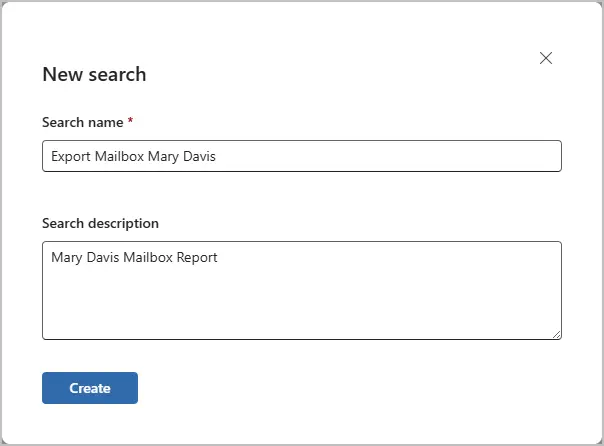
Step 3. Give your Content Search a name and description
Click Next
Step 4. Add data source
- Click on Add Sources
- Search for the user
- Select Mailboxes Only for locations to include
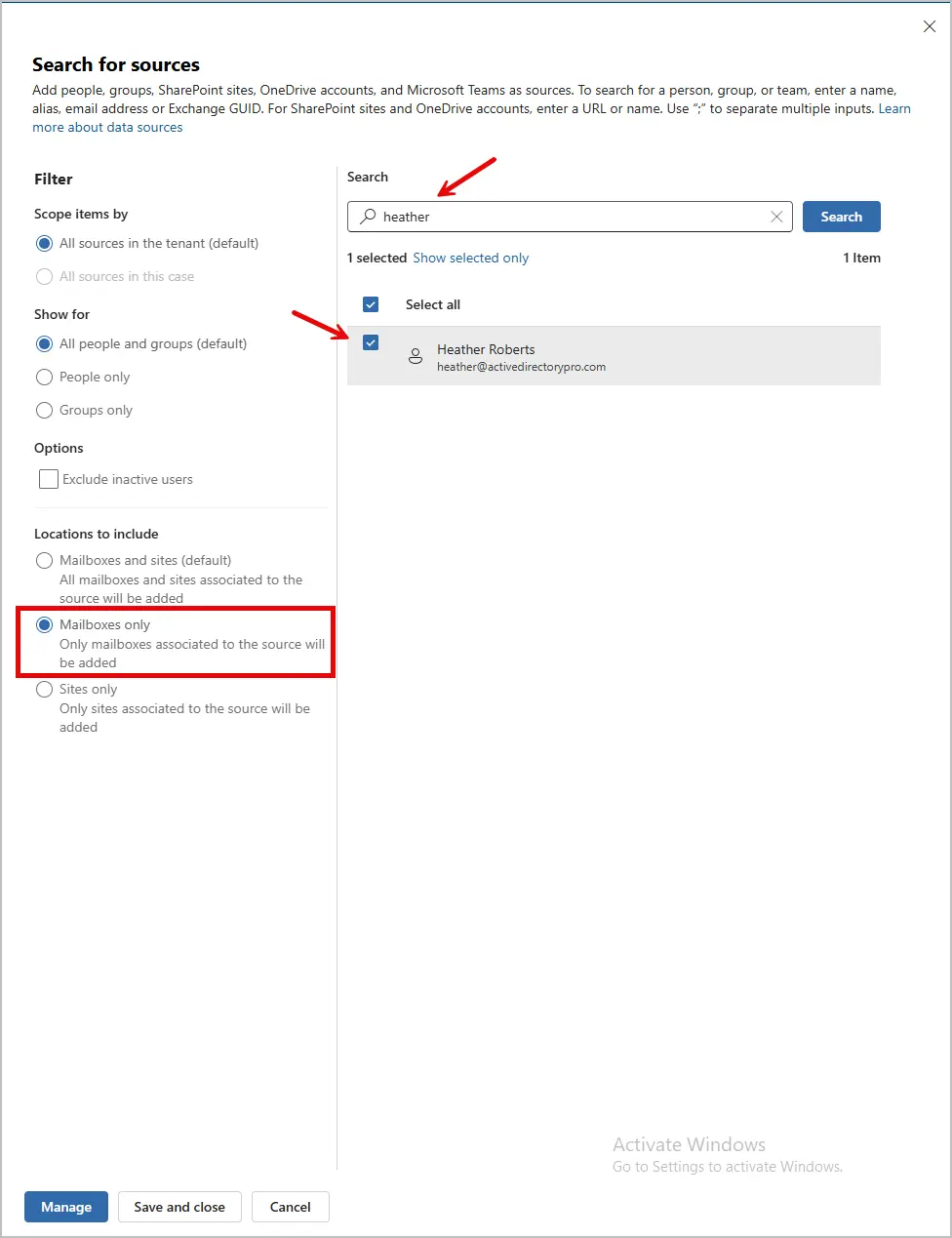
Click on Manage then Save
Step 5. Select Run Query
Use the default search option Statistics
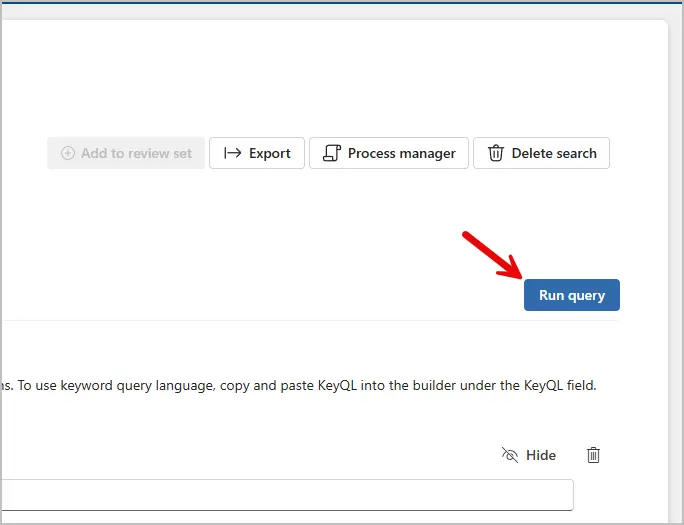
It can take a couple minutes to complete the search depending on the mailbox size.
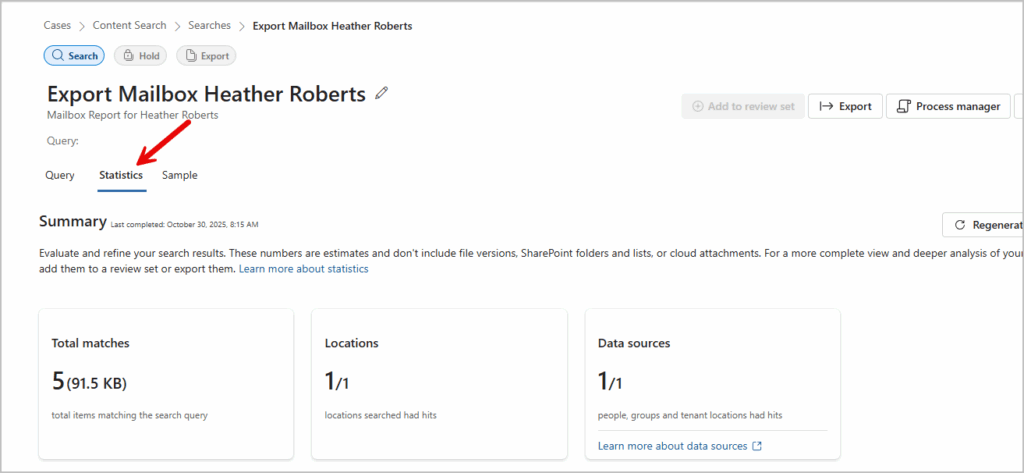
Step 6. Under the Statistics tab it will show you the results when finished.
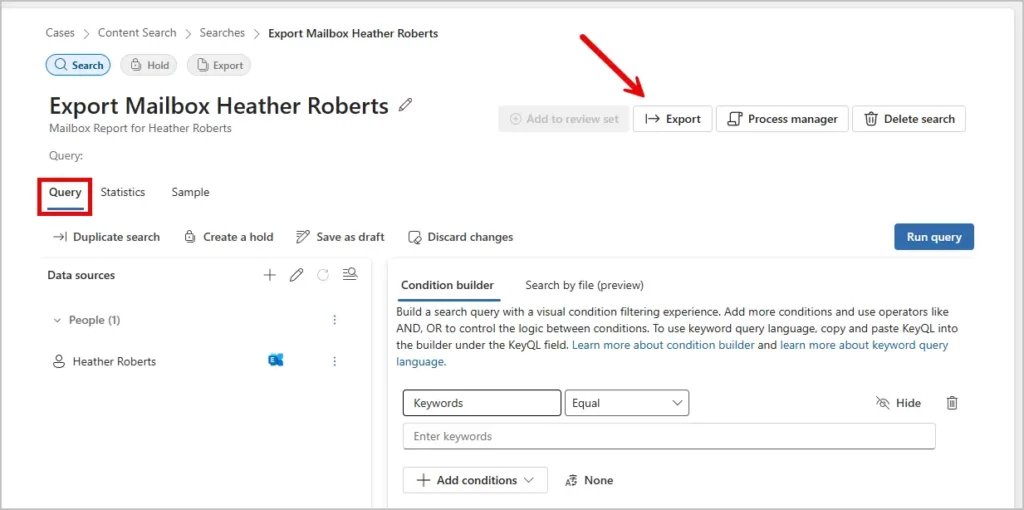
Step 8. Export the 365 Mailbox to PST
Go back to the Query tab and click Export
Step 9. Add an Export Name and select Indexed items that match your search query and partially indexed items.
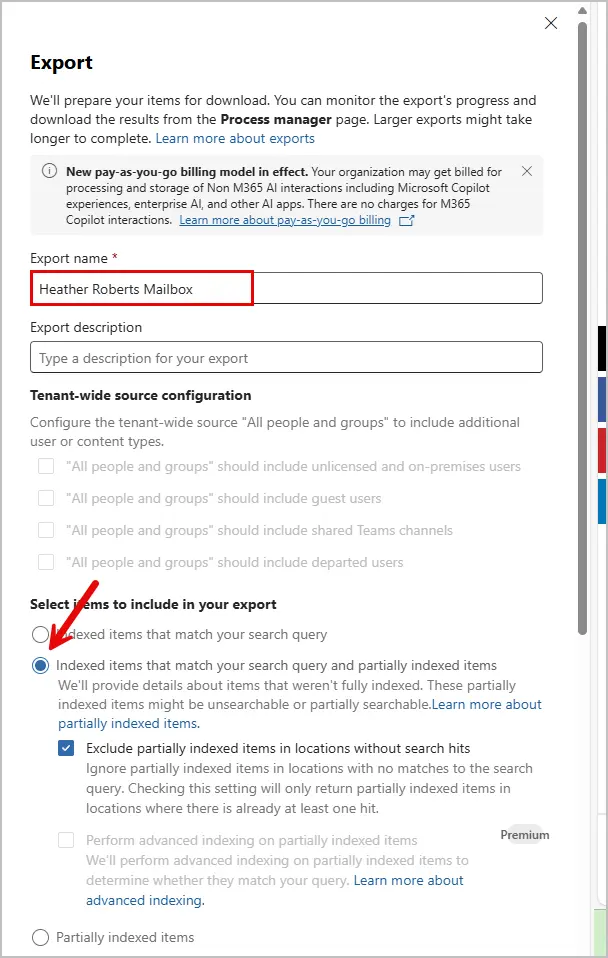
Leave the rest of the settings default, scroll to the bottom and click Export
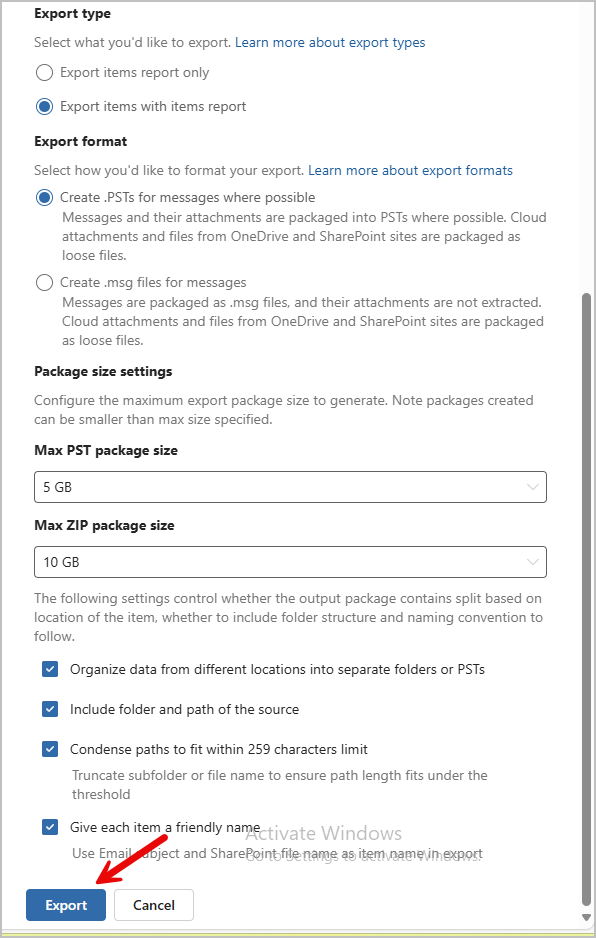
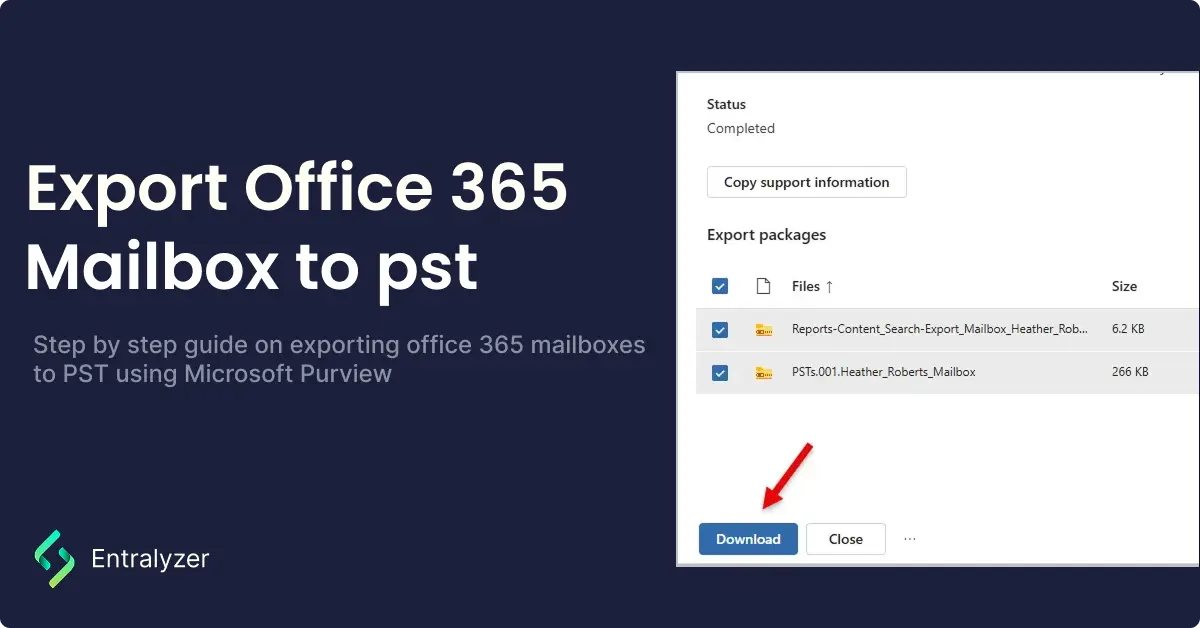
Step 10. Download the export files
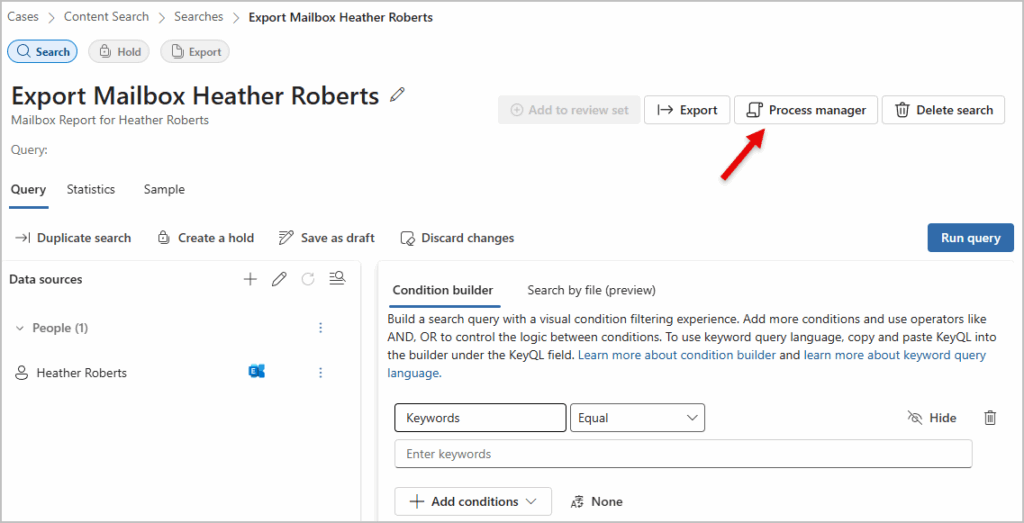
Select Process Manager and wait for the status to be completed.
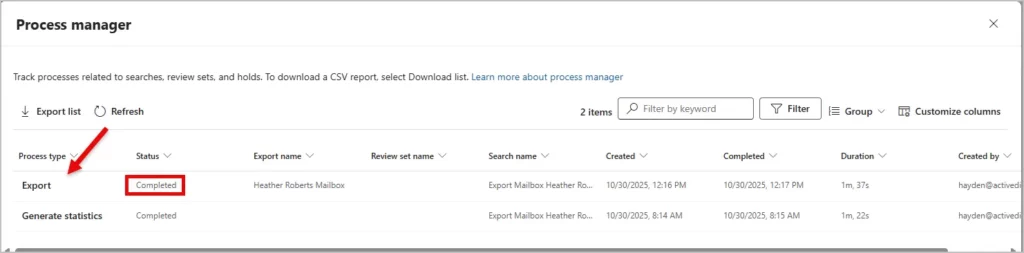
Once the status is completed click on it.
Select all the files and click download
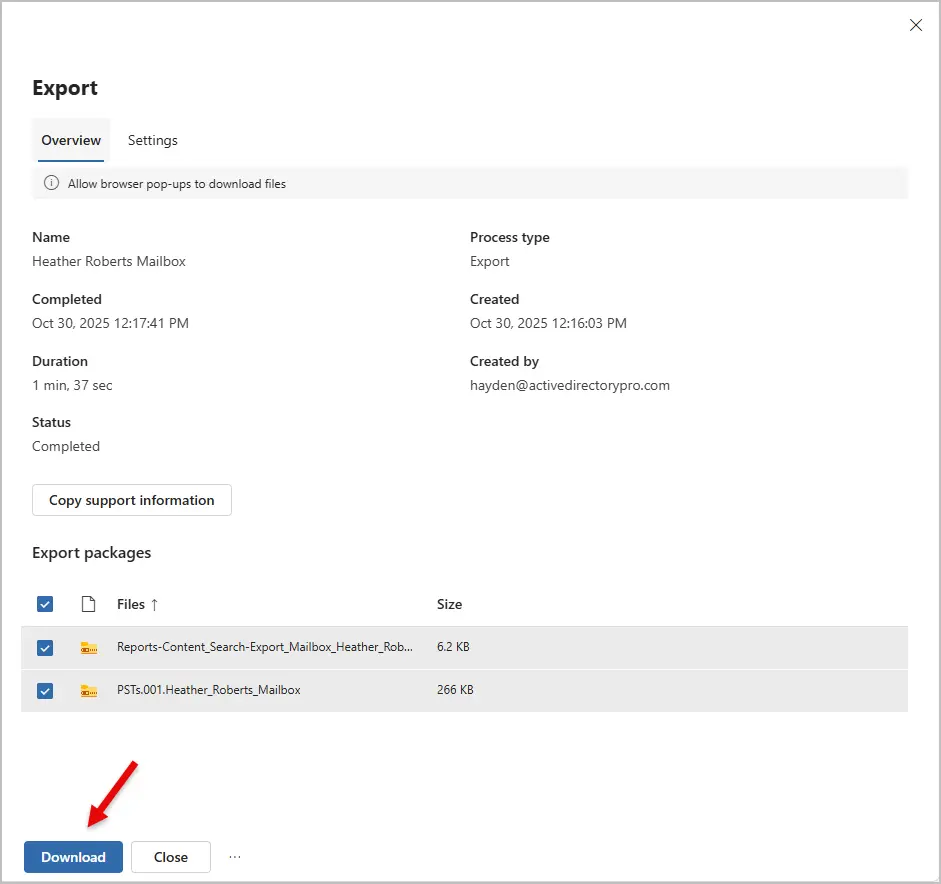
Once you have download the pst export you can import the pst file back into outlook or keep it for a backup.
Conclusion
Exporting an Office 365 Mailbox to PST is not a simple process as it takes multiple steps to complete. Microsoft does not have a supported PowerShell command to export Exchange Online mailboxes and now requires you to use the Microsoft Purview portal for this task. If you often export mailboxes to PST you might consider a 3rd party tool that will speed up this task.