In this guide, I’ll walk you through step by step how to get Microsoft Entra Connect installed and configured.
This tool makes it easy to sync your local Active Directory users with Microsoft 365, so your users can sign in with the same username and password whether they’re logging into a computer on your network or accessing Microsoft 365 services
Requirements
- You need a Microsoft Entra tenant.
- Verified domain and matching UPN suffix in Active Directory. You can still continue with the installation.
- Must be installed on a domain joined server that runs Windows Server 2022, 2019 or 2016.
- The Active Directory schema version and forest functional level must be Windows Server 2003 or higher.
- The domain controller used by the Entra connect must be writable.
- Windows Server full GUI (Core is not supported)
- You will need your Microsoft Entra Global Administrator account during the installation.
- Active Directory account that is a member of the Enterprise Admins group
Refer to the Microsoft Prerequisites document for more details.
Download Microsoft Entra Connect
Step 1: Sign in to the Microsoft Entra admin center
Step 2: Under Entra ID select “Entra Connect”

Step 3: Click on “Connect Sync” and “Download the latest Entra Connect Sync Version”. This will download the AzureADConnect.msi install file.

Install Microsoft Entra Connect
Step 1:. Run the AzureADConnect.msi file
Step 2:. Agree to the license terms and click “Continue”.
Step 3: Click on “Customize” for the custom install. This will give you more options and allow you to choose only the options you need.

Step 4: On the Install required components screen, select your components and click “Install”. In most cases you will not need to select anything on this screen.

Step 5: On the User sign-in screen, select your sign on method and click “Next”. In most cases Password Hash Synchronization is used.

Step 6: Enter your Entra ID account that has global administrator role and click “Next”.

You will be prompted to sign in with your Microsoft account.
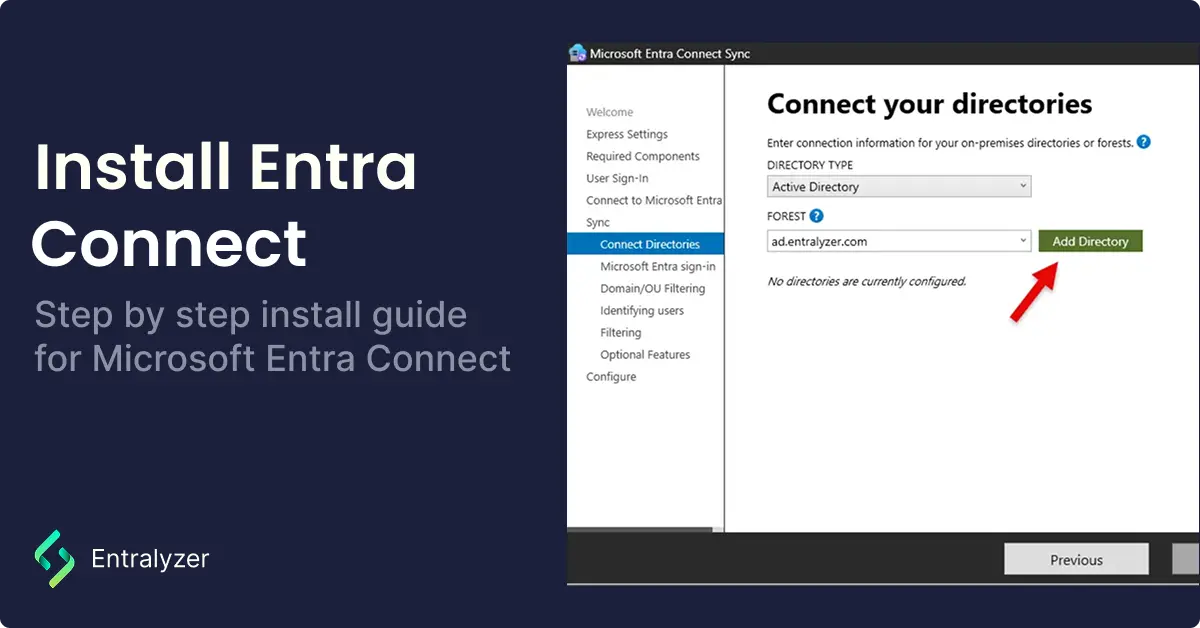
Step 7: On the Connect your directories screen, under FOREST**,** select your directory and click “Add Directory”.

Step 8: Select “Create new AD account” and fill in the box with your Active Directory account that has enterprise admin permissions. Then click “OK”.
Once the configured directories are listed, click “Next”.

During installation, an account is automatically created in your on-premises Active Directory with the name:
MSOL_<random characters>

If your directory is now listed, click “Next”

Step 9: The Microsoft Entra Sign-in Configuration screen.
You should have an Active Directory UPN Suffix that matches your Entra ID tenant domain. You can still continue if you don’t have a matching domain.
Select “Continue without matching all UPN suffixes to verified domains” and click “Next”.

Step 10: On the Domain and OU Filtering screen, you can choose to sync all domains and OUs or select specific ones. In this example, I’ll select all domains and OUs, but you can limit the sync to only certain domains or OUs if needed.
You can always go back and update these filtering options later.
Once Selected Click Next.

Step 11: On the “Identifying Users” screen, choose how users will be identified in your on-premises directory and how they’ll match up with Microsoft Entra ID. The default settings work just fine, so I’m leaving those as they are.
Click Next when you’re ready.

Step 12: On the “Filtering” screen, pick how you want to sync users and devices. I recommend the default option “Synchronize all users and devices” unless you’re just testing or running a pilot.
Click next once you’ve selected.

Step 13: On the “Optional Features” screen, choose any extra options you want to enable. I’m leaving the defaults for now, but you can always come back and turn on more features later.
Click Next.

Step 14: Select “Start the synchronization process when configuration completes”.
Click “Install”.

The installation could take several minutes to complete.

You can view the sync status by logging into the Microsoft Entra admin center, click on “Entra Connect” in the side bar menu and then click on “Connect Sync”.