In this article, I show you how to get mailbox permissions using PowerShell.
Keeping track of mailbox permissions can be challenging. Exchange Admins often delegate mailbox permissions but forget to review and remove the access. There is no option in the admin console to view mailbox permissions for all users. Fortunately, with PowerShell you can easily check mailbox permissions for a single or all users.
Mailbox Permissions Overview
In this article I’ll show you how to get the follow delegated mailbox permissions.
- Full Access: Allows a delegated user full access to the mailbox. The user can read, manage and delete emails.
- Send As: Allows a delegated user to send emails as the other user.
- Send On Behalf: Allows a delegated user to send emails on behalf of the mailbox owner.
Requirements
First, you need to install and connect to Exchange Online.
Install
Install-Module -Name ExchangeOnlineManagement -Force -AllowClobber
Connect
Connect-ExchangeOnline -UserPrincipalName <your_admin_account>
Get Full Access Mailbox Permissions
To view Full Access permissions for a single user, put in the command below.
Get-MailboxPermission -Identity "hayden@activedirectorypro.com"

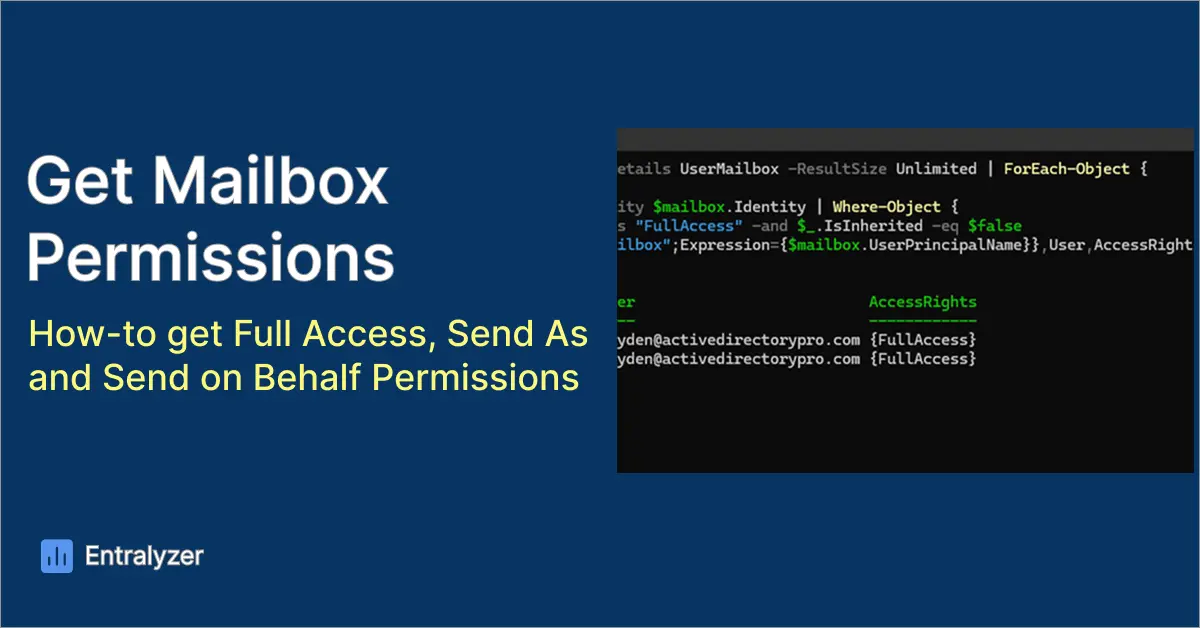
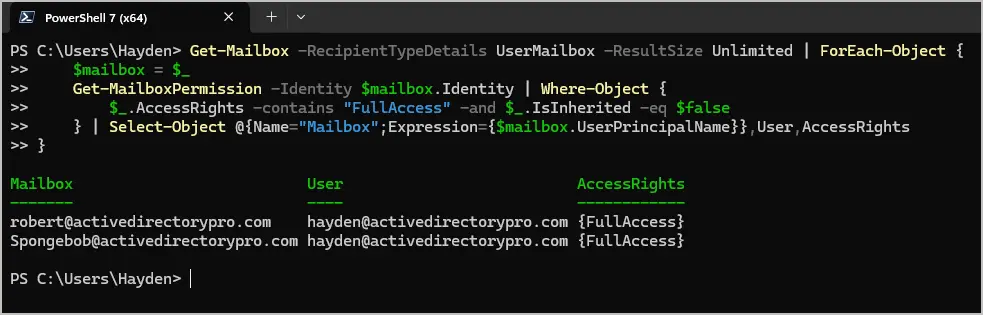
To view Full Access permissions for all users, run this command
Note: If you have many mailboxes this script will take several minutes to complete.
Get-Mailbox -RecipientTypeDetails UserMailbox -ResultSize Unlimited | ForEach-Object {
    $mailbox = $_
    Get-MailboxPermission -Identity $mailbox.Identity | Where-Object {
        $_.AccessRights -contains "FullAccess" -and $_.IsInherited -eq $false
    } | Select-Object @{Name="Mailbox";Expression={$mailbox.UserPrincipalName}},User,AccessRights
}
Get Send as Permissions for a User
To check Send As permissions for a specific user’s mailbox, use this command
Get-RecipientPermission -Identity "user@domain.com"

Get Send On Behalf Permissions
To view who has Send On Behalf Permissions run this command below.
Get-Mailbox | Select-Object DisplayName,GrantSendOnBehalfTo
This command will get the Send on Behalf permissions for all mailboxes.
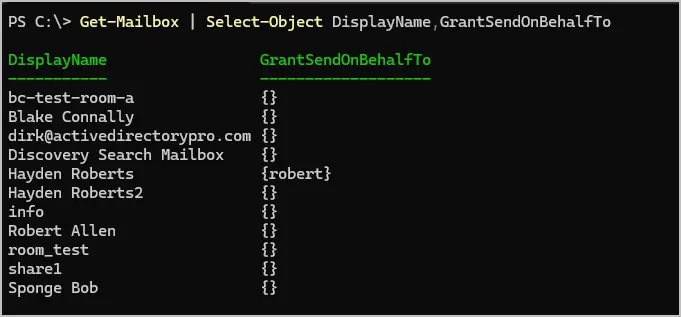
If you wanted to check the send on behalf permssions for a single user run this command.
Get-Mailbox -identity user@domain.com | Select-Object DisplayName,GrantSendOnBehalfTo
Find Delegated Permissions in Microsoft 365
If you want to check the delegated permissions in the Exchange Admin console, follow these steps.
Step 1: Log into Microsoft 365 Admin Center
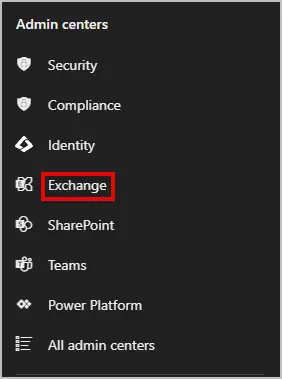
Step 2: On the left-hand side under Admin Centers select “Exchange”
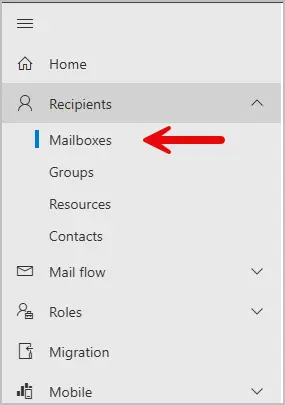
Step 3: Now go to recipients > mailboxes
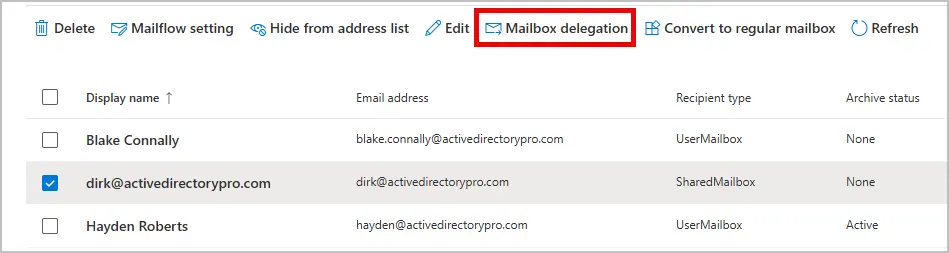
Step 4: Select the user whose delegated permissions you want to view/edit. Then click on Mailbox Delegation.
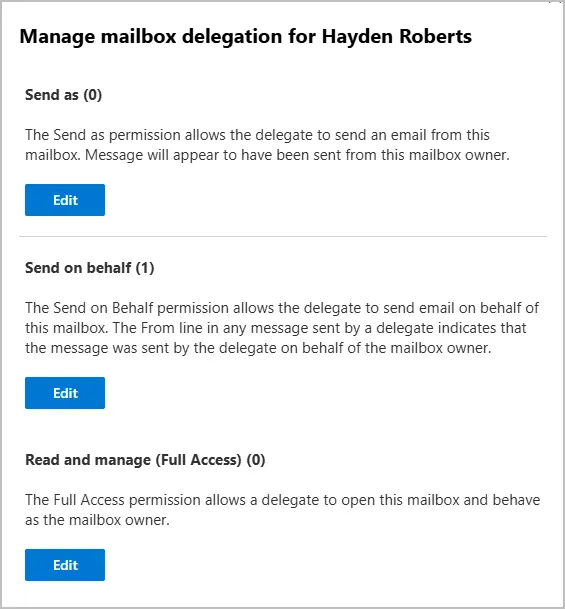
From here you can manage the Mailbox Delegations
Conclusion
In this article, I showed you how to get mailbox permissions using PowerShell and the Exchange Admin Center. It’s important to regularly check mailbox permissions to ensure only authorized users have delegated permissions.