In this article, I show you how to view and analyze email headers in outlook.
Outlook email headers are hidden details that provide information about the sender, recipient, subject, and how the email was delivered. You need to only follow a few simple steps in order to view them.
View Email Header in Outlook App
For this example, I am using the Outlook (New) App.
Step 1: Open your Outlook application
Step 2: Choose the email you want to view
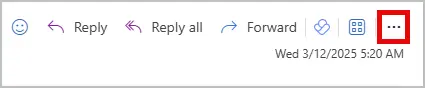
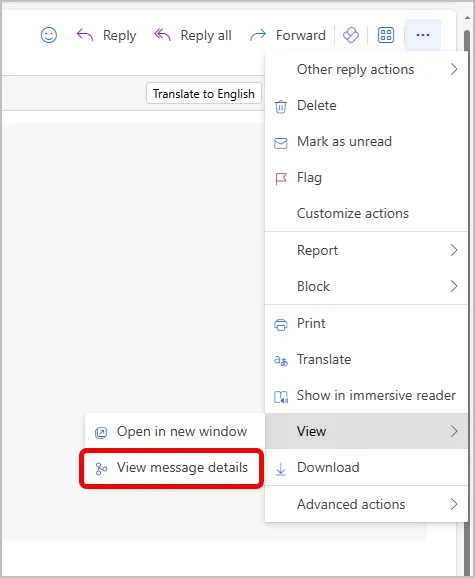
Step 3: Click on the three-dot menu in the top-right corner of the message.
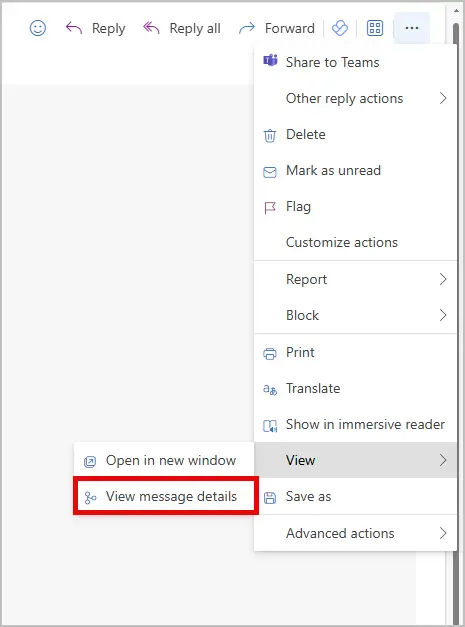
Step 4: Select View > View message details
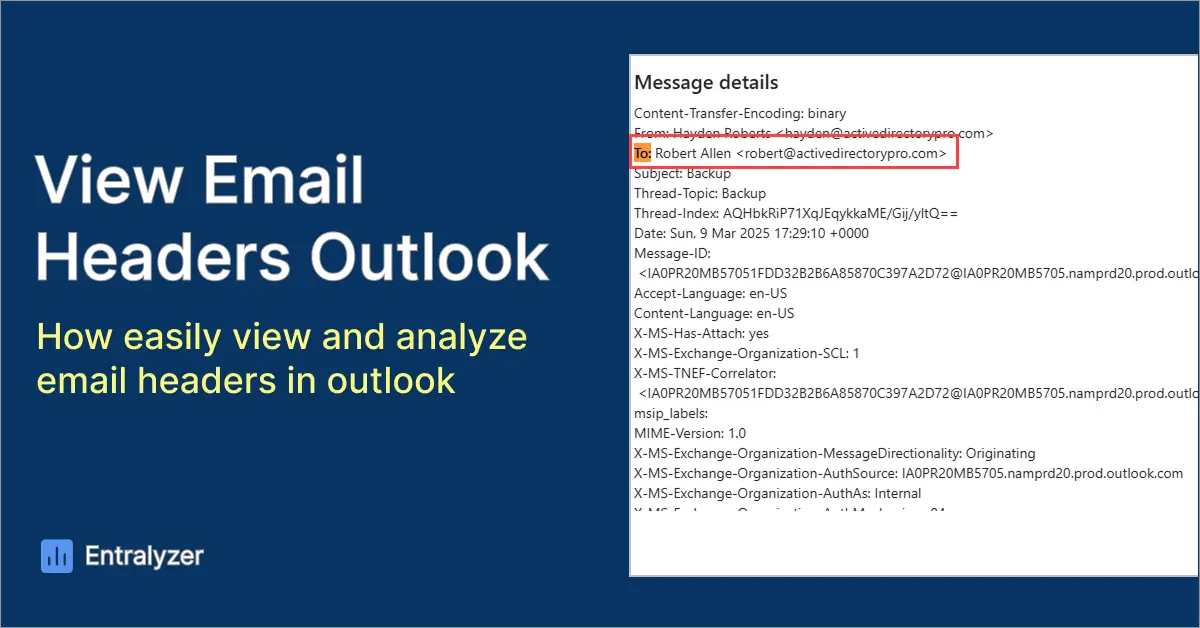
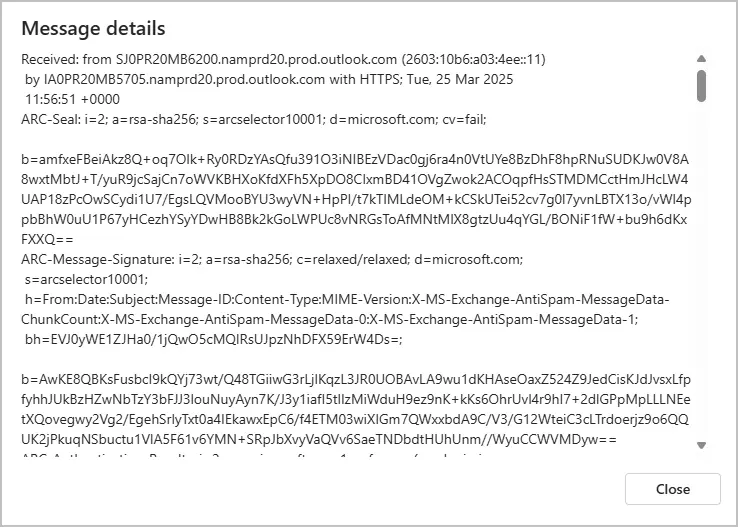
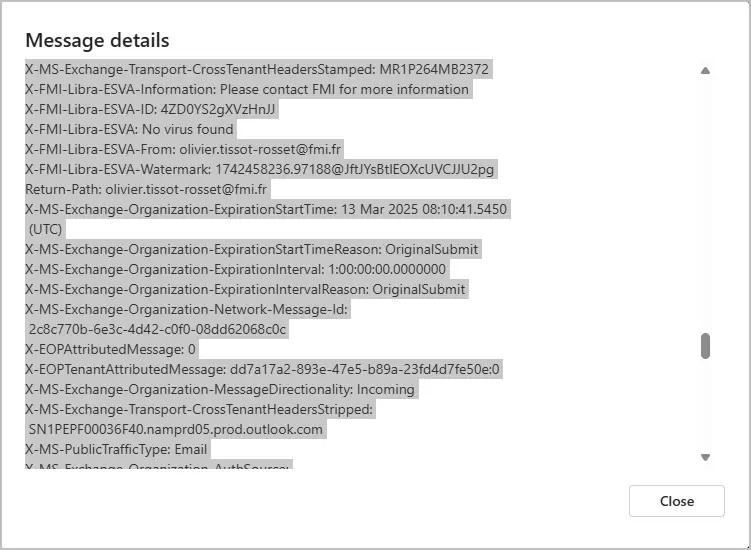
Example email message header
View Email Header in Outlook Web
The steps to view the email header in outlook web are very similar to the desktop app.
Step 1: Open outlook on the web
Step 2: Choose the email you want to view
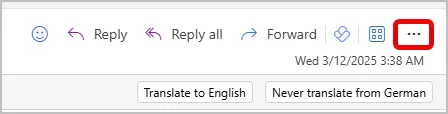
Step 3: Click on the three-dot menu in the top-right corner of the message.
Step 4: Select View > View message details
A new tab will appear showing the full message header details
Microsoft Message Header Analyzer
The Microsoft Message Header Analyzer is a tool that helps you read and understand email headers. It makes it easier to find issues like delays, spam, or security problems in emails. It also makes it much easier to read email headers as it puts important details into an easy to read format.
Step 1: Access the tool
Go to Microsoft Message Header Analyzer online.
Step 2: Copy the Email Header
View the message header using the steps mentioned above, then select and copy the entire header
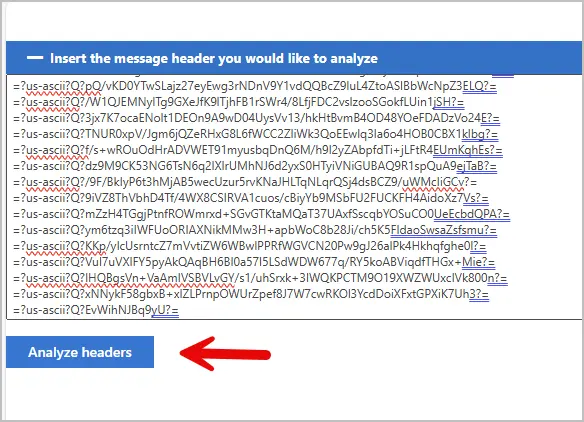
Step 3: Paste your Message Header into the tool and click “Analyze Headers”
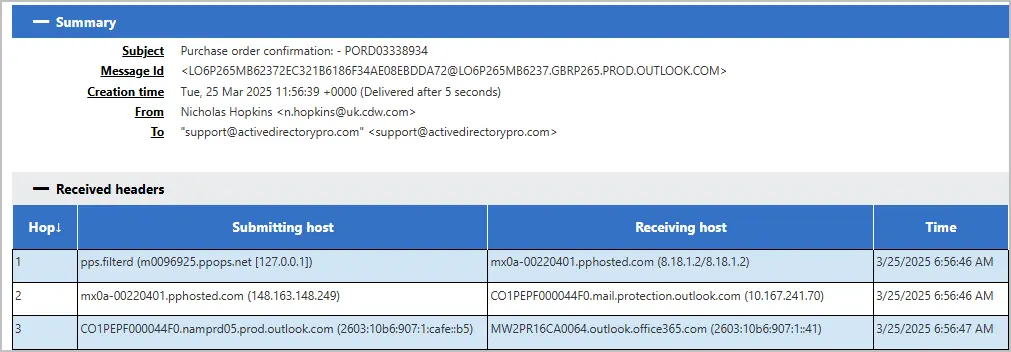
It will create a detailed breakdown to the message header that you can easily understand.
Here is a picture of a portion of the results.
Important Headers to review
Looking at email headers can be overwhelming. Here are some of the most important headers you should review when troubleshooting and analyzing emails.
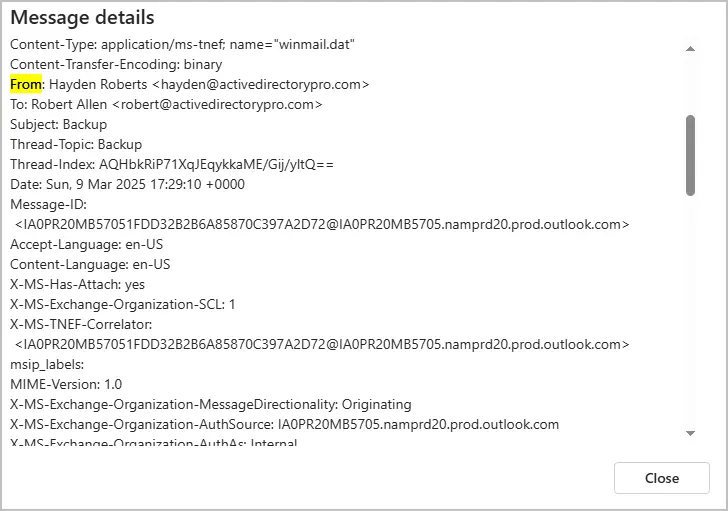
From
- Shows the email address the message was from.
- Also shows the sending email servers
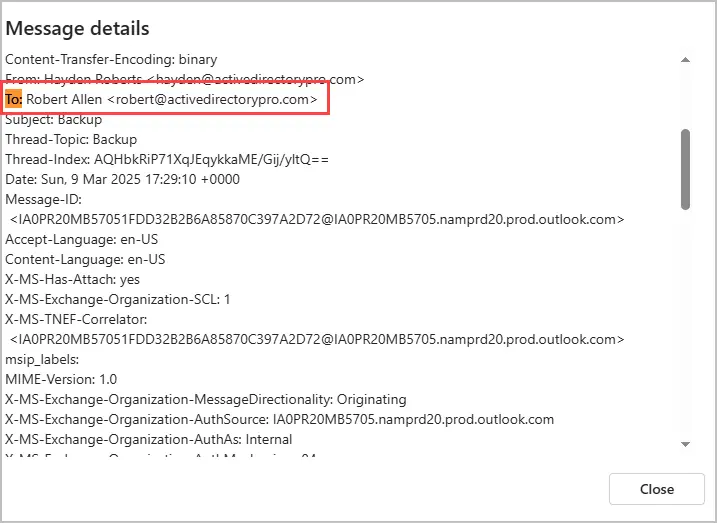
To
- Shows the recipient of the email message
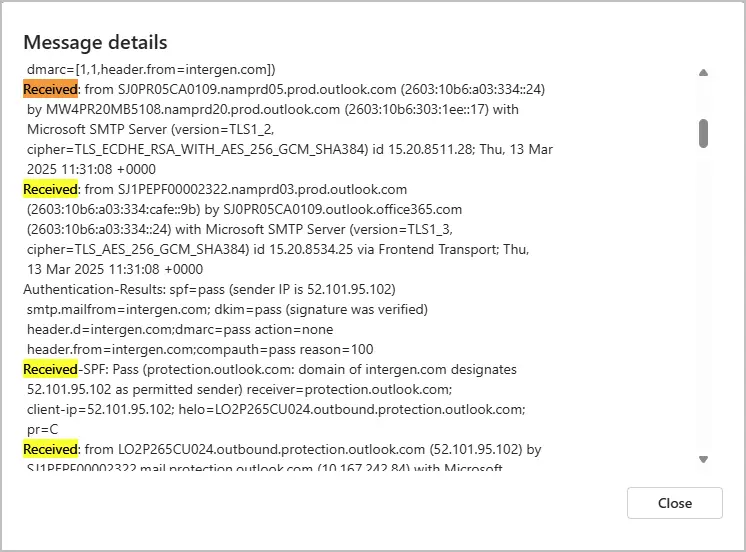
Received
- Shows the servers the email passed through and the timestamps.
- Helps track email delays and spoofing attempts.
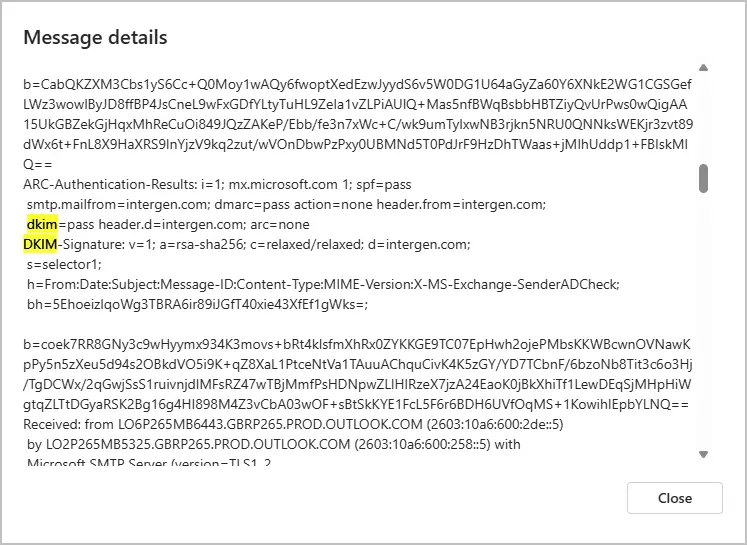
DKIM (DomainKeys Identified Mail)
- Example: dkim=pass or dkim=fail
- Confirms that the email wasn’t altered after being sent.
From and Return path
- From: The email address shown to the recipient.
- Return-Path: The actual sender’s email address.
- If these don’t match, it could indicate email spoofing.


Conclusion
Checking email headers in Outlook helps you see where an email came from and fix delivery problems. These headers show details like the sender’s IP address, the path the email took, and when it was sent. Knowing how to find and read them can help you keep your inbox safe and spot scams.