In this article, I’ll show you how to block external forwarding using a Spam Filter Policy and Exchange Mail Flow Rules.
Reasons to Block External Forwarding
- Prevent data loss - Stops confidential or sensitive information from being sent outside the organization.
- Protect against insider threats - Reduces the risk of employees forwarding data to personal or competitor addresses.
- Mitigate account compromise risks - Prevents attackers from setting up forwarding rules to steal data silently.
- Support compliance efforts - Helps meet requirements under regulations like GDPR, HIPAA, and others.
- Enforce company communication policies - Ensures all email traffic remains within authorized channels.
- Reduce risk of data breaches - Limits exposure of email data to unauthorized third parties.
- Improve audit and monitoring capabilities - Keeps email traffic visible and traceable for security teams.
- Avoid shadow IT - Blocks use of personal email accounts for company data, which are often less secure.
Block External Forwarding using Spam Filter Policy
Step 1: Log into Microsoft 365 Admin Center
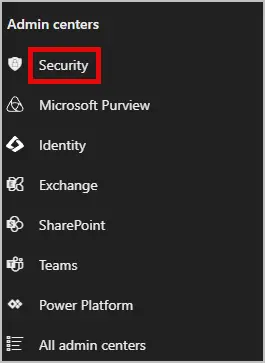
Step 2: On the left side under Admin Centers select “Security”
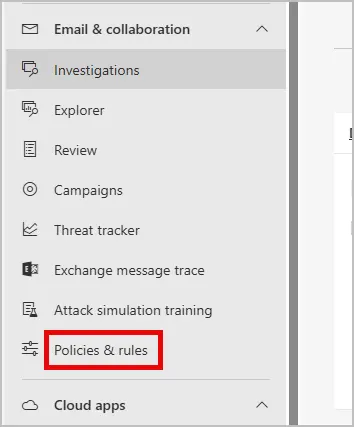
Step 3: On the left-hand side go to Email & Collaboration > Polices & Rules
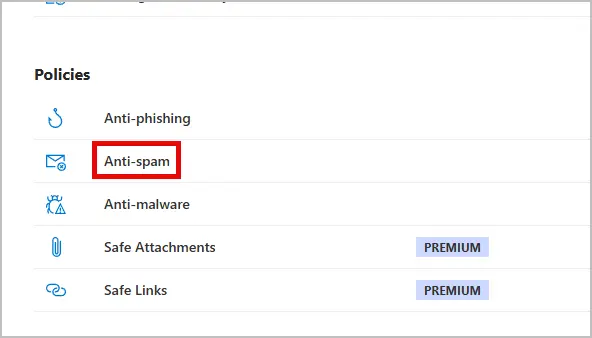
Step 4: Select Threat Polices then Click Anti-Spam Polices
Step 5: Select “Anti-spam outbound policy” and “Edit protection settings”
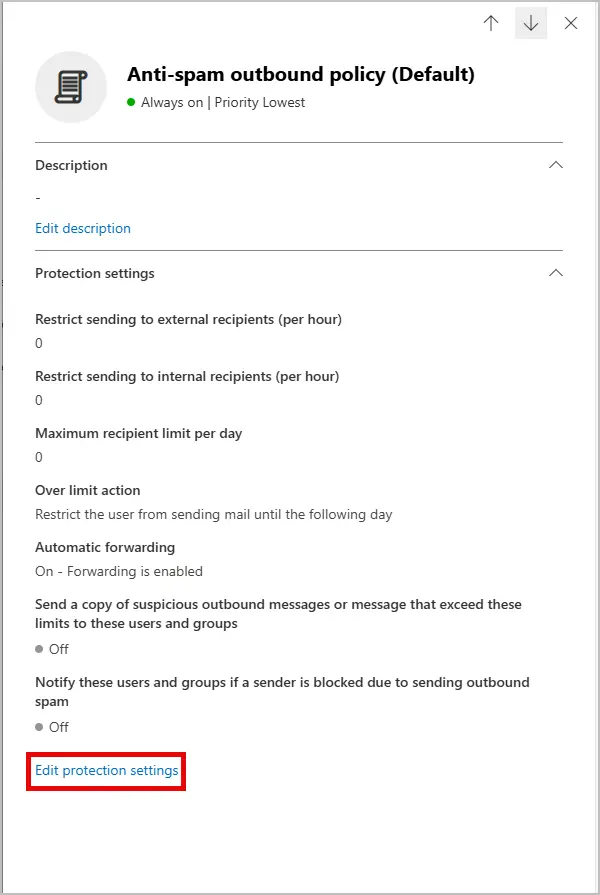
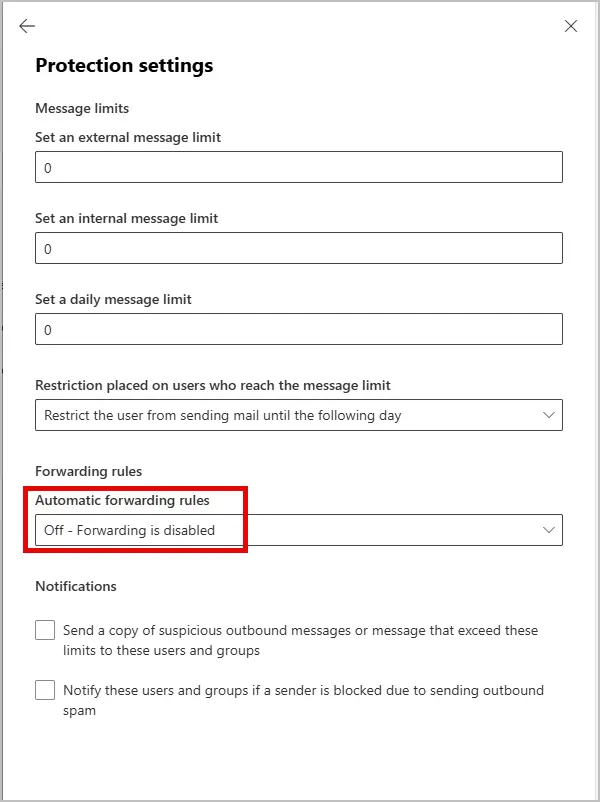
Step 6: Select “Automatic forwarding rules” and then “Off - Forwarding is disabled” then select save at the bottom.
Block External Forwarding with Exchange Mail Flow Rules
Step 1: Log into Microsoft 365 Admin Center
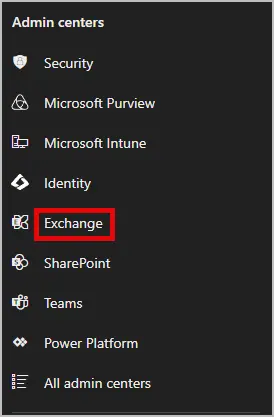
Step 2: On the left side under Admin Centers select “Exchange”
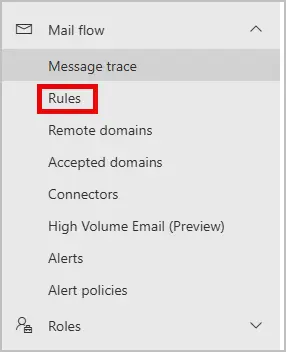
Step 3: In the left-hand menu, click Mail Flow > Rules.
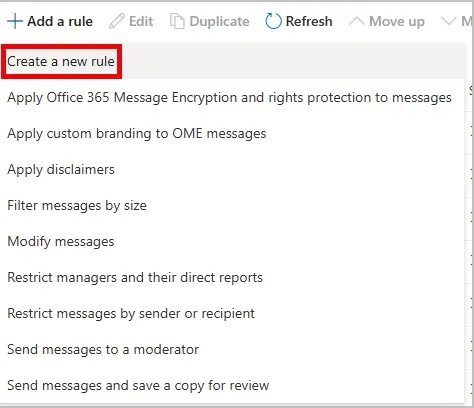
Step 4: Click Add a rule and then choose Create a new rule.
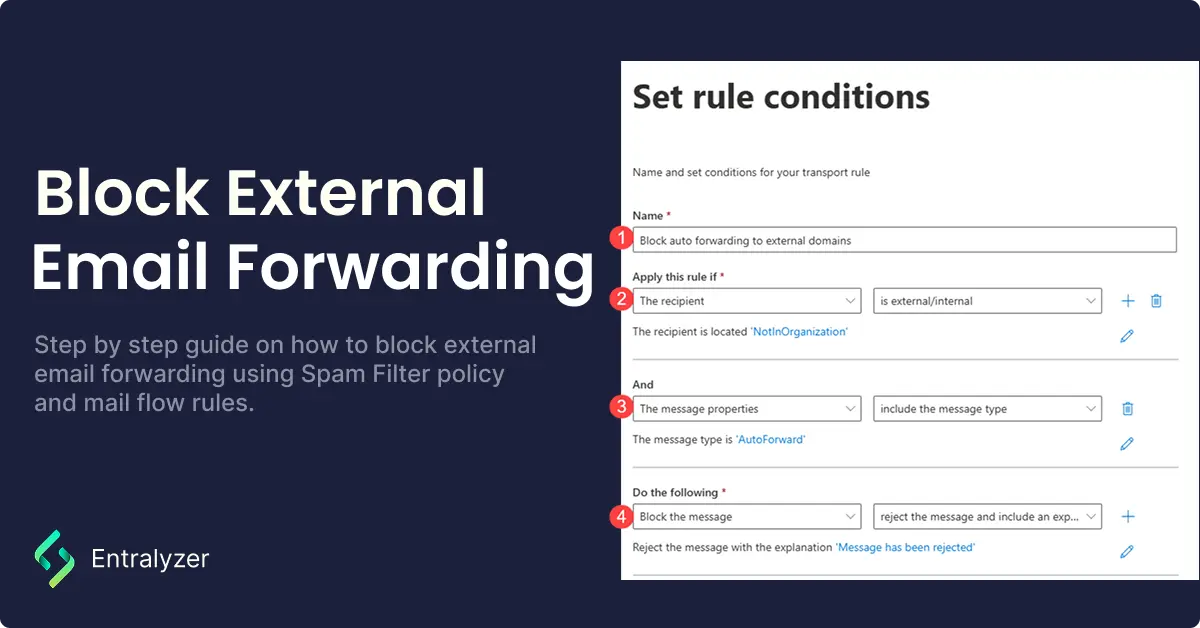
Step 5: Configure Rule Settings
- Name: Give the rule a name
- Apply this rule if: The recipient is external
- The message properties: include the message type is AutoForwarded
- Do the following: Reject the message and include an explanation
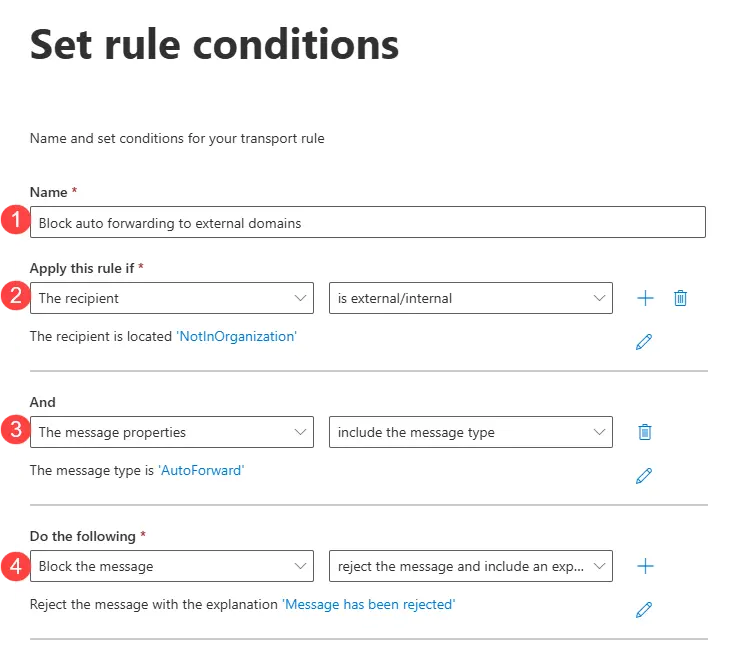
Click “Next”.
On the set rule settings page click “Next”.
On the Review and finish screen click “Finish”.
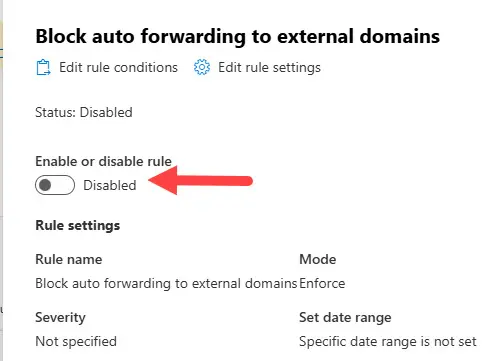
Step 6. Click on the rule and enable it.
Blocking external email forwarding in Microsoft 365 is a simple yet effective way to protect your organization from data leaks and phishing attacks. By using Spam Filter Policies or Exchange Mail Flow Rules, you gain more control over how information leaves your tenant and ensure that sensitive data stays secure.