In this article, I will show you how to whitelist an email address or domain in Microsoft 365.
Whitelisting an email address in Office 365 is a process that allows you to ensure that emails from a trusted sender always reach your inbox without being mistakenly marked as spam or junk.
Important
There are multiple ways to whitelist an email in Microsoft 365. You should review all options and determine which one is best for your organization. In this article, I provide resources to additional Microsoft documents that go more in depth on some of the methods.
Caution
Some of the whitelisting methods will bypass the built-in protections that Microsoft provide and can let malicious emails into your user’s inbox. Microsoft provides a recommended order in which to allow senders, please review this order at the beginning of the article.
- It’s generally a bad idea to whitelist a sender’s entire domain. This means you are trusting every email from that domain, even if the sender’s email has been compromised.
- Sending domains should have DMARC, SPF and DKIM configured. I would be cautious on allowing a sender if these are failing.
Whitelist Email Methods (Recommended Order)
The following list is the recommended order in which Microsoft recommends allowing senders.
- Tenant Allow/Blow List
- Exchange mail flow rules (also known as transport rules).
- Outlook Safe Senders (the Safe Senders list in each mailbox that affects only that mailbox).
- IP Allow List (connection filtering)
- Allowed sender lists or allowed domain lists (anti-spam policies)
To learn more, see Create safe sender list in EOP.
Whitelist Email using Tenant Allow/Block List
This is Microsoft’s number one recommendation for whitelisting an email address that has been blocked.
This method is done in the Microsoft 365 Security portal and allows you to submit email messages, URLs, or attachments that might be incorrectly flagged or blocked by Exchange online protection. It’s most recommended because it applies across the entire organization, so everyone benefits from the trusted sender list without needing to make individual changes.
Key Features
- Using this method you don’t directly allow an email or domain. Instead, you submit an email through a submission page and confirm its clean. Microsoft will analyze it and then allow it.
- After you submit an email, it should start working within 5 minutes.
- By default, allow entries for domains and email addresses, files, and URLs are kept for 45 days after the filtering system determines that the entity is clean, and then the allow entry is removed.
- You can also submit files and URLs to the allow list.
- Allow entries will still go through Exchange Online Protection to check for threats, malware and phishing.
How to Steps
Step 1: Sign into Microsoft Defender
Step 2: Open Threat policies
In the left-hand navigation pane, select Email & Collaboration > Policies & Rules > Threat Polices.
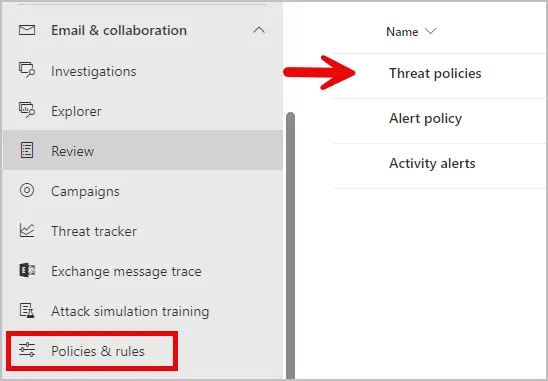
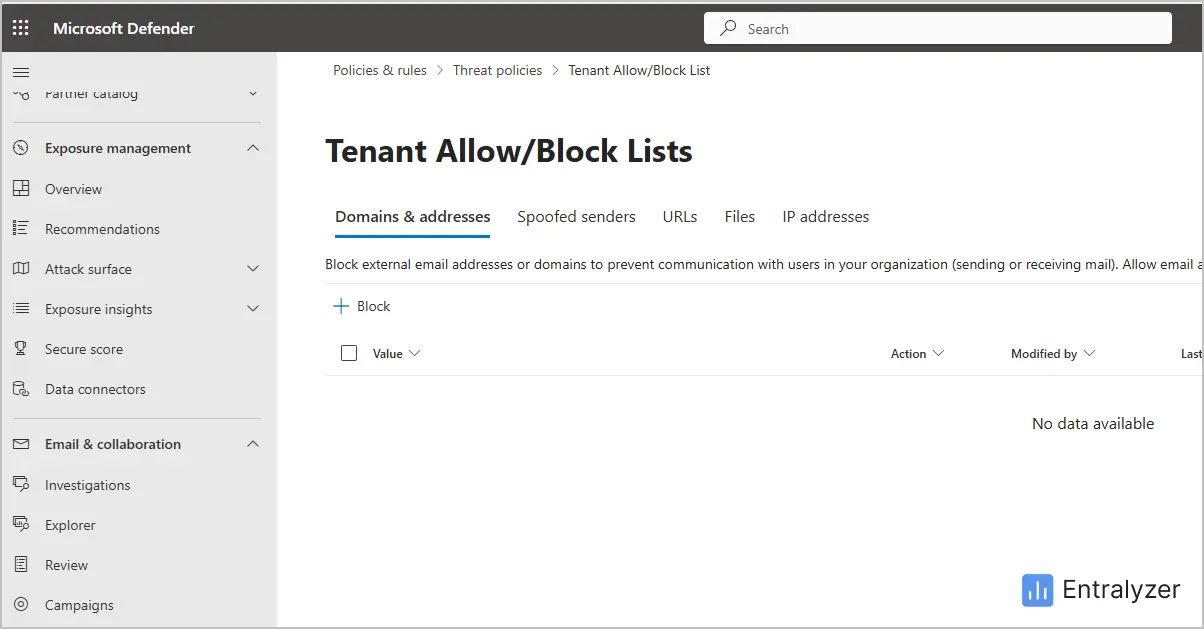
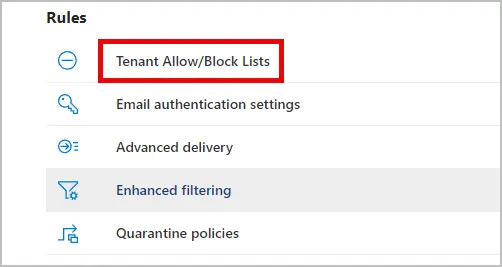
Step 3: Click on “Tenant Allow/Block Lists”
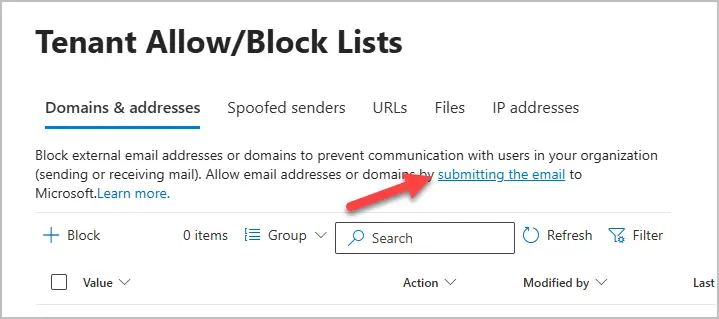
Step 4: Click on “Submitting the email”
Note: You can also submit URLs, Files and IP addresses. In this example, I’ll submit an email.
Step 5: Fill out the form.
-
Select the submission type:
- This can be email, URL or attachment.
-
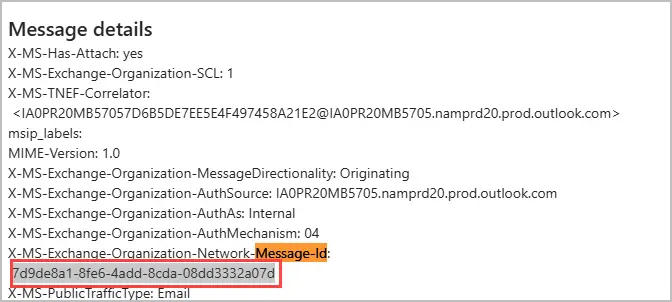
Add the network message ID or upload the email file.
-
To get an email Message-ID you need to view the email details and search for “Message-Id”.
-
-
Choose at least one recipient who had an issue
-
Why are you submitting this message to Microsoft.
- Select from the list of options.
Example submission.
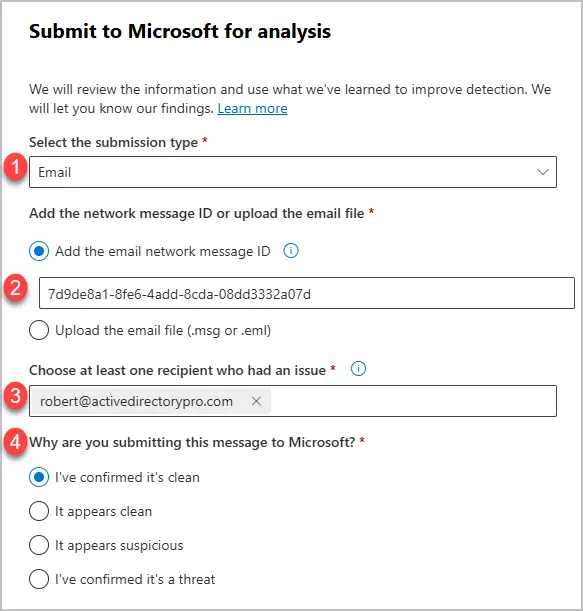
Click “Next”.
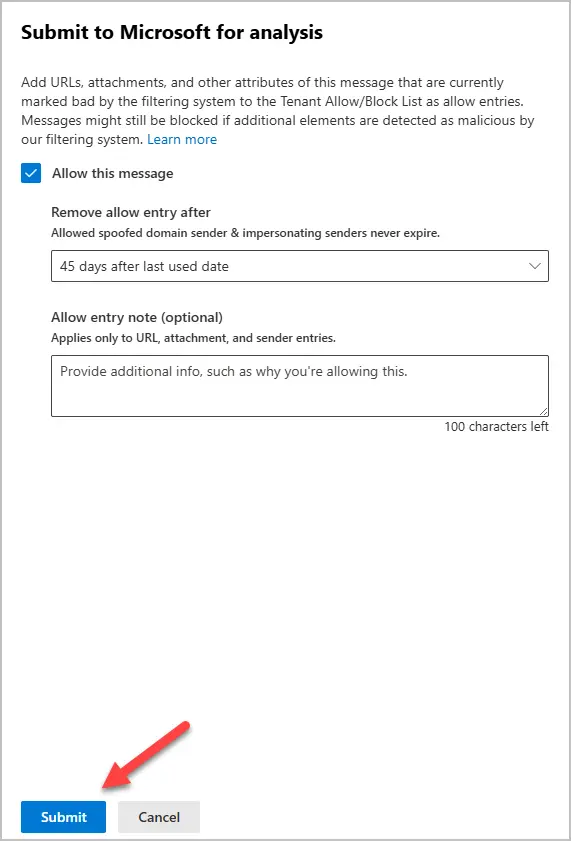
Select “Allow this message”.
Choose a time frame to remove the allow entry and click submit.
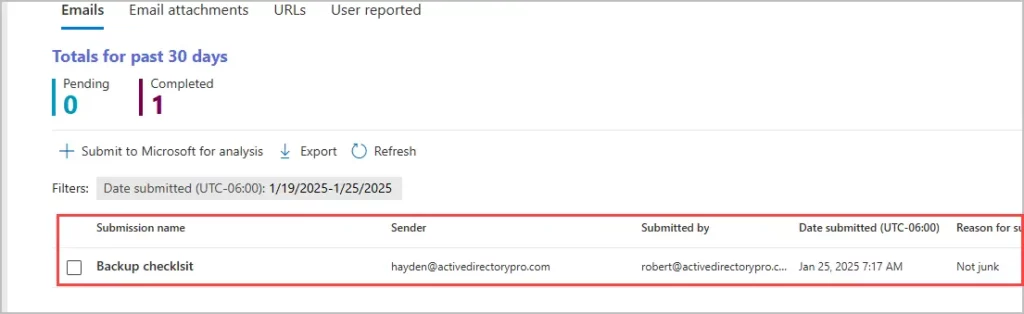
You should now see you submission in the list along with a status. It should take no longer that 5 minutes for Microsoft to analyze the email.
To learn more about tenant Allow/Block lists see, Allow or block email using the Tenant Allow/Block List.
Whitelist Email using Mail Flow Rules
Mail flow rules are part of Exchange Online and are used to apply actions to email messages. With mail flow rules you can specify very specific emails based on the sender, subject, keywords attachments and more.
Key Features:
- Target emails based on sender, domain, attachment, subject or body message, header and more
- Define actions such as allow or deny, redirecting, modifying messages, add banners and more.
- Adjust spam confidence level
- Route messages for approval
- Apply rules based on specific words in an email
In this example, I’ll configure email from sales@entralyzer.com to bypass the spam filtering.
How to Steps:
Step 1: Sign in the Exchange Admin Center
Step 2: On the left, navigate to Mail flow > Rules.
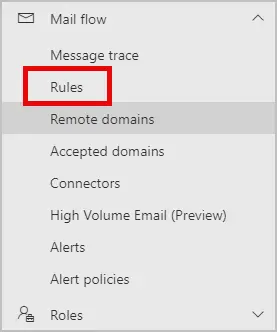
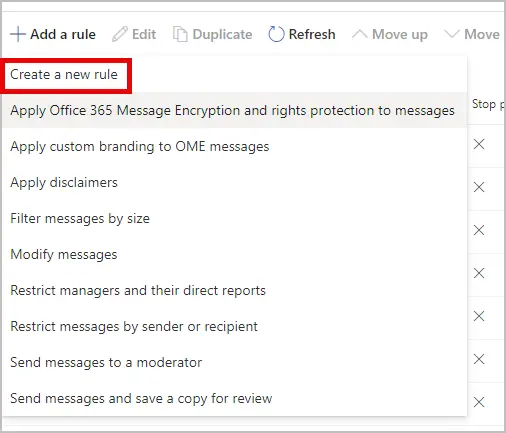
Step 3: Select “Add a Rule” then from the drop down click “Create a new rule”.
Step 4: Set name and rule conditions
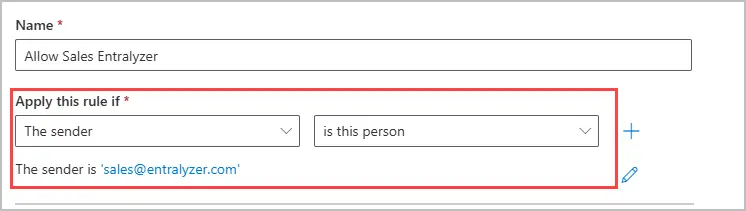
This is where you define the condition and actions. In this example, I want to apply an action to email from the sender sales@entralyzer.com.
-
Apply this rule if: I selected “The Sender” and “is this person” and selected the contact.
-
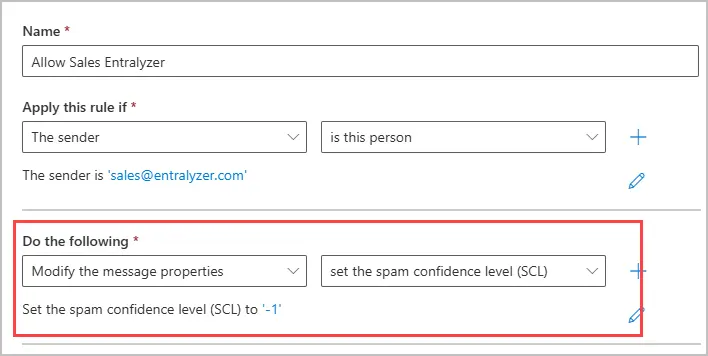
Do the following: I selected “Modify the message properties” and set the spam confidence level to Bypass spam filtering.
-
Click “Next”
-
On the “Set rule settings” page I left everything at the default. Click “next”
-
Click “Finish”.
Step 5. Enable Rule
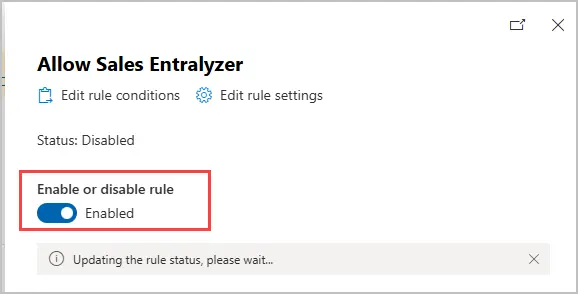
When you create a mail flow rule it is disable by default. You need to click on the rule and select to enable it.
Mail flow rules is very powerful and has a lot of options to control and manage email messages. To learn more, see Mail flow rules in Exchange online.
Use Outlook Safe Senders
Using the Outlook Safe Senders List is a user-friendly way to whitelist emails or domains, ensuring they always go in your inbox and are never marked as spam. This method can be done by individual users in the Outlook app or web version, giving them control over trusted senders. It’s ideal for personal email management, especially when only one user is experiencing delivery issues with a specific sender. Keep in mind it’s not suitable for organization-wide whitelisting, making it best for smaller, user-specific situations.
How to steps
Step 1: Open outlook.
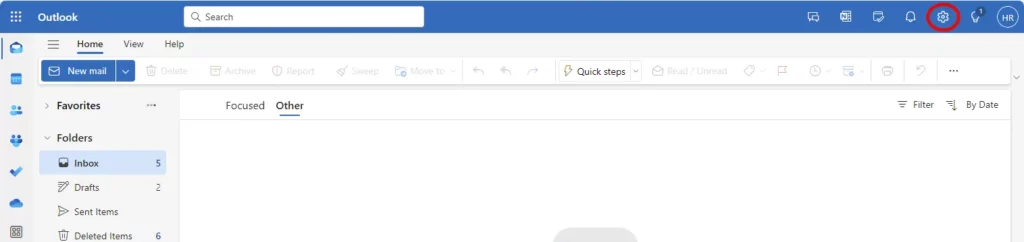
Step 2: Click the gear icon (Settings) in the upper right corner.
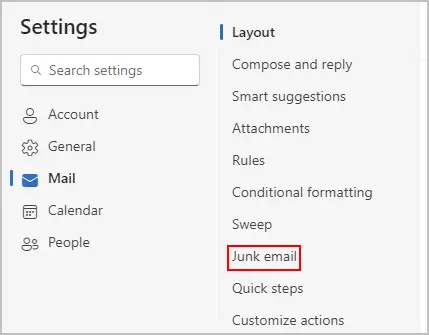
Step 3: Go to Mail > Junk email.
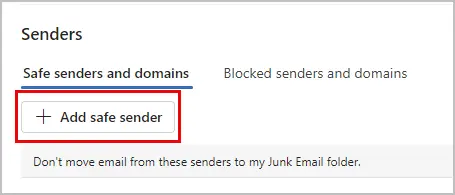
Step 4: Under Safe senders and domains, click Add, then enter the trusted email address or domain.
You can also browse to your “Junk Email” folder in outlook, right click a message and report as “Not Junk”.
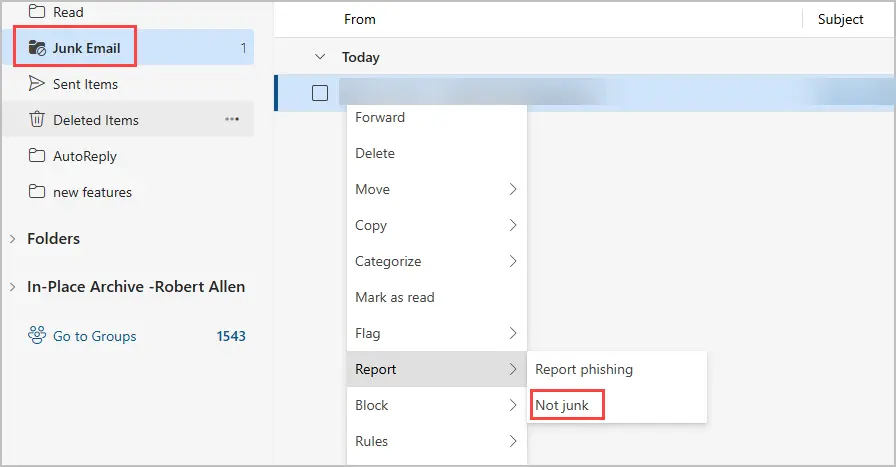
This will add the email to your safe senders list.
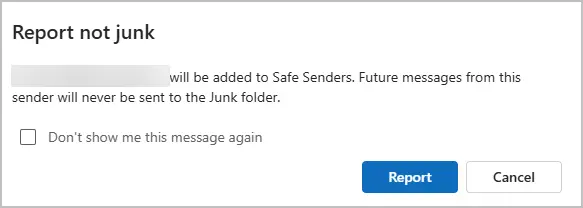
To learn more, see Add recipients to the safe senders list in outlook.
Use the IP Allow List (Not Recomended)
The IP Allow List in Office 365 allows administrators to whitelist specific IP addresses or ranges, ensuring emails from trusted servers bypass spam filtering. It’s recommended for scenarios like allowing emails from third-party services, internal systems, or verified external vendors. This method is ideal when you need precise control over trusted senders, such as for automated emails or system notifications.
Caution
This method should be used cautiously, as adding unverified or compromised IPs can pose security risks. Always validate IP addresses before adding them to the allow list.
How to steps
Step 1: Log into https://security.microsoft.com
Step 2: Navigate to Email & Collaboration > Policies & Rules > Threat Polices.
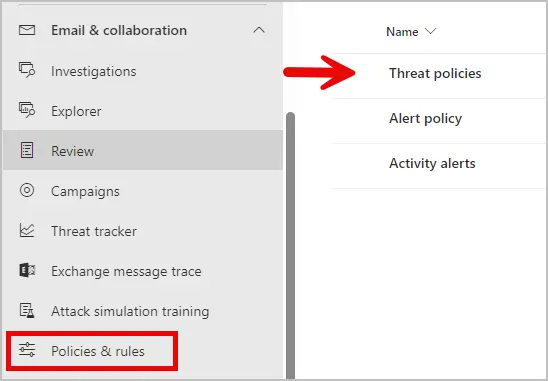
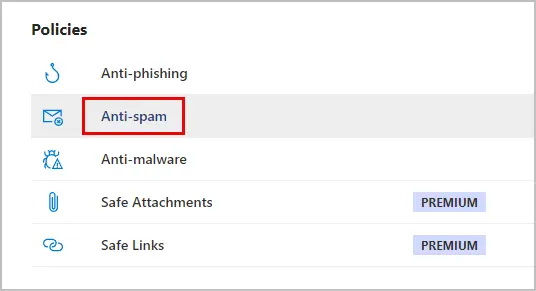
Step 3: In Threat Polices, select the Anti-Spam policy.
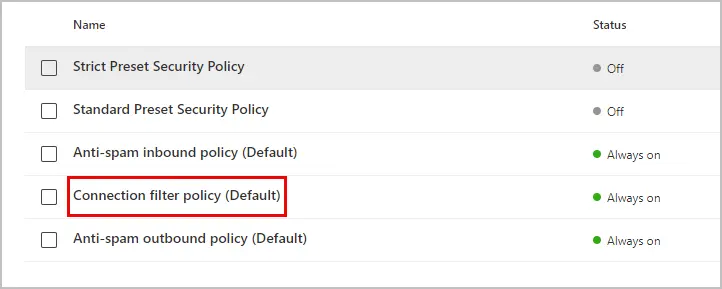
Step 4: Select “Connection Filter Policy” and then click “Edit Connection Filter Policy” on the bottom of the page.
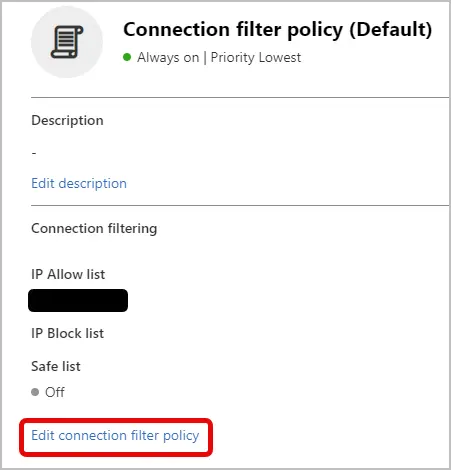
Step 5: Enter the IP Address or IP Range you want to whitelist, then click save.
For more information about whitelisting with IP, check out this Microsoft article Configure the default connection filter policy - Microsoft Defender for Office 365 | Microsoft Learn
Whitelist using allowed sender list or allowed domain list (Not recommended)
This option lets you bypass the Microsoft anti-spam policies by adding an email address or domain.
Caution
Microsoft recommends that you ovoid using this option because it bypasses all spam, spoof, and phishing protection. This method creates a high risk of attackers successfully delivering email to the Inbox that would otherwise be filtered.
How to steps
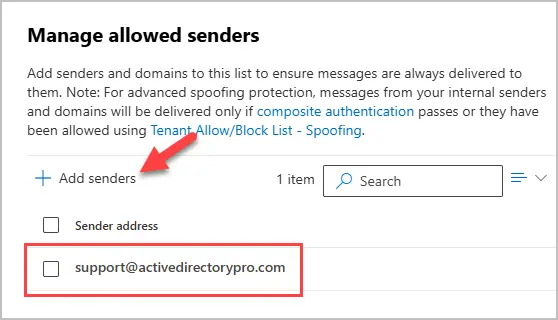
In this example, I’ll whitelist the sender support@activedirectorypro.com by adding it to the allowed list under the anti-spam policy.
Step 1: Sign into Microsoft Defender
Step 2: Navigate to Email & Collaboration > Policies & Rules > Threat Polices.
Step 3: Under Threat Polices, select Anti-Spam Polices.
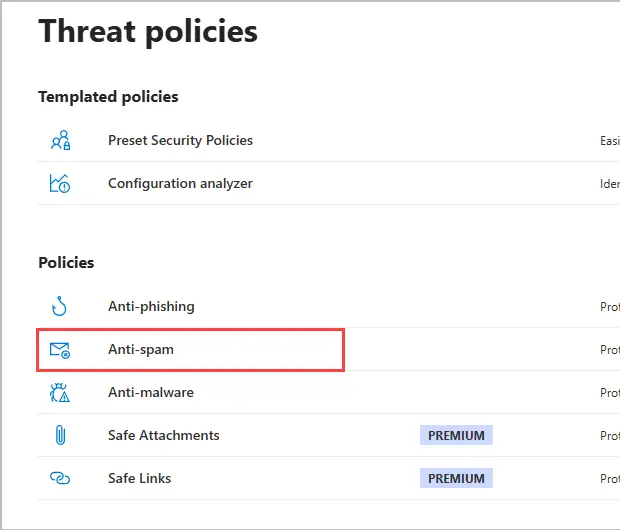
Step 4: Select your inbound anti-spam policy.
Step 5. Click on “Edit allowed and blocked senders and domains”.
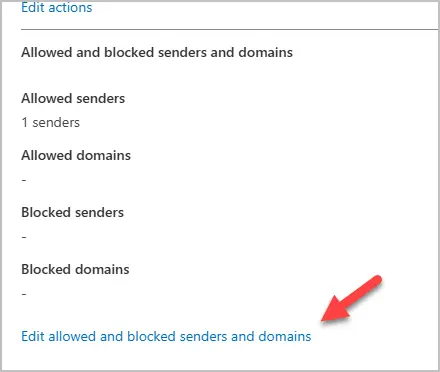
Step 5: Selected senders or domains under the allow section. I’m adding a single email address, so I’ll select sender.
Click the “Add senders” button. Enter the email address and click “Add Senders”.
When completed the email will show in the list.
To learn more about the anti-spam policies see, configure anti-spam policies in EOP
Conclusion
In this article, I showed you multiple ways an email address can be whitelisted in Microsoft 365. Dealing with blocked emails is a complex topic in the Microsoft world as they are constantly making policy changes on the back end. I would recommend knowing about each method as certain ones could be more practical to use depending on the situation. Even though Microsoft has a recommended order in how to whitelist an email it may not always work how you need it. You might have to try one method and move to another one to find the right solution.