In this article, I’ll show you how to find inactive mailboxes in Office 365 using PowerShell and the Exchange Online Admin Center.
It’s important to identify inactive mailboxes because they can still consume licenses, potentially remain accessible to unauthorized users, and impact compliance reports. I recommend running regular checks to identify these mailboxes to ensure your Microsoft 365 environment is optimized for efficiency, security, and compliance.
How to Identify Inactive Mailbox in Office 365
There are a few ways to find inactive mailboxes, you might want to use one or more methods to ensure the mailbox is no longer in use.
- LastLogonTime
- This property will show you the last time the mailboxes was last accessed by its owner. You can view this property using PowerShell and the Exchange Admin Center (see examples below).
- LastuserAction
- This property records the last time any user actions was done on the mailbox. This includes actions such as send, receive, calendar changes or any other actions with the user mailbox. You can view this property using the Get-MailboxStatistics cmdlet.
- Mailbox Usage Reports
- The usage reports can show mailbox activity over a period of time. It can help you identify if the mailbox is sending or receiving email.
- Exchange Admin Center
- With the Exchange admin center, you can easily look up the last time a mailbox was signed into. I’ll demonstrate this below.
- Audit Logs
- You can use the 365 Audit Logs to review user activity. If a user has not been active, it also means their mailbox has been inactive.
Find Inactive Mailboxes with PowerShell
To get a list of inactive mailboxes in office 365 you can use the Get-Mailbox and Get-MailboxStatistics PowerShell cmdlets. See the steps below.,
Step 1. Connect to Exchange Online with the command below.
Connect-ExchangeOnline -UserPrincipalName
Step 2. Run the following command.
Get-Mailbox -ResultSize Unlimited | Get-MailboxStatistics | select DisplayName,LastLogonTime,LastUserActionTime
If you have a lot of mailboxes this can take several minutes to run.
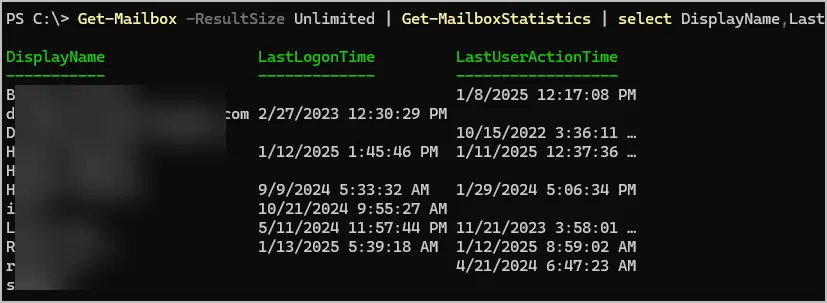
If you want to check a single mailbox run this command.
Get-MailboxStatistics -identity <UPN> | select DisplayName,LastLogonTime,LastUserActionTime

Using Exchange Admin Center
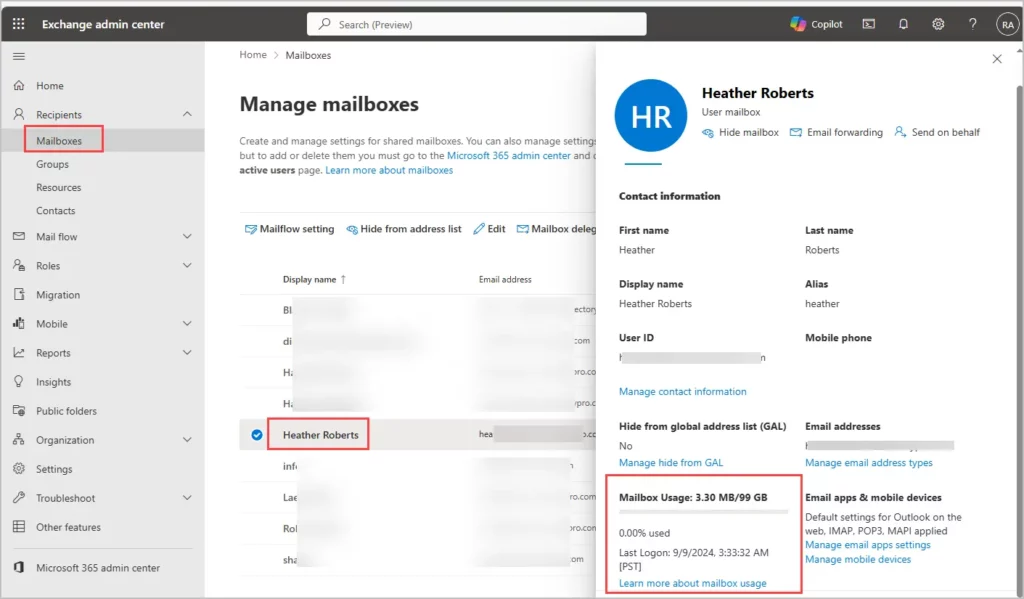
In this example, I’ll show you how to view the last logon time for a specific mailbox.
- Login to the Exchange Online Admin Center
- Go to Recipients > Mailboxes
- Open the mailbox that you want to check
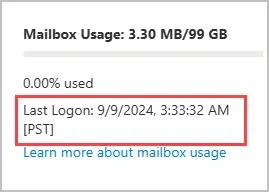
- On the general tab, look under Mailbox Usage for the last logon time
Mailbox Usage Reports
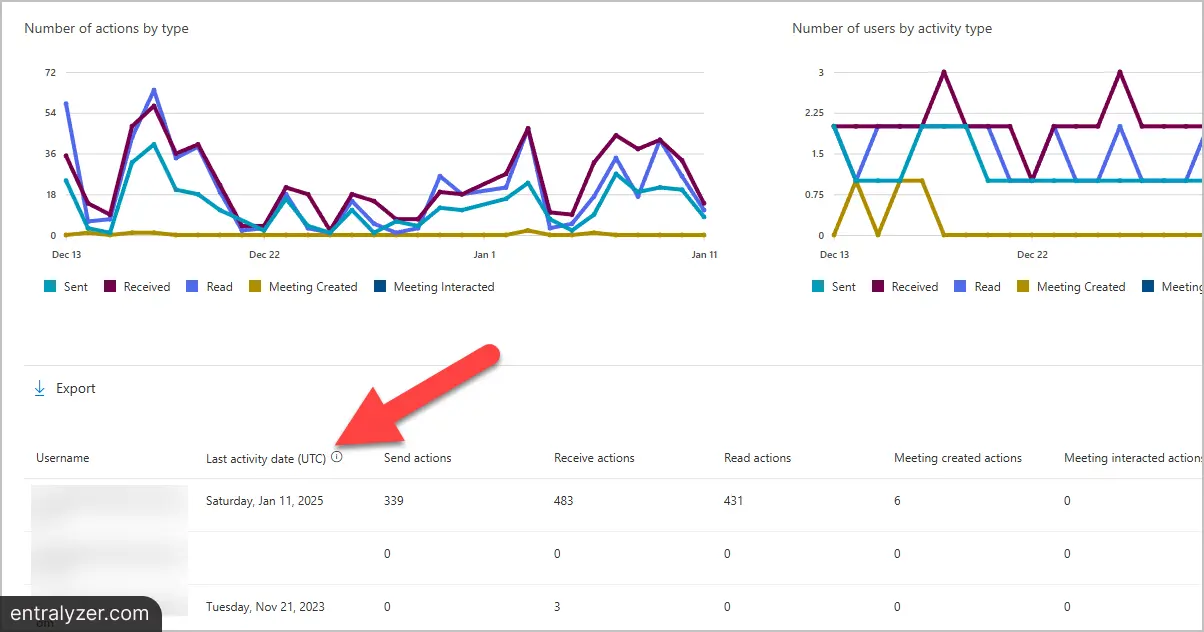
Mailbox usage reports in Microsoft 365 provide insights into how mailboxes are being used across your organization. These reports are accessible through the Microsoft 365 Admin Center and offer a way to monitor, manage, and optimize email usage
-
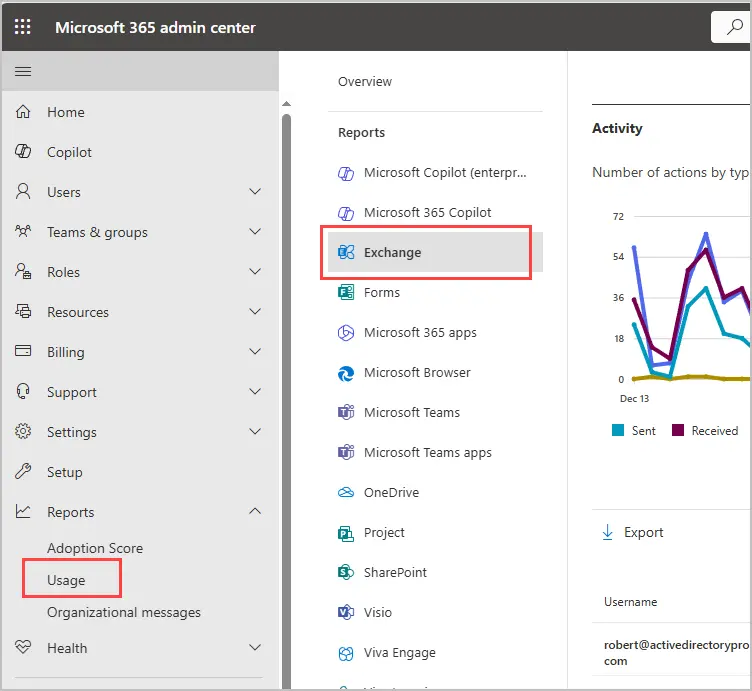
Sign into the Microsoft 365 Admin Center
-
Click on Reports > Usage > Exchange
-
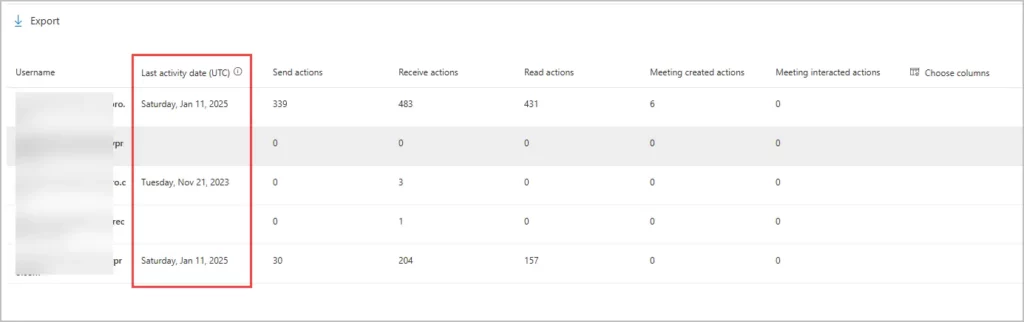
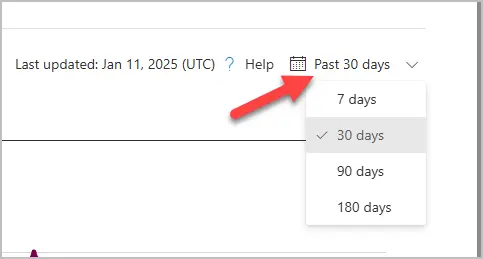
View the email activity. On this page you can view the mailbox last activity date, send and receive actions and more. It defaults to the past 30 days, and you can change it to past 180 days.
To change the date range, click on “Past 30 days” in the top right and select a different date range.
Conclusion
In conclusion, identifying inactive mailboxes in Microsoft 365 is an essential task for any organization looking to optimize its resources, enhance security, and ensure compliance with data policies. By using PowerShell or the Microsoft 365 Admin Center, you can easily identify mailboxes that have been inactive for a period. This practice can help save costs, ensure compliance, and reduce security risks associated with dormant accounts.