In this post, I show you how to add a disclaimer to your email in Microsoft 365. I’ll show you how to add the disclaimer using an outlook signature and to all outbound emails using Exchange mail flow rules.
Adding a disclaimer to emails is often used for legal reasons such as protecting the sender and organization. It’s also used to discourage users from sharing sensitive information and keeping company messages private.
Reasons for adding a legal disclaimer to emails
- Legal Protection - Helps protect the sender and company from liability on the email’s content.
- Standardization - Allows uniform disclaimers across all employees without relying on them to add it manually.
- Company-Wide Compliance - Ensures all outgoing emails comply to legal and regulatory policies.
- Preventing Misinterpretation - It can clarify that the information provided is for general purposes and not professional advice.
- Security Prevention - You can mark emails for private or public use. Reminds recipients that the email contents can be sensitive and is to not be shared or forward.
Add a disclaimer to Outlook Signature
In this example, I’ll add a legal disclaimer to my outlook signature. This disclaimer will be applied to all messages sent from my personal account. If you want to apply a disclaimer companywide see the next example on using Exchange mail flow rules.
Step 1: Open Outlook: Launch the Outlook app on your desktop or go to Outlook Web App.
Step 2: Click on the gear icon (Settings) in the top right corner.

Step 3: Select Account > Signatures.

Step 4: Create signature name and write your disclaimer
Here is the disclaimer text I’ll be adding to email messages.
This email and any attachments are intended only for the recipient(s) named in the message. It may contain confidential and/or privileged information. If you are not the intended recipient, please notify the sender immediately by replying to this email and delete the message from your system. Unauthorized use, disclosure, or distribution of this communication is prohibited. The opinions expressed in this email are those of the sender and do not necessarily reflect the views of the company. While the company has taken reasonable precautions to ensure that this email is free from viruses, we cannot accept responsibility for any damage caused by any virus transmitted by this email.

Step 5: Select your disclaimer for New Messages or Replies/Forwards and hit save at the bottom. (You can have both selected)

Add a disclaimer to outbound email using mail flow rules
In this example, I use Exchange mail flow rules to apply a disclaimer to all outbound emails. The mail flow rules allow more flexibility than personal signatures. You can control the disclaimer on all users or specific users for your organization.
Step 1. Sign into the Exchange Admin Center
Step 2: On the left, navigate to Mail flow > Rules.

Step 3: Select “Add a Rule” then from the drop down click “Apply Disclaimers”

Step 4: Set the Rules and Conditions
First create a name for the rule. In my example I title my rule “Disclaimer”

Under “Apply this rule if” select the recipient and is external/internal, then Select Outside this Organization.

Now under “Do the following” select Apply a disclaimer to the message and append a disclaimer.

Select “Enter Text” in the blue font to write your disclaimer. Also click “Select one” in blue text and select Wrap.

Step 5: Set rule settings
Set the settings to your preferred conditions

Step 6: Review and finish

If everything looks correct, select finish at the bottom of the review and finish page.
Step 7: Enable the rule.
Finally, select the rule you created in your list of rules. On the right side pop up you will see Enable or disable rule and select

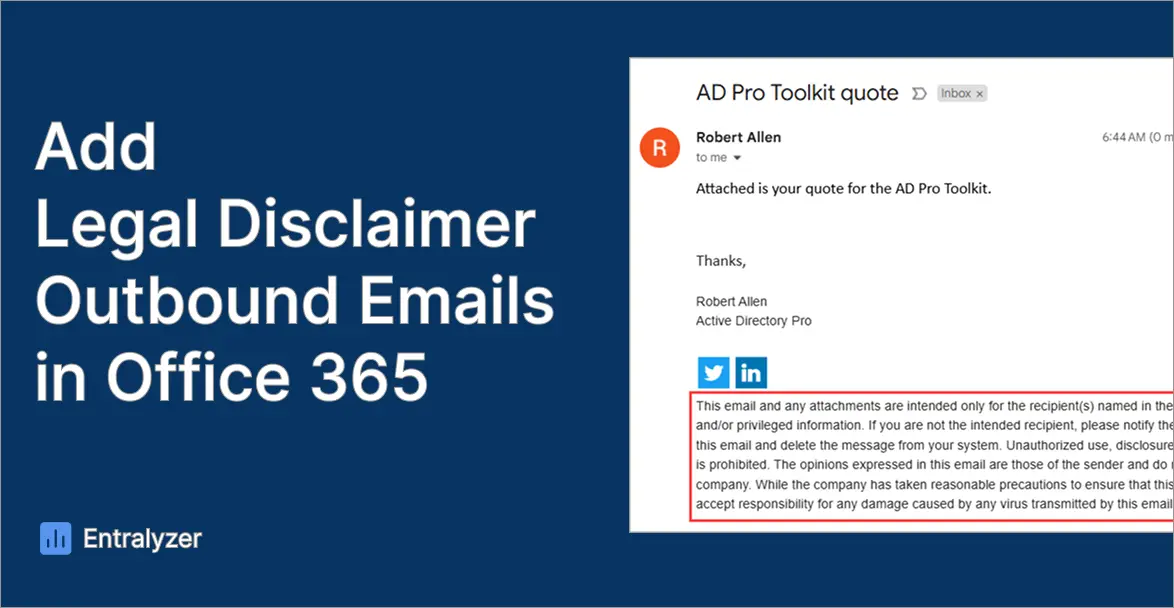
Here is an example of the disclaimer in an email I sent to an external email.

Conclusion
In this post I showed you how to apply a disclaimer to your emails using Outlook and also using the Microsoft 365 Exchange Center. I recommend adding disclaimers to emails to protect against legal risks, ensure confidentiality, and comply with industry regulations.