In this article, I show you how to share OneDrive Files and Folders. I’ll also show you how to view files shared by you and shared with you.
By default, everything you save on Microsoft OneDrive is private and secure. But if you want, you can share files and folders with others, either letting them edit or just view them. You can do this directly from OneDrive while working on a file, or from File Explorer on your computer.
Share File or Folder by Sending Email Notification
This option will send the person you want to share with an email notification that contains a link to open the file or folder. The link will only work with the direct email recipient of the message.
When to use: Use this option when you want to share with specific people, or a group of people.
Note: The steps below are with OneDrive Web, if you are using the desktop application the steps are very similar.
Step 1: Sign into OneDrive
Step 2: On the left side click “My Files” and find the file or folder you want to share.

Step 3: Select the folder and click Share at the top of the page.

Desktop App
If you are using the desktop app simply right click the file or folder and click “Share”.

Step 4: Enter email address & Set permissions then hit send. You can also include a message to the recipient.

The default permissions will be set to “can view”. To allow the recipient to make changes click the eye and set to “can edit”.

Step 5. Click send
When you have the recipient and permissions set click the send button.
Here is what the email looks like for the person receiving the shared files.

When they click “Open” the document will be opened, and they can’t view/edit the document depending on the permissions you set,
Share File or Folder by Copying Link
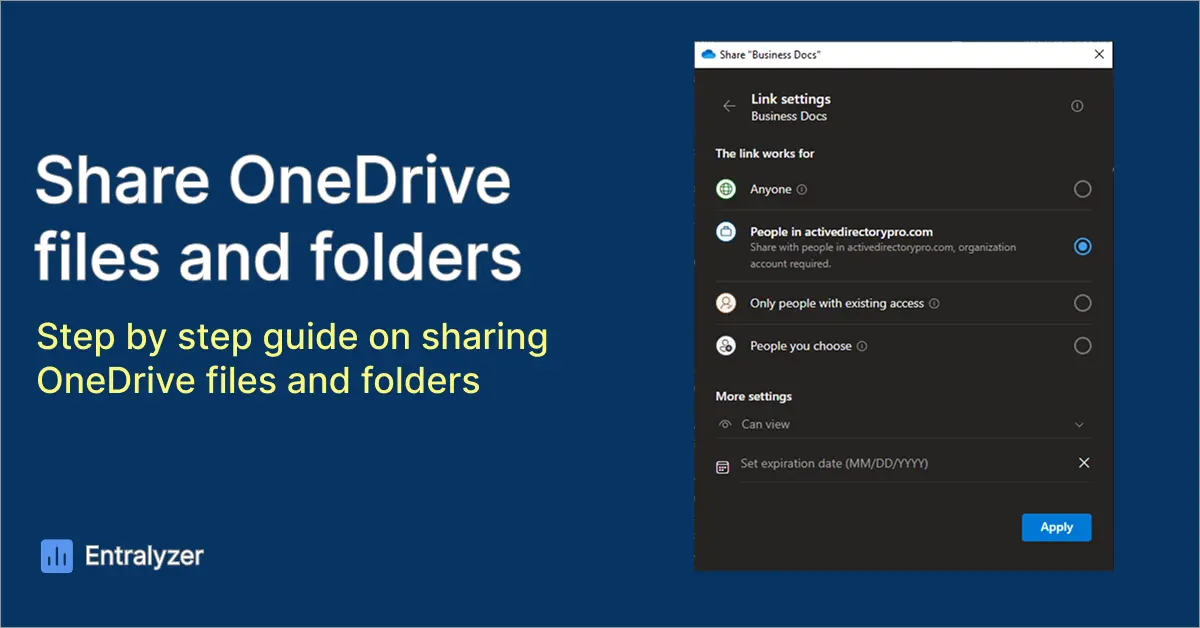
Sharing via Copy link has more options and allows you to control permissions and settings at a granular level. This option also makes it easier to share with a lot of people, for example you could post the link on a social media site and allow anyone to view it (if you set the permissions correctly).
When to use: Use this option when you want to share with a lot of people or provide anyone access (no authentication). Also use this option if you want to set an expiration date on the shared files.
Step 1: Sign into OneDrive
Step 2: Find the File or Folder you want to share.

Step 3: Select the “Copy Link” button at the top of the page.

Step 4: Set Permissions
Click the Settings button below the copy link button and select your preferred permissions.
The copy link share section in OneDrive offers more permission options because it allows more control over how the link is shared and who can access the file, including setting expiration dates, passwords, and editing or viewing rights.


Share OneDrive Files with Anyone (external)
If you want to Share OneDrive files and folders with anyone you might need to adjust your SharePoint and OneDrive policies first. If you don’t see the Anyone option or its greyed out you will need to follow the steps below.

To check your external sharing policies following these steps.
- Open SharePoint Admin Center
- Click on Policies and then Sharing
- Check the External sharing settings.
The slider would need to be moved to the top to allow sharing with Anyone.

To learn more about sharing settings refer to the Manage sharing settings for SharePoint and OneDrive document.
See Files People Shared With you
If you want to see files shared with you, follow the steps below.
Step 1: In OneDrive on the left side menu, click “Shared”
Step 2: View Files people have shared with you

When clicking shared, it will automatically open “With you” section that shows all the files that has been shared with you.

On the right side of the screen, you can see who shared the folder with you under “Shared By”

See Who You Shared a File With
If you want to see files you have shared with others, follow these steps.
Step 1: In OneDrive on the left side menu, click “Shared”

Step 2: At the top of the shared page click “By You”
Now you can see the list of files you have shared

Pretty easy right?