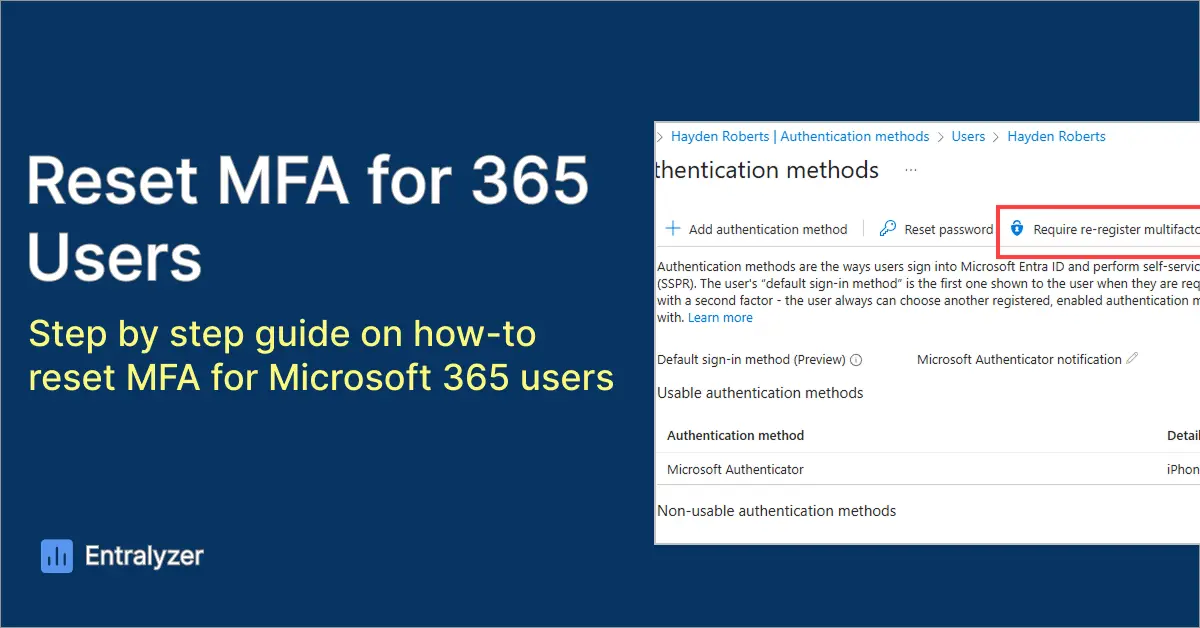
In this article, I show you how to reset multi-factor authentication for a user in Microsoft 365
You might want to reset a user’s MFA in Microsoft 365 if they lose access to their phone or authentication app, get a new phone, or if there’s a security concern like a compromised account. Resetting MFA forces them to set it up again, ensuring their account stays secure and up to date.
Reset User MFA in Entra Admin Center
Use this option if your using conditional access, security defaults or want more control over authentication methods.
-
Go to the Entra Admin Center
-
Navigate to Users > All Users
-
Select the user
-
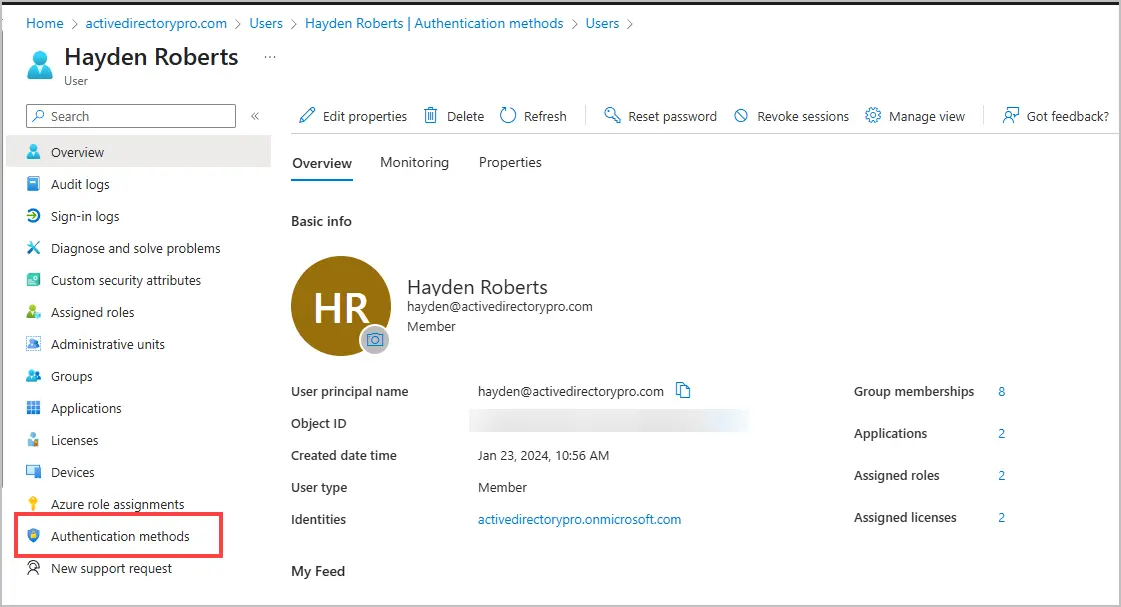
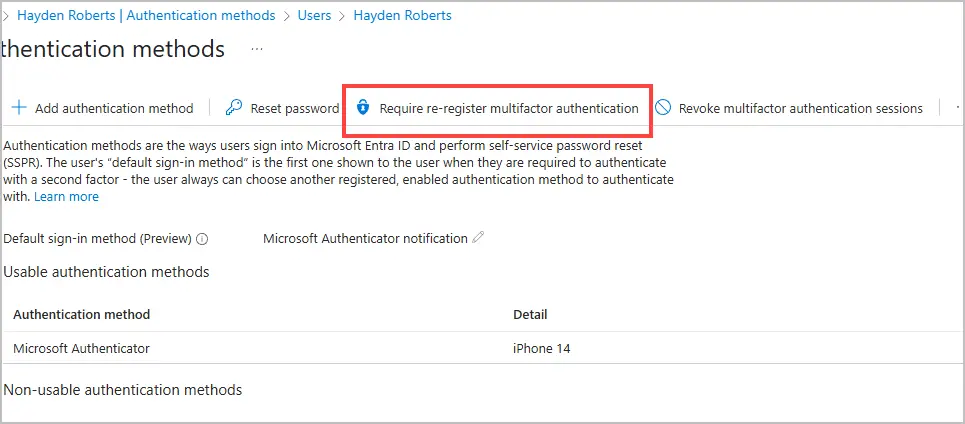
Click “Authentication methods”
-
Click “Require re-register multifactor authentication
Reset User MFA in 365 Admin Center
Use this option if you’re not using conditional access policies and do not need advanced options.
Step 1: Log into Microsoft 365 Admin Center
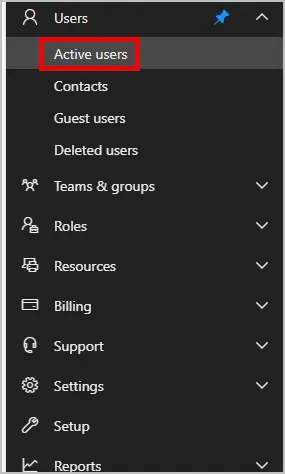
Step 2: On the left-hand side go to Users > Active Users
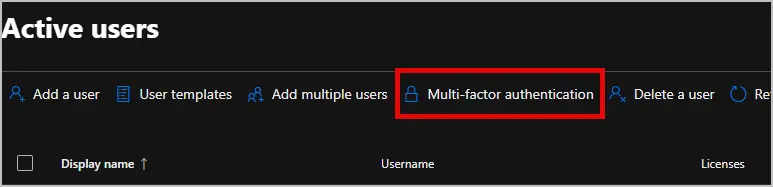
Step 3: At the top of the page select “Multi Factor Authentication”
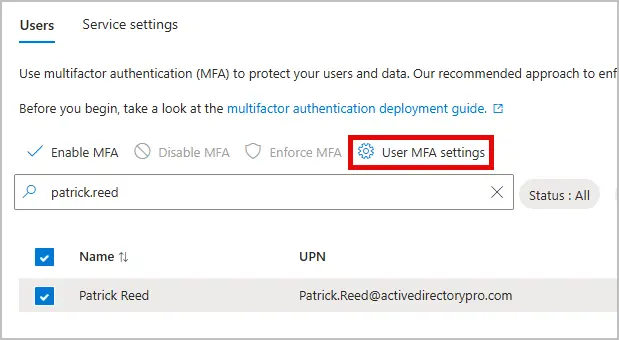
Step 4: On the new page search for the user that you are wanting to reset MFA. In my example, I am searching for the user Patrick Reed.
Step 5: Select the user and click “User MFA Settings”
Step 6:
From here you see three options.
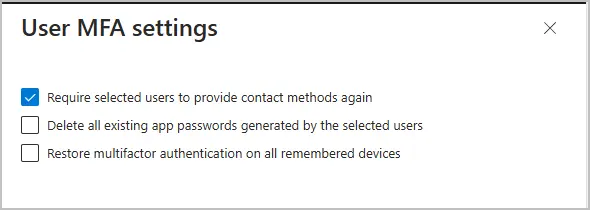
Select “Require select users to provide contact methods again” and hit save to reset the users MFA.
For reference here is an explanation of the three settings:
- Require selected users to provide contact methods again
- Forces the selected users to re-register their MFA methods (e.g., phone number, authenticator app).
- Delete all existing app passwords generated by the selected users
- App passwords are used for apps that don’t support MFA. Checking this removes all previously generated app passwords for the selected users.
- Restore multifactor authentication on all remembered devices
- This option resets the “remembered” status of trusted devices, prompting MFA again even on those devices.
Step 7: Now the next time that user logs in, it will prompt to set up MFA again.