In this article, I show you how to block html and htm attachments using Exchange Online mail flow rules. By using Exchange mail flow rules, you can stop the delivery of HTML attachments to user’s Email inbox. In addition, you can notify the sender and send the message to quarantine for review or release.
Why .html and .htm attachments are not safe
HTML (.html) and HTM (.htm) attachments can be risky for several reasons, mainly because they can contain hidden code than can be malicious. Here’s some reasons why they are considered unsafe for email use:
- Embedded Malicious Code
- HTML files can include JavaScript, which is a powerful scripting language. If the script is malicious, it can:
- Redirect users to dangerous websites.
- Execute harmful actions like downloading malware.
- Perform drive-by attacks, exploiting browser vulnerabilities without user interaction.
- Potential for Phishing
- HTML/HTM files can contain fake login pages that mimic legitimate websites. When a user opens the attachment and enters their credentials, the information can be sent to malicious actors. This is a common technique in phishing attacks.
- Misleading Appearance
- Attackers can name the file to appear harmless, such as “Invoice.html” or “PaymentDetails.htm,” tricking users into opening it. Since HTML files are often associated with web pages, you may not immediately realize the risk.
- Cross-Site Scripting Attacks
- HTML files can be used to execute cross-site scripting attacks. For example, if the file interacts with other web applications, it might inject malicious code into trusted sites or manipulate browser behavior.
Block Attachments using Exchange Mail Flow Rules
In this example, I will configure the following mail flow rule:
- block all .htm and .html attachments from external senders only.
- Notify the recipient an email was blocked due to html attachments.
- Send the message to quarantine.
- Add an exception so specific users still receive html attachments.
- You can customize the mail flow rules as needed, for example maybe you just want to reject the message without notifying the sender.
Step 1: Sign Into the Exchange Admin Center
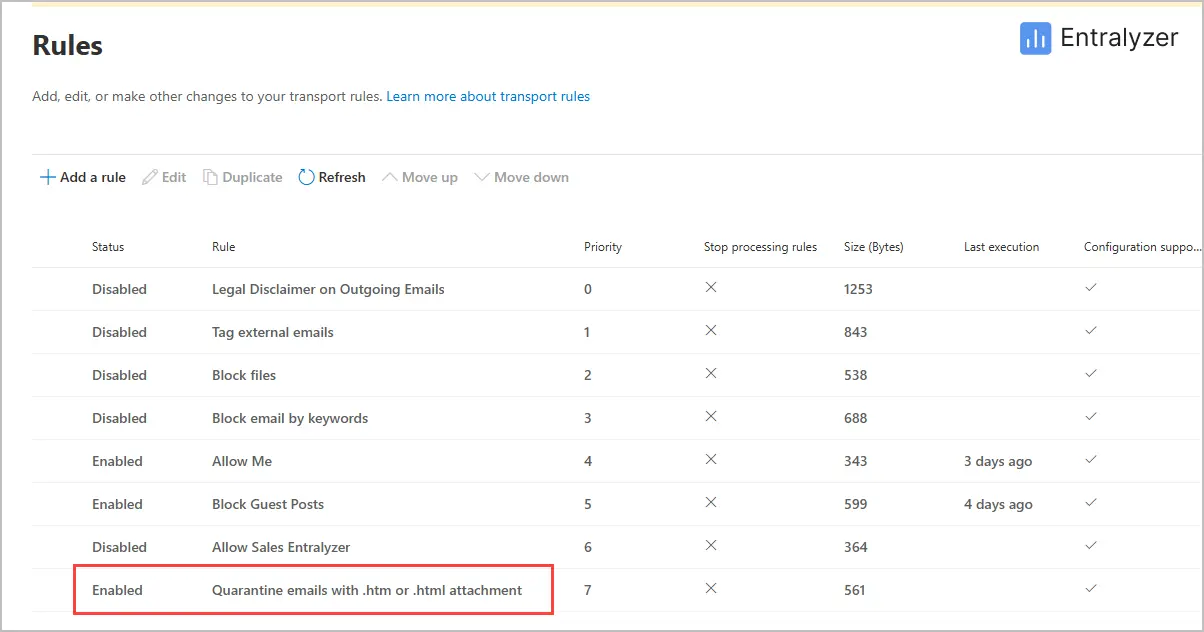
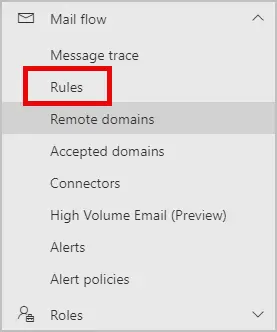
Step 2: On the left, navigate to Mail flow > Rules.
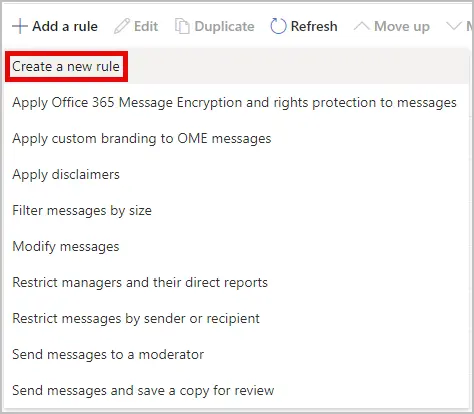
Step 3: Select “Add a Rule” then from the drop down click “Create a new rule”
Step 4: Set the rules and conditions
First create a name for the rule.

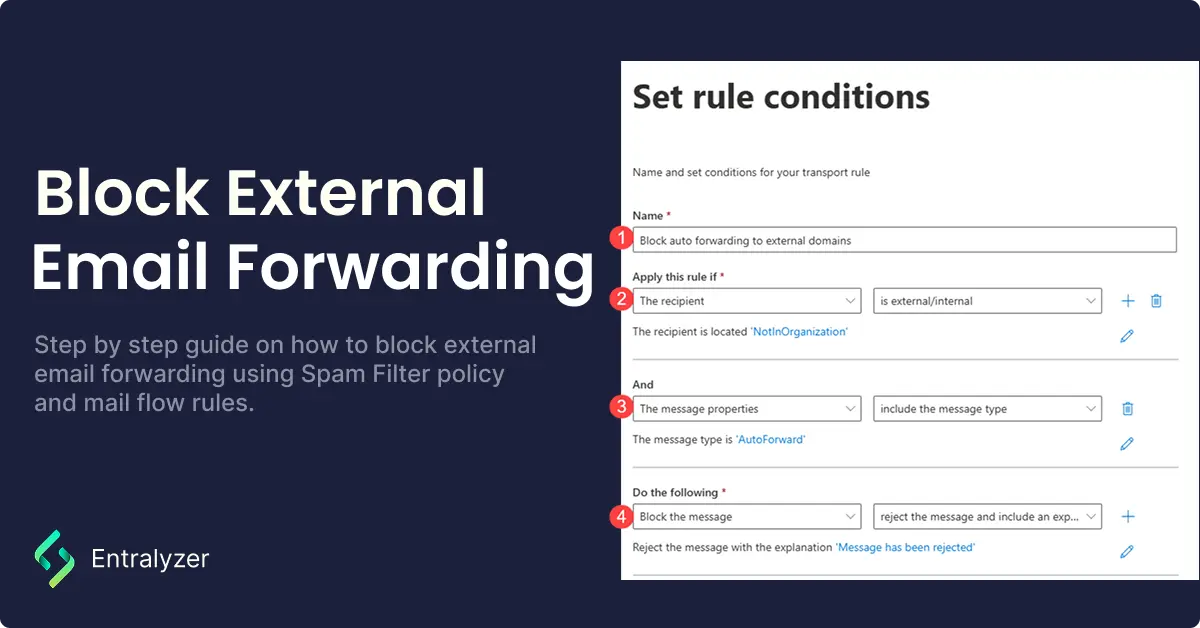
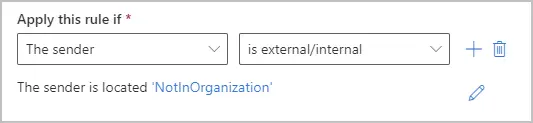
Then under “Apply this rule if” Select The Sender and is external/internal, then Select Outside this Organization. After hit the + button.
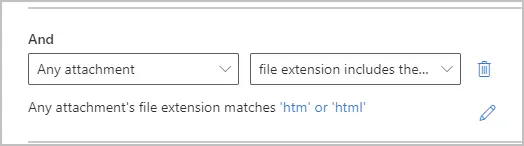
Next, under “And” select Any attachment then File extension includes these words. On the pop-up click “Add” and add two values. One for “html” and one for “htm”
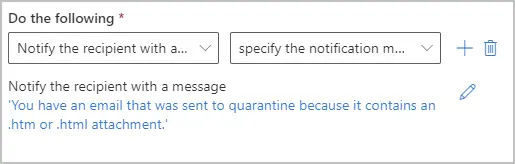
Now under “Do the following” select Notify the recipient with a message then Specify the notification message. For my message in this example I wrote “You have an email that was sent to quarantine because it contains an .htm or .html attachment”
Next click the + to add another column, in this new column select Redirect message to and then hosted quarantine.
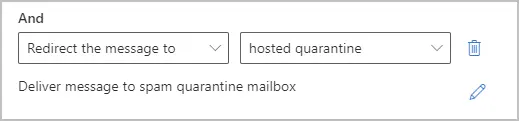
Note: I like to redirect the message to quarantine incase the email is legitimate, I can then review it and release it to the user’s mailbox. This is optional and instead you can choose to just reject the message.
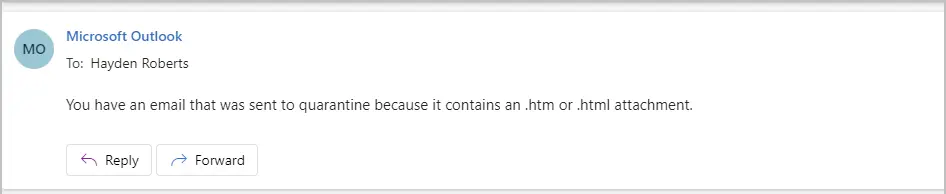
Herer is an example of the recipient receiving the specified notification message.
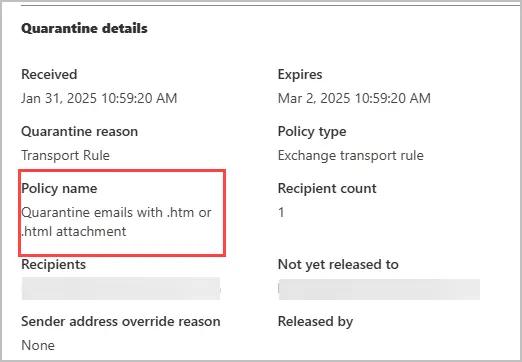
You can view quarantine emails in Microsoft Defender and see why the email is being blocked.
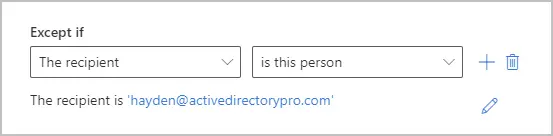
If you want to exclude a certain user from this rule, under “Expect if” select the recipient then select the user or users you want excluded from this rule.
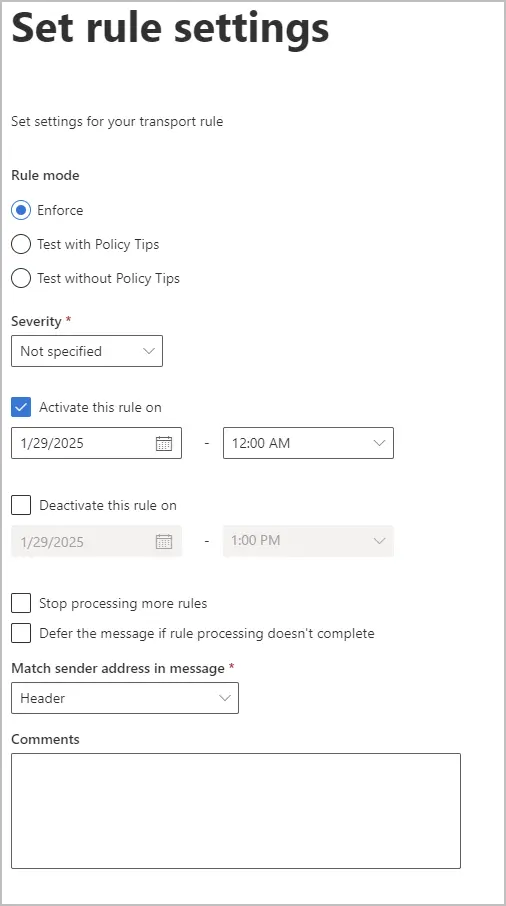
Step 5: Set Rule Settings
Step 6: Review the rules and select finish.
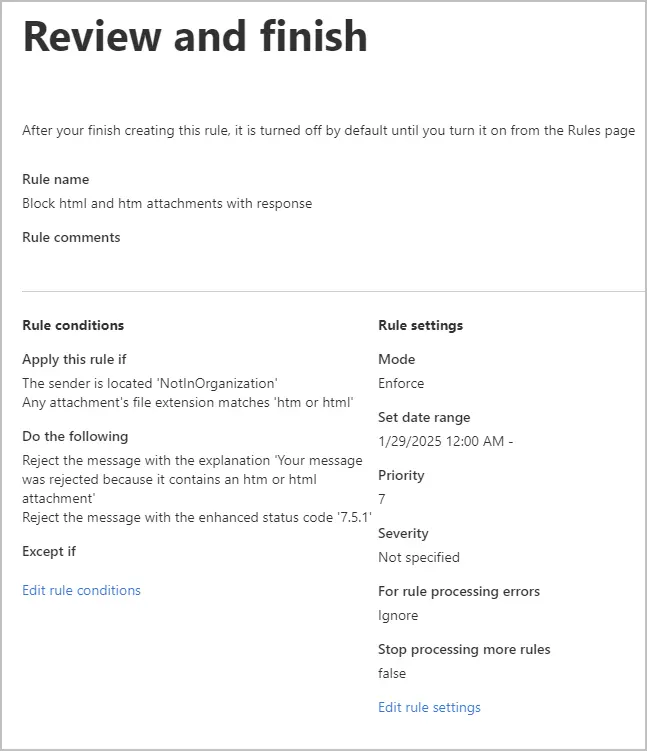
Select finish at the bottom.
Step 7: Enable the rule.
Finally, select the rule you created in your list of rules. On the right side pop up you will see Enable or disable rule.
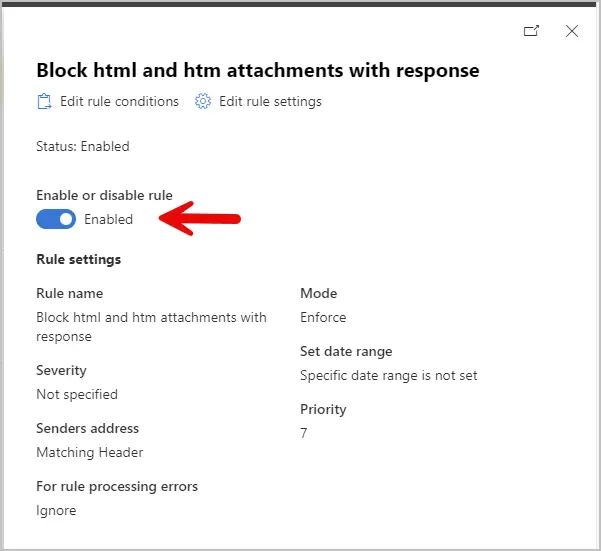
With the above mail flow rule all emails with a .htm or html attachment will be sent to quarantine. The recipient will receive a custom message, and I’ve allowed an exception for a specific user. You can tweak the rules to fit your specific needs.
Conclusion
Blocking HTML and HTM attachments is important because they can contain phishing scams, malicious scripts, and harmful links that can put you or your domain at risk. I believe it’s important to do these few simple steps and have these attachments blocked to keep your domain more secure.