Reset User Passwords in Microsoft 365
In this guide, you’ll learn how to reset passwords for Microsoft 365 user accounts. You will also learn how to enable self-service password resets so users can reset their own passwords.
Reset user password using 365 Admin Center
Section titled “Reset user password using 365 Admin Center”-
Log into the Microsoft 365 Admin Center
-
Go to
Users>Active Users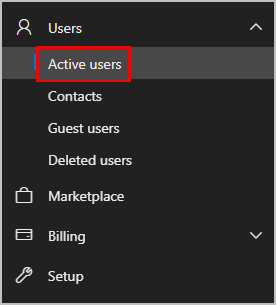
-
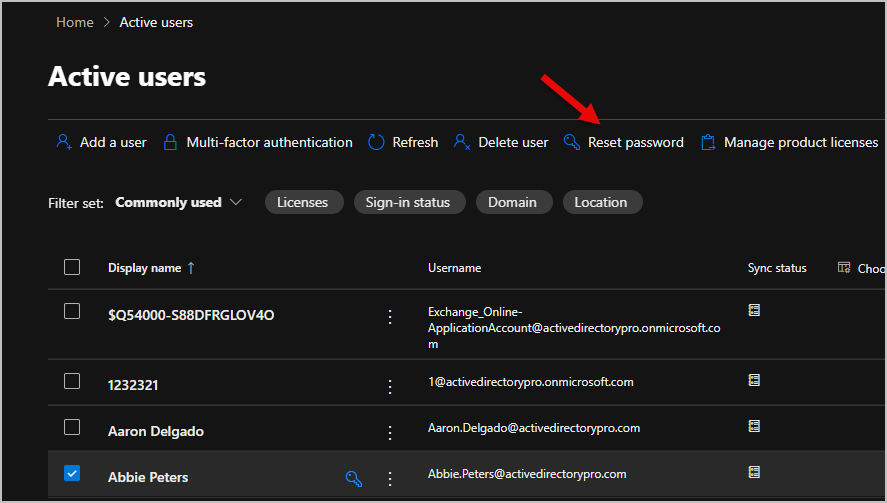
On the Active Users page find the user, and then click Reset password.
-
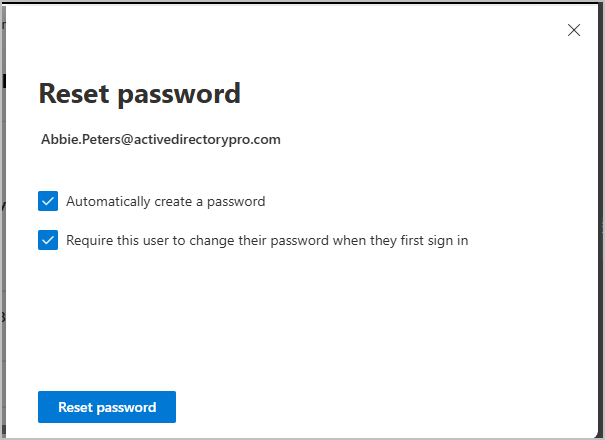
On the Reset password page, choose to automatically create a new password. Optionally you can or require the user to change it on next login. Click Reset password
For steps on forcing password changes for multiple users, refer to Force Password Change for Microsoft 365 User Accounts.
-
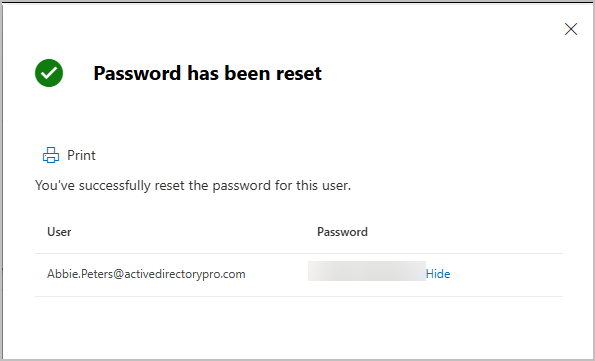
You will be provided with the users new password. The user will need this new password to sign in.
Reset user password using PowerShell
Section titled “Reset user password using PowerShell”-
Install graph module if you don’t already have it installed.
Terminal window Install-Module -Name Microsoft.Graph -Scope CurrentUser -
Connect to Microsoft graph
Terminal window Connect-MgGraph -Scopes User.ReadWrite.All, Directory.AccessAsUser.All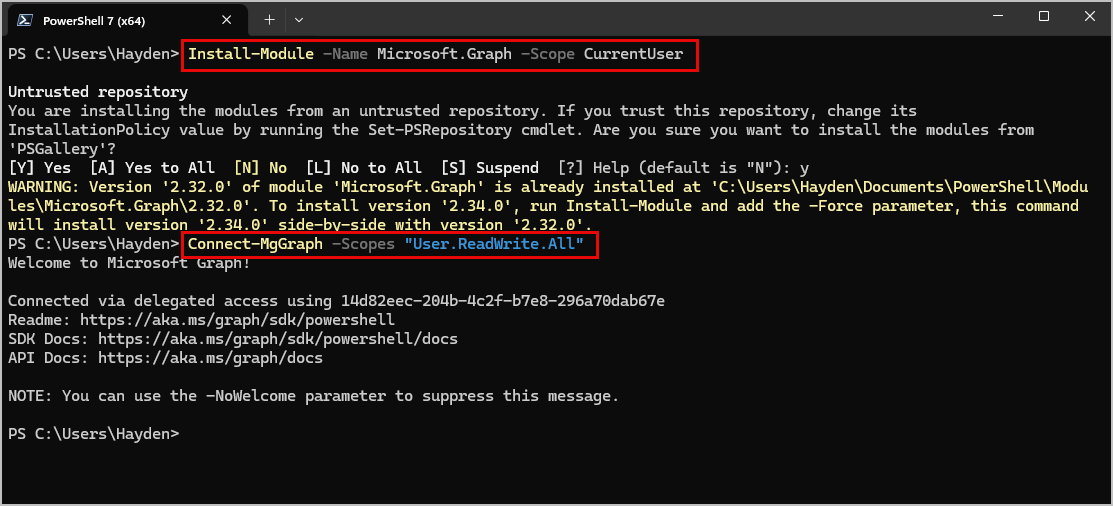
-
Reset the user password with the script below. Replace ‘user@domain.com’ with the user’s email and ''TemporaryP@ssword123!’**’ with the password you want.
Terminal window $UPN = "user@yourdomain.com"$NewPassword = "TemporaryP@ssword123!"# Create a password profile object$PasswordProfile = @{Password = $NewPasswordForceChangePasswordNextSignIn = $true # Set to $false if not needed}# Update the user's passwordUpdate-MgUser -UserId $UPN -PasswordProfile $PasswordProfile
Let users reset their own passwords
Section titled “Let users reset their own passwords”If you want to allow end users to reset their own passwords follow these steps.
-
Log into the Microsoft 365 Admin Center
-
On the left side select
Settings>Org Settings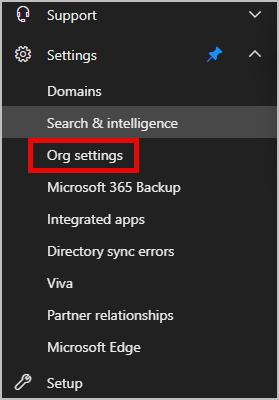
-
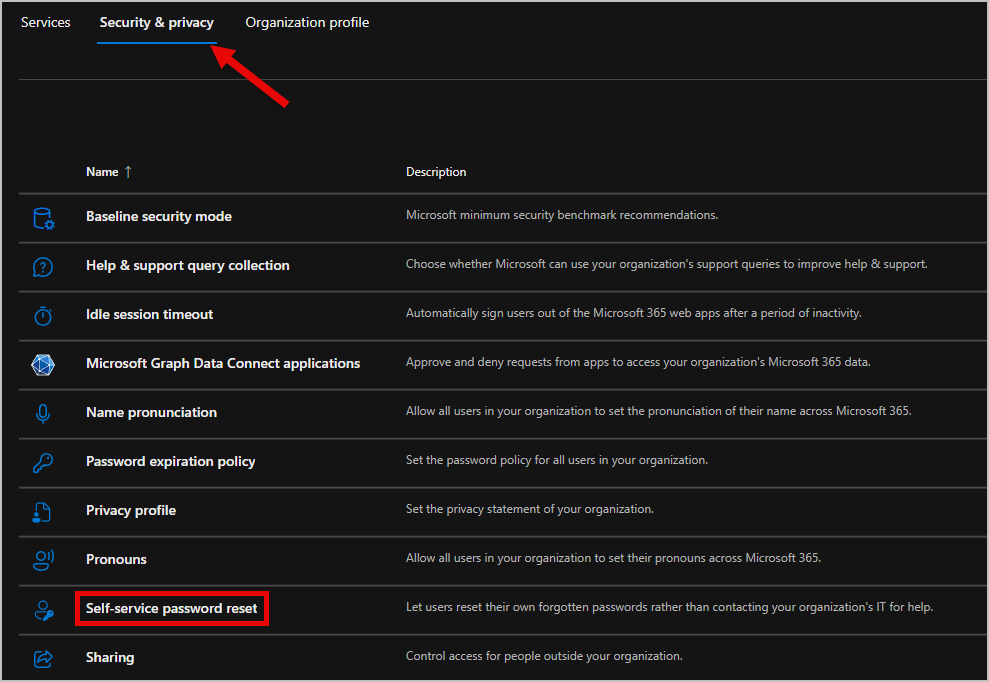
Go to the Security & Privacy tab, Then select Self-service password reset.
-
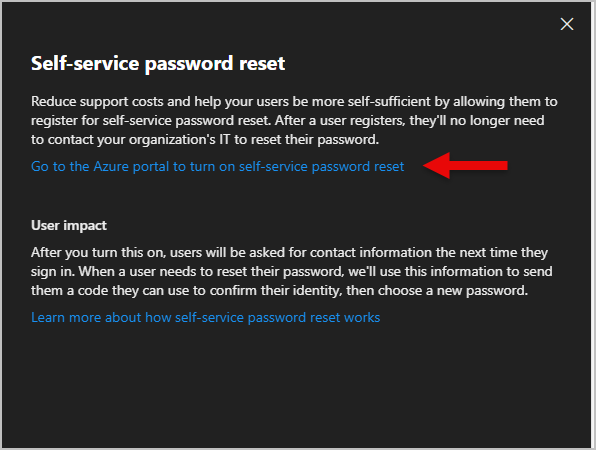
Click on Go to the Azure portal to turn on self-service password reset.
-
On the
Password reset>Properties page, choose All for all users or Selected to select specific groups. Then click Save.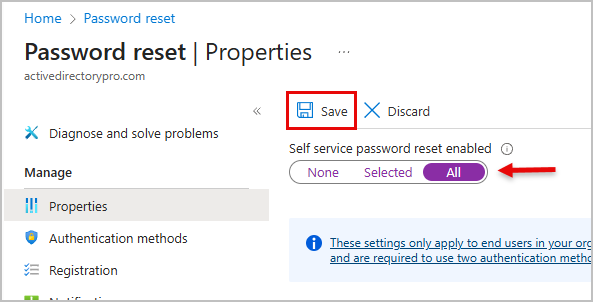
-
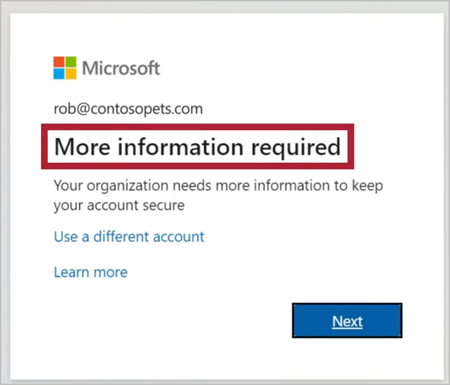
The next time a user signs in they will be prompted for more information that will let them reset their own password.
Reset your admin password
Section titled “Reset your admin password”If you forgot your password but can still sign in to Microsoft 365 because your browser saved it, follow these steps to reset your admin password.
-
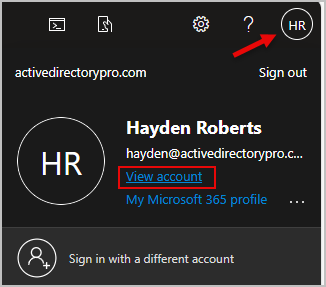
Select your name in the top right corner then select View Account
-
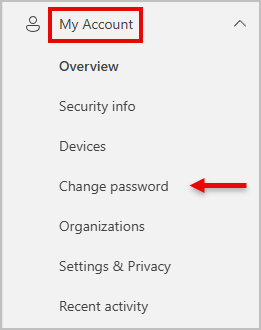
Under My Account go to Change Password
-
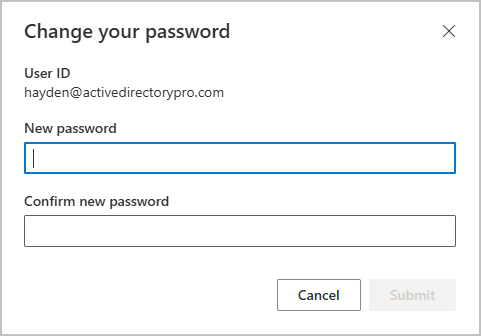
You will get sent an authentication code, once put in the password reset page will show up.
Bulk password reset using Admin Center
Section titled “Bulk password reset using Admin Center”If you need to reset multiple end user passwords follow the steps below.
-
Sign into Microsoft 365 Admin Center
-
Go to
Users>Active Users -
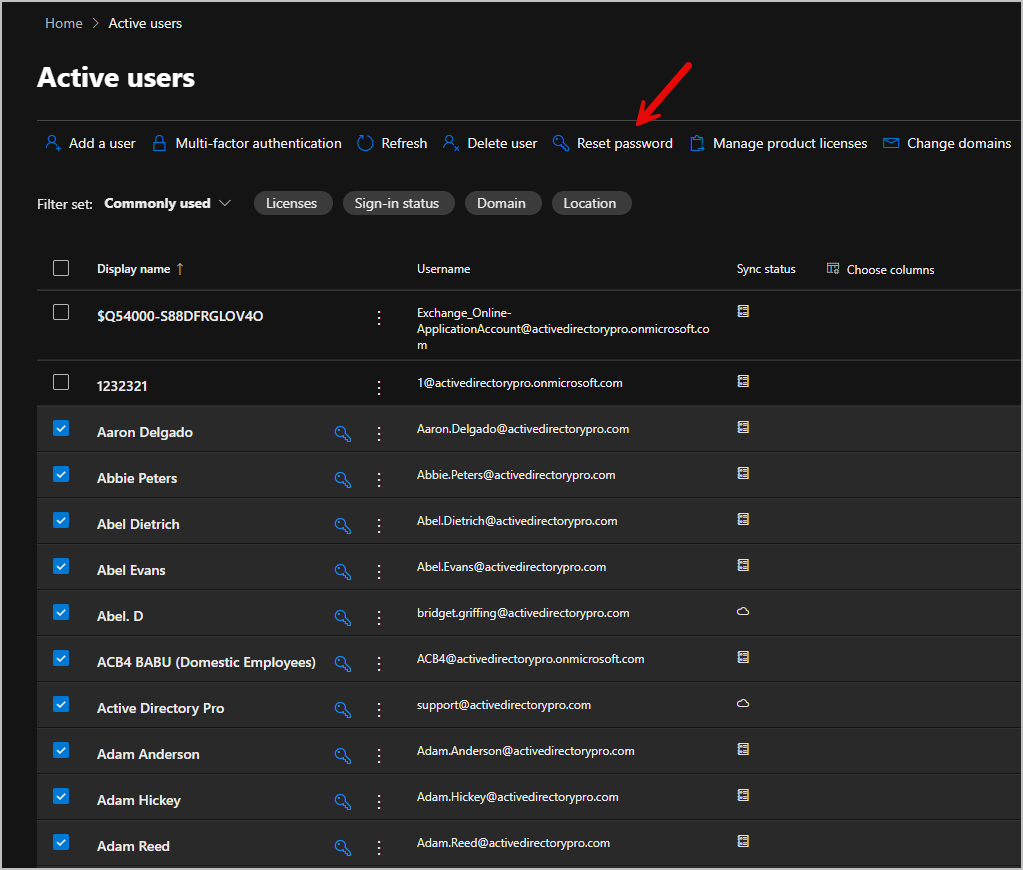
Select the user whose password you want to reset. (You can select up to 20 at a time.) Then select Reset Password on the top.
-
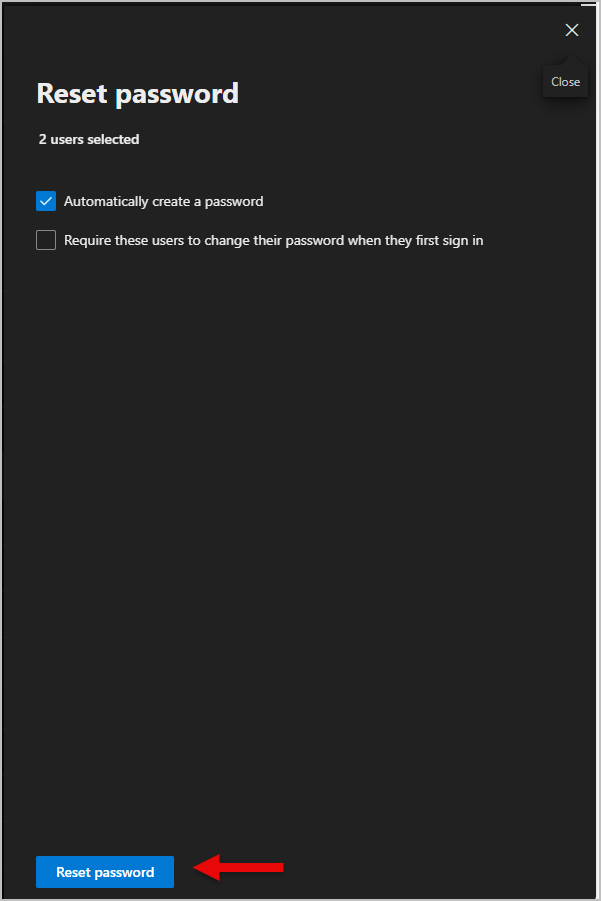
On the Reset password page, choose to automatically create a new password for the users or require the them to change it on next login, then click Reset password.