Force Password Change for Microsoft 365 User Accounts
In this guide, you will learn how to force a password change at next logon for Microsoft 365 user accounts. You can force a password change using the 365 admin center or by using a PowerShell script, see examples below.
How to force password change at next login using the Admin Center
Section titled “How to force password change at next login using the Admin Center”-
Log into the Microsoft 365 Admin Center
-
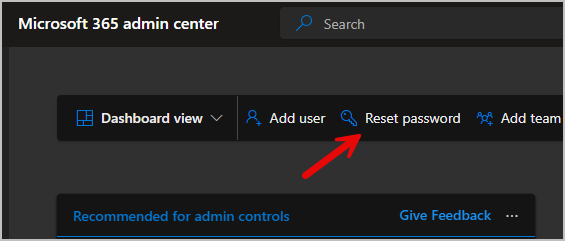
Select Reset Password at the top of the page.
-
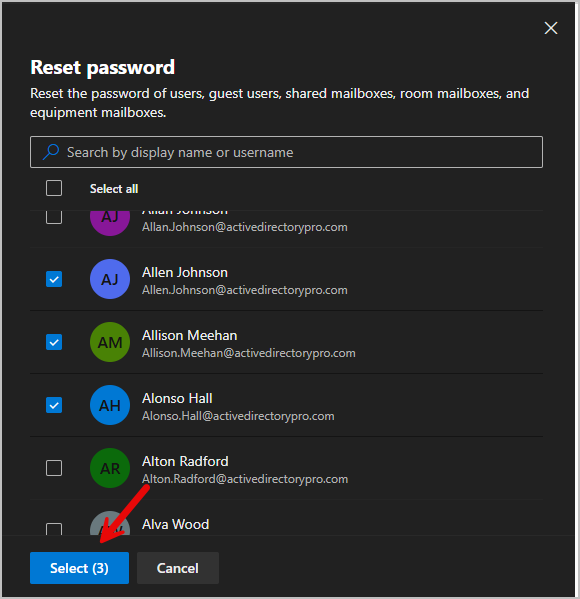
Find the users that you want password reset, then click Select. You can select up to 20 users at a time.
-
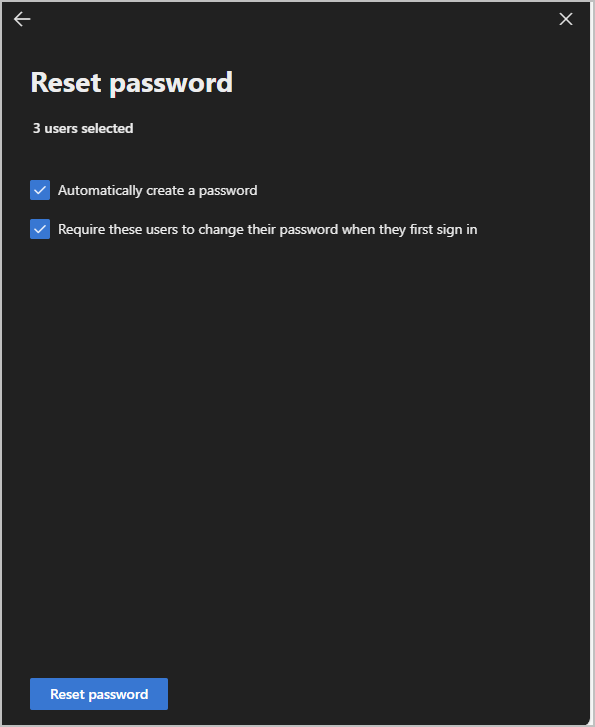
Select and click Reset Password
How to force password change at next login using PowerShell
Section titled “How to force password change at next login using PowerShell”-
Install the Microsoft Graph module. Skip this step if you already have it installed.
Terminal window Install-Module Microsoft.Graph -Force -
Connect to Microsoft graph.
Terminal window Connect-MgGraph -Scopes "User.ReadWrite.All", "Directory.ReadWrite.All", "Directory.AccessAsUser.All" -
Run the following command to force a password reset at next logon. Change userId to the UPN of the user. The command will not return anything if successful.
Terminal window $userId = "matthewtest1@activedirectorypro.com"$PasswordProfile = @{ForceChangePasswordNextSignIn = $true}Update-MgUser -UserId $userId -PasswordProfile $PasswordProfile$null = Revoke-MgUserSignInSession -UserId $userId -
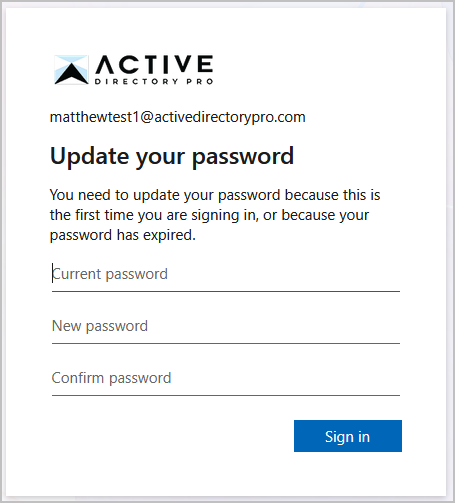
The next time the user signs in they will be prompted to reset their password.
Force password at next sign in for all users
Section titled “Force password at next sign in for all users”This script below will force a password change for all users.
Important: To exclude users, add their UPNs to the $ExcludeUPNs list. It is recommended to include your admin account.
# ==============================# Exclude specific users# ==============================$ExcludeUPNs = @(    "user1@entralyzer.com",    "admin1@entralyzer.com",    "admin2@entralyzer.com")
$PasswordProfile = @{    ForceChangePasswordNextSignIn = $true}
# ==============================# Get all users# ==============================$AllUsers = Get-MgUser -All -Property Id,UserPrincipalName
# ==============================# Loop through users# ==============================foreach ($User in $AllUsers) {
    if ($ExcludeUPNs -contains $User.UserPrincipalName) {        Write-Host "Skipping excluded user: $($User.UserPrincipalName)" -ForegroundColor Cyan        continue    }
    try {        # Update password profile        Update-MgUser -UserId $User.Id -PasswordProfile $PasswordProfile
        # Revoke sign-in session        $null = Revoke-MgUserSignInSession -UserId $User.Id
        # Log success        Write-Host "Successfully updated: $($User.UserPrincipalName)" -ForegroundColor Green    }    catch {        Write-Host "Failed for $($User.UserPrincipalName). Error: $_" -ForegroundColor Red    }}
Force password change for all users in a group
Section titled “Force password change for all users in a group”-
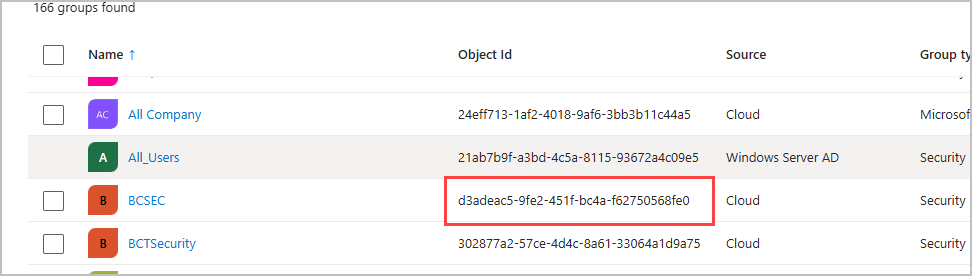
You will need the object ID of the group. Sign in to the Entra admin center and copy the groups object id.
-
In the script below, change the groupId to the object Id of your group.
Terminal window $groupId = "302877a2-57ce-4d4c-8a61-33064a1d9a75"$PasswordProfile = @{ForceChangePasswordNextSignIn = $true}# Get members of the specified group$groupMembers = Get-MgGroupMember -GroupId $groupId -Allforeach ($member in $groupMembers) {try {# Get details for each user$user = Get-MgUser -UserId $member.Id# Update password profile and revoke sign-in sessionUpdate-MgUser -UserId $user.Id -PasswordProfile $PasswordProfile$null = Revoke-MgUserSignInSession -UserId $user.Id# Log successful updateWrite-Host "Successfully changed password for user: $($user.UserPrincipalName)" -ForegroundColor Green}catch {# Log error or failureWrite-Host "Failed to changed password for user: $($user.UserPrincipalName). Error: $_" -ForegroundColor Red}} -
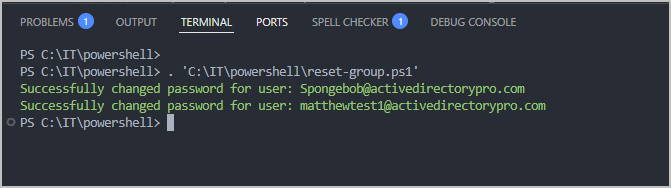
Run the script. It will display success or failure for each user in the group.
Check If User has Force Password change enabled
Section titled “Check If User has Force Password change enabled”If you want to check if a user has change password at next sign in enabled use the command below.
Change the UserId to the UPN of the account you want to check.
(Get-MgUser -UserId user@domain.com -Property PasswordProfile).PasswordProfile.ForceChangePasswordNextSignInIn the example below, it returned true. This user will be required to change their password the next time they sign in.

Check status for all users
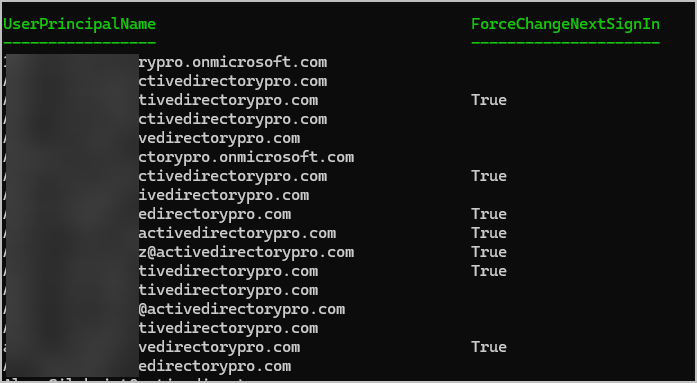
Section titled “Check status for all users”To check the ForceChangePasswordNextSignIn status for all users run the below command.
Get-MgUser -All -Property UserPrincipalName,PasswordProfile | ForEach-Object { [PSCustomObject]@{ UserPrincipalName = $_.UserPrincipalName ForceChangeNextSignIn = $_.PasswordProfile.ForceChangePasswordNextSignIn }}Example
Export ForceChangePasswordNextSignIn status to CSV
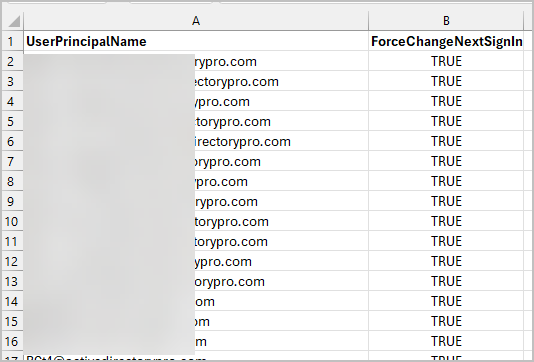
Section titled “Export ForceChangePasswordNextSignIn status to CSV”This command will export the users UserPrincipalName and ForceChangePasswordNextSignIn status to a csv file.
Get-MgUser -All -Property UserPrincipalName,PasswordProfile | ForEach-Object { [PSCustomObject]@{ UserPrincipalName = $_.UserPrincipalName ForceChangeNextSignIn = $_.PasswordProfile.ForceChangePasswordNextSignIn }} | Export-Csv ".\PasswordNextSignIn-Report.csv" -NoTypeInformationExample CSV