Add Guest User to Microsoft Teams
In this article, you’ll learn how to add a guest user to teams in the Microsoft 365 Admin Center and from the Teams App.
Prerequisites
Section titled “Prerequisites”- Guest invitations must be allowed at the tenant level. See configure guest access for details.
- Who can add a guest user
- Microsoft group or team owner
- Global Administrator
- Guest invite role
Invite Guest user to Microsoft Teams
Section titled “Invite Guest user to Microsoft Teams”-
Open Microsoft Teams
-
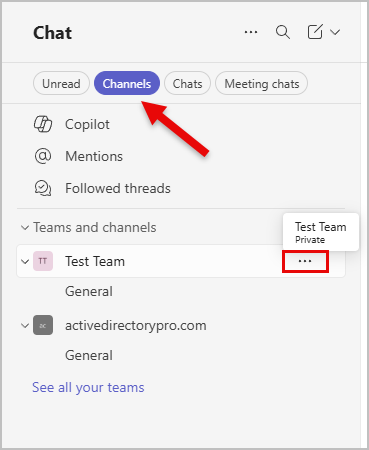
Find the channel you want to add the guest account to, hover over the three dots that say More Team Options.
-
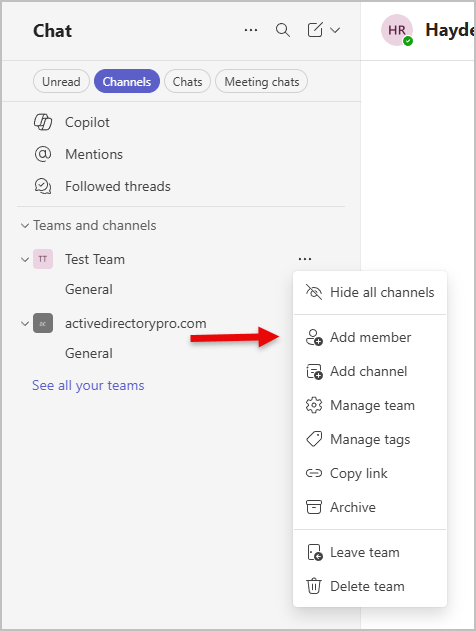
Select Add Member
-
Type in the user and click Add
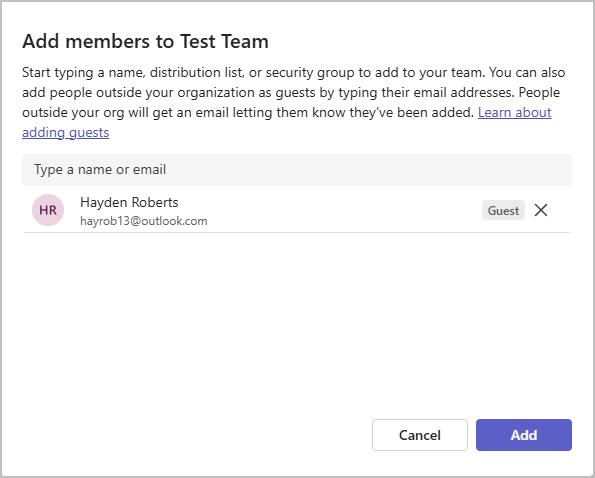
All done. The guest user should now have access to the team.
Add Guest from Teams Admin Center
Section titled “Add Guest from Teams Admin Center”-
Sign into the Microsoft Entra Admin Center
-
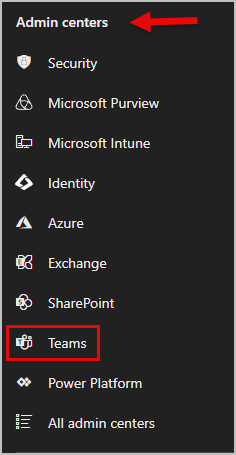
On the left side under Admin Centers select Teams
-
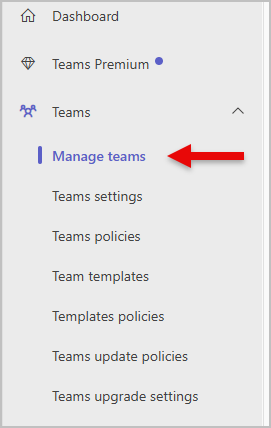
Go to Teams > Manage Teams
-
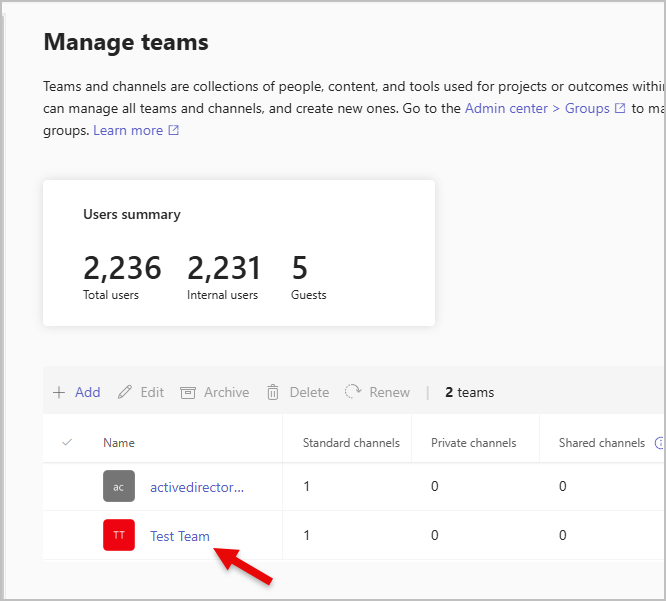
Select the channel/team you want to add the guest member to. In my example I am selecting Test Teams
-
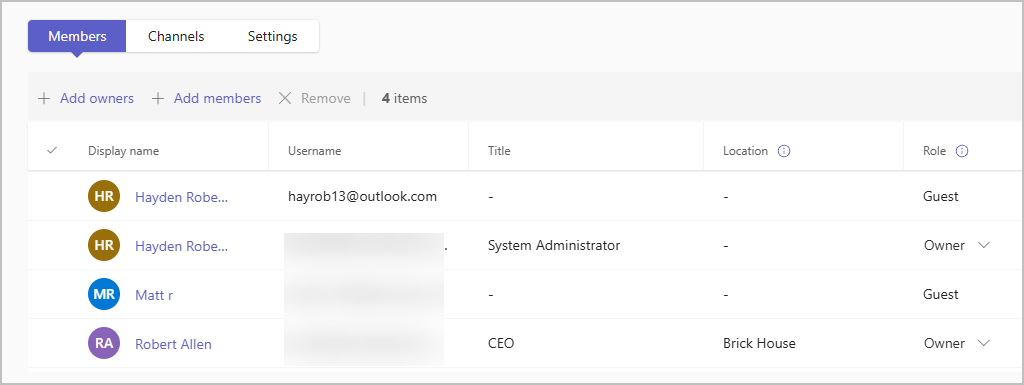
Select Add Members
-
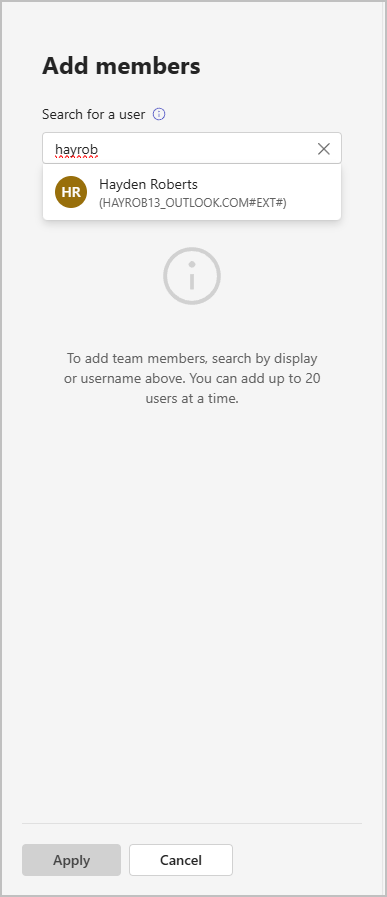
Search for the User and select Apply at the bottom of the screen.