
Manage guest access in Microsoft 365
This guide walks through the required settings to ensure your Microsoft 365 tenant can share and collaborate with external guest users.
After guest access is configured, you can invite external users to collaborate by following the steps in add guest user to teams or add guest user to groups.
Microsoft Entra External ID external collaboration settings
Section titled “Microsoft Entra External ID external collaboration settings”Sharing in Microsoft 365 is controlled first by the B2B external collaboration settings in Microsoft Entra External ID. These rules apply everywhere and will override any sharing settings your set in Microsoft 365.
Check external collaboration settings
Section titled “Check external collaboration settings”-
Sign into the Microsoft Entra Admin Center
-
On the left side under Entra ID dropdown select External Identities.
-
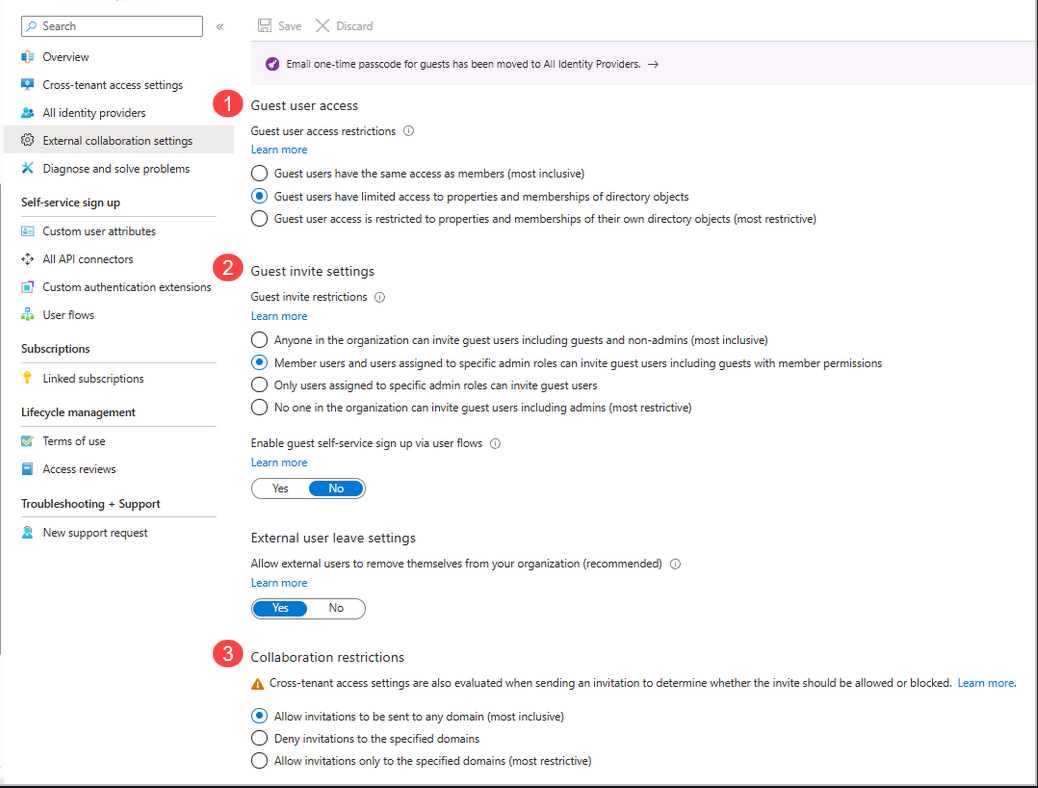
Select External Collaboration Settings.
-
Check the following settings:
- Guest user access: it is recommended to select
Guest users have limited access to properties and memberships of directory objects. - Guest invite settings: it is recommended to select
Member users and users assigned to specific admin roles can invite guest users including guests with member permissions. You can adjust these settings to be more or less restrictive. - Collaboration restrictions: you can leave the default setting
Allow invitations to be sent to any domain (most inclusive). You can make this more restrictive by choosing one of the other settings.
- Guest user access: it is recommended to select
-
Click the Save button to save your changes.
Teams guest access settings
Section titled “Teams guest access settings”To invite guests to a team the teams guest access must be enabled. Check to make sure guest access is enabled in Teams admin center.
-
Log into the Microsoft 365 Admin Center
-
Under admin centers select Teams
-
Go to
Users>Guest Access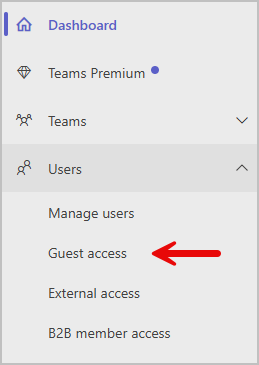
-
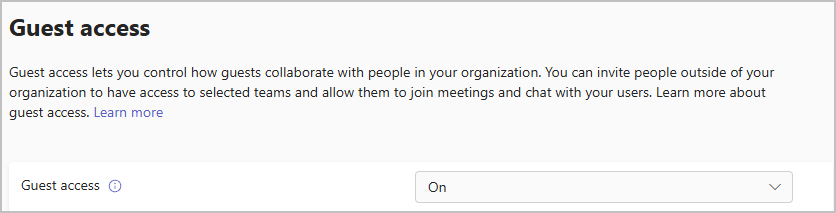
Make sure Guest Access is on.
Microsoft 365 Groups guest settings
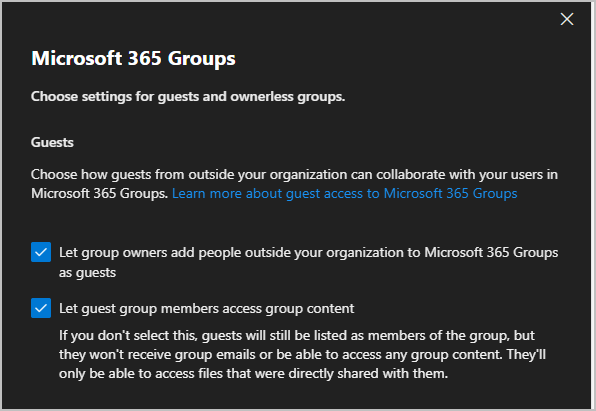
Section titled “Microsoft 365 Groups guest settings”To add a guest user to a Microsoft 365, group guest settings must be turned on.
-
Log into the Microsoft 365 Admin Center
-
Go to
Settings>Org Settings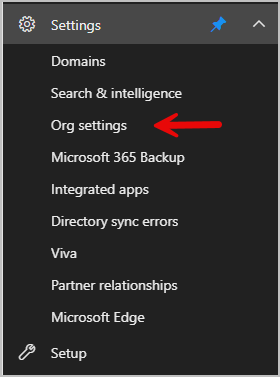
-
Select Microsoft 365 Groups
-
Select both checkboxes under the Guests Settings then click save.
SharePoint organization level sharing settings
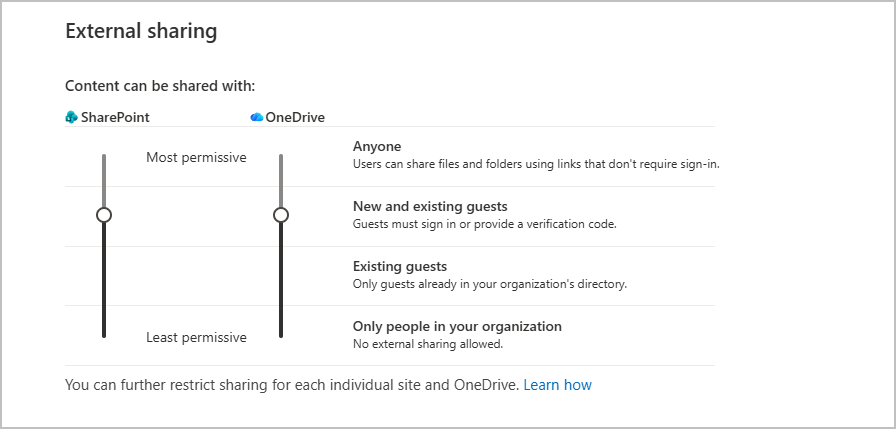
Section titled “SharePoint organization level sharing settings”Files, folders, and lists in Microsoft Teams are stored in SharePoint, so guest access in Teams depends on SharePoint’s organization-level sharing settings.
-
Log into the Sharepoint Admin Center
-
Go to
Policies>Sharing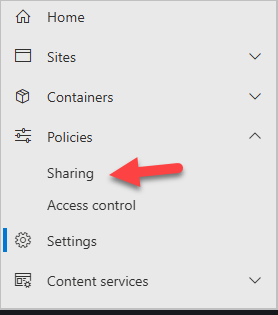
-
If you want people to access shared files without signing in, select Anyone. If you want all guests to sign in before accessing files and folders, select New and existing guests. The recommended settings is New and existing guests.
SharePoint organization-level default link settings
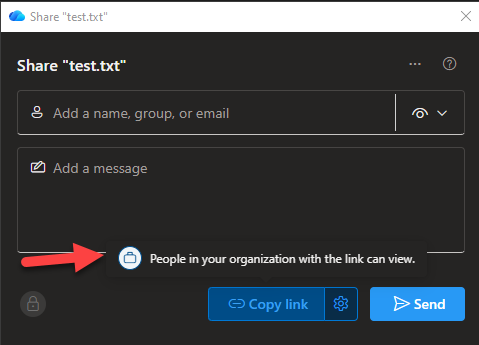
Section titled “SharePoint organization-level default link settings”The default file and folder link settings determine the link option that’s shown to users by default when they share a file or folder.
Set File and folder links
Section titled “Set File and folder links”-
Go to Sharepoint Admin Center
-
Go to
Policies>Sharing -
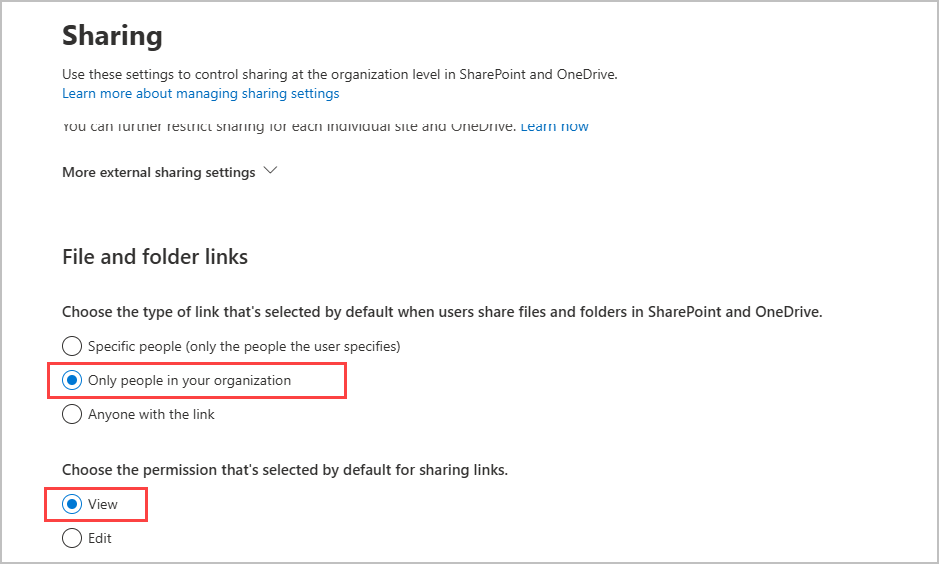
Find the File and folder links section and choose from the following:
- Anyone with the link - Choose this option if you expect to do many unauthenticated sharing of files and folders. If you want to allow Anyone links but are concerned about accidental unauthenticated sharing, consider one of the other options as the default. This link type is only available if you’ve enabled Anyone sharing.
- Only people in your organization - Choose this option if you expect most file and folder sharing to be with people inside your organization. This is the recommended setting.
- Specific people - Consider this option if you expect to do many file and folder sharing with guests. This type of link works with guests and requires them to authenticate.
-
For Choose the permission that’s selected by default for sharing links set this to View.
SharePoint site-level sharing settings
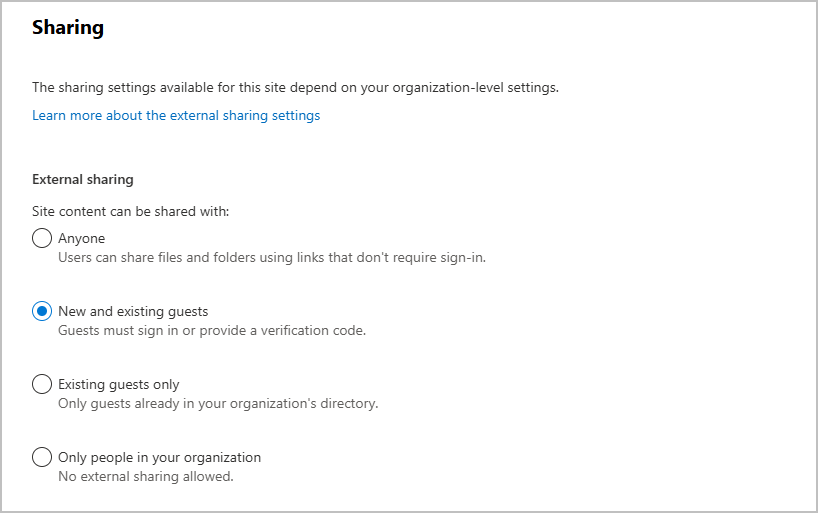
Section titled “SharePoint site-level sharing settings”Check the site-level sharing settings to make sure that they allow the type of access that you want for this team. For example, if you set the organization-level settings to Anyone, but you want all guests to authenticate for this team, then make sure the site-level sharing settings are set to New and existing guests.
Set site-level sharing settings
Section titled “Set site-level sharing settings”- In the SharePoint admin center, in the left navigation pane, expand Sites and select Active sites.
- Select the site
- On the Settings tab, select More sharing settings.
- Ensure that sharing is set to at least New and existing guests
- If you made changes, select Save.
Conclusion
Section titled “Conclusion”In this guide, you learned how to enable guest access in your Microsoft 365 tenant. These settings allows your organization to collaborate securely with external users while maintaining control over access and permissions. With guest access in place, teams can confidently invite external users, and collaborate securely across teams, sharepoint, OneDrive and other Microsoft services.