Add Guest user to Sharepoint Site
Sometimes you need to share files with people outside your organization, such as clients or partners. SharePoint lets you do this by adding them as guest users, so they can safely view or work on files in your site.
Prerequisites
Section titled “Prerequisites”- Sharepoint sharing settings must be configured. See configure guest access for details.
- You need one of the following permissions
- Sharepoint Administrator
- Sharepoint site owner
- Site full control
How to add a guest in sharepoint
Section titled “How to add a guest in sharepoint”-
Log into the Microsoft 365 Admin Center
-
On the left side go to
Admin CentersthenSharepoint.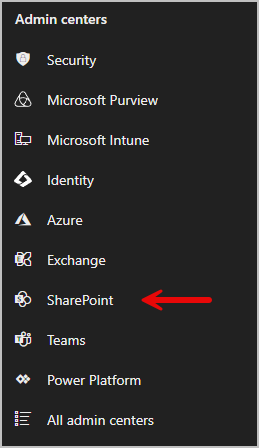
-
Go to
Sites>Active Sites.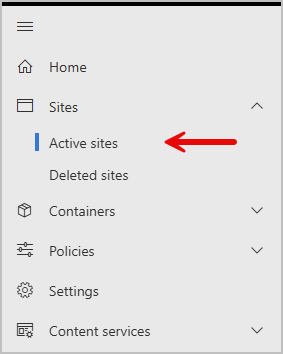
-
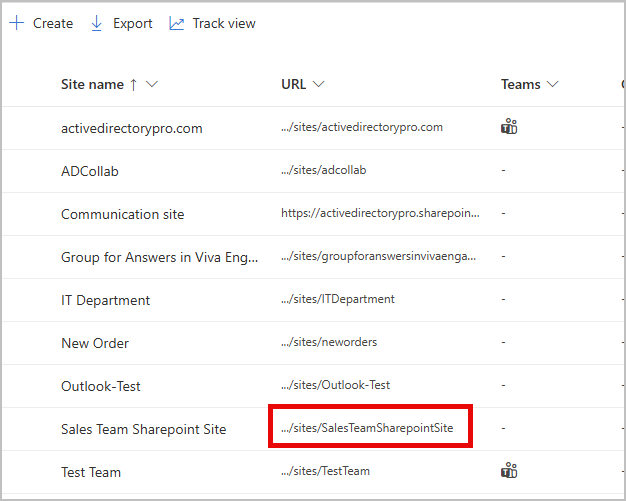
Find the site you want to add a guest user account to, and click the URL link. In my example im selecting the sales team URL.
-
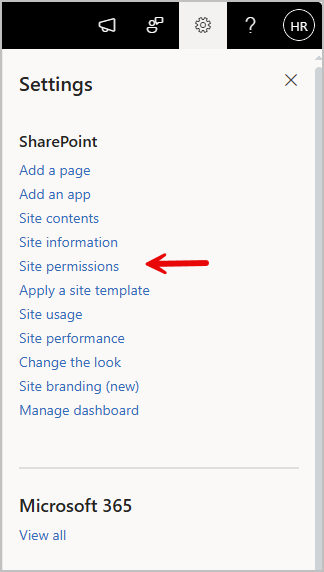
Select the gear in the top right of the page, then click on site permissions.
-
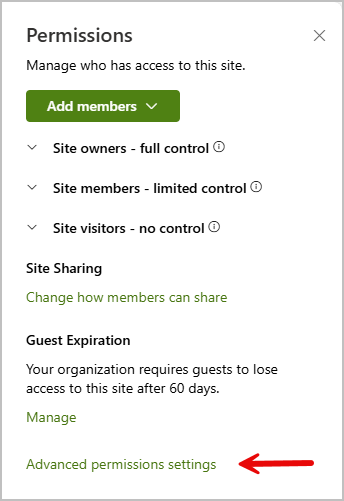
Select Advanced permission settings.
-
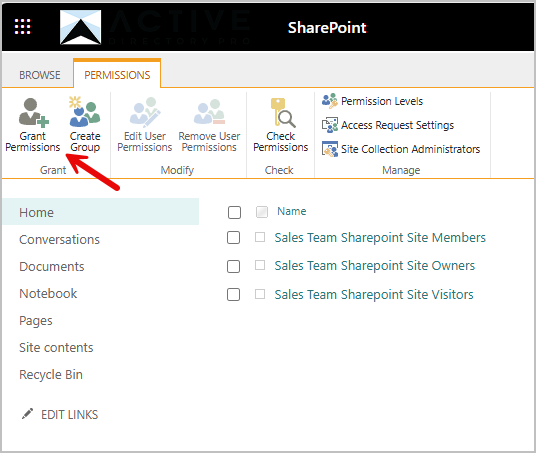
You will be directed to a new page, select Grant Access at the top left of the page.
-
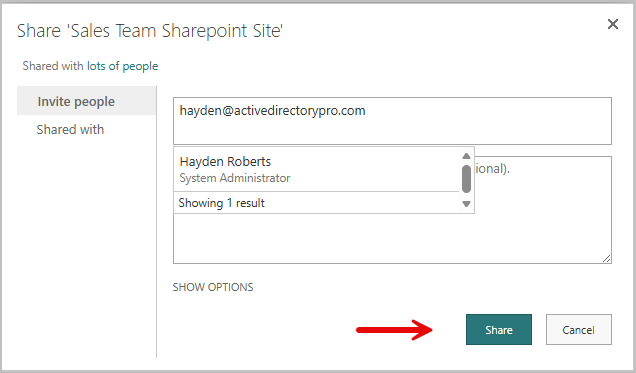
Type in the users name or email that you want to invite in the top box.
-
Select Show options to give the user set permissions.
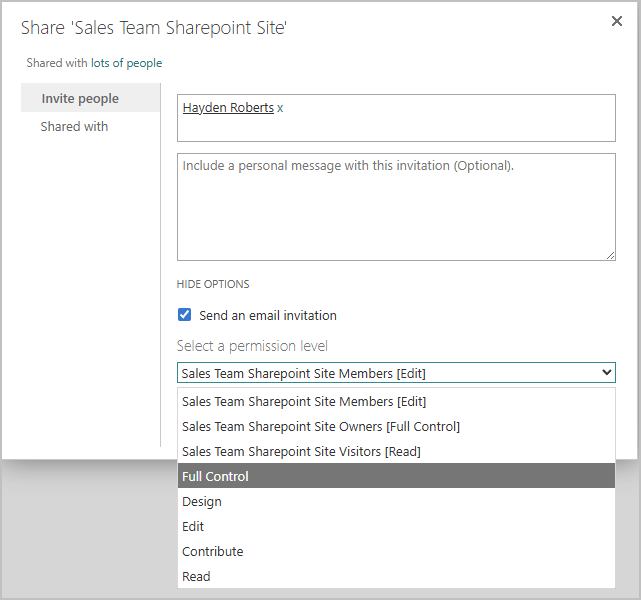
Once complete click share.