Add Guest user to Microsoft 365 Groups
In this guide, you’ll learn how to add guest accounts to 365 groups using the Admin Center and outlook.
Prerequisites
Section titled “Prerequisites”- Guest invitations must be allowed for groups. See configure guest access for details.
- The guest user must exist in the directory
- Group type must be Microsoft 365
- You need one of the following roles
- Global Administrator
- Groups Administrator
- User Administrator
- Group Owner
Add Guest Account to a Group in the Admin Center
Section titled “Add Guest Account to a Group in the Admin Center”-
Sign into the Microsoft Entra Admin Center
-
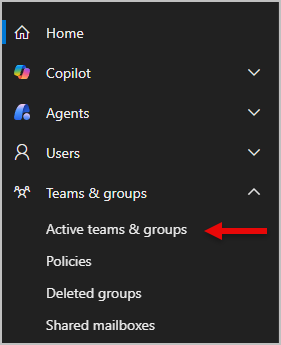
Go to Teams & groups > Active teams & groups on the left side.
-
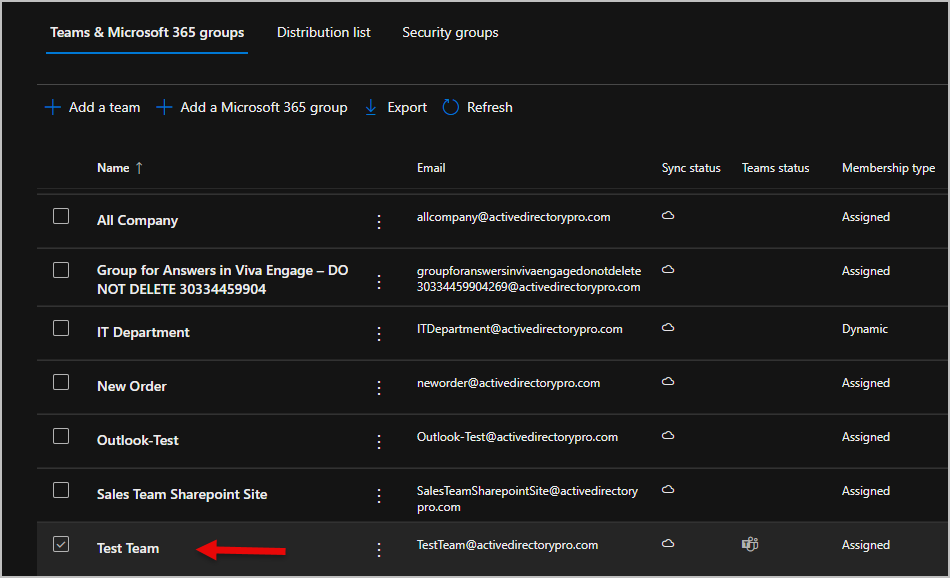
Find the group you want to add the guest to. I am selecting the group Test Team
-
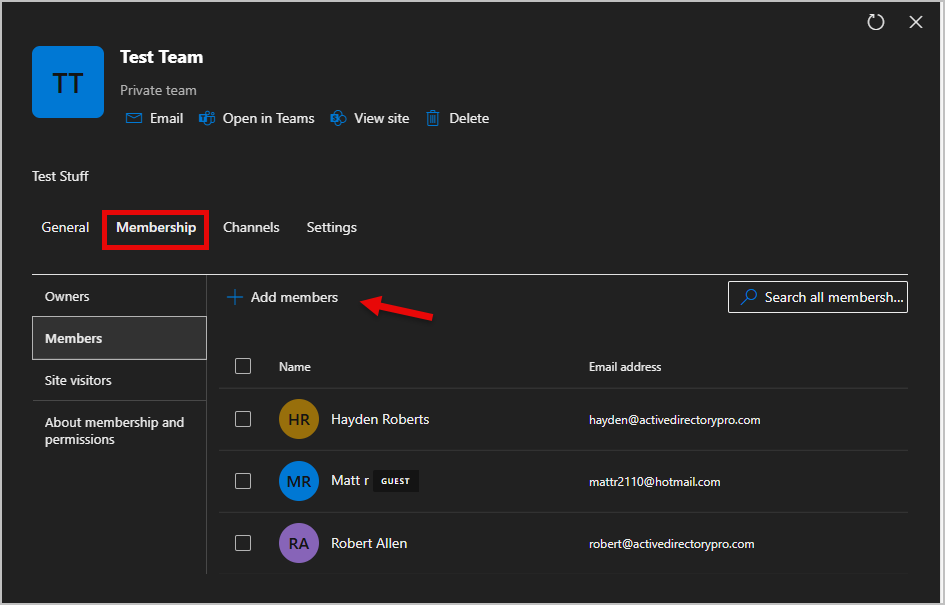
Select the Members tab then click Add members
-
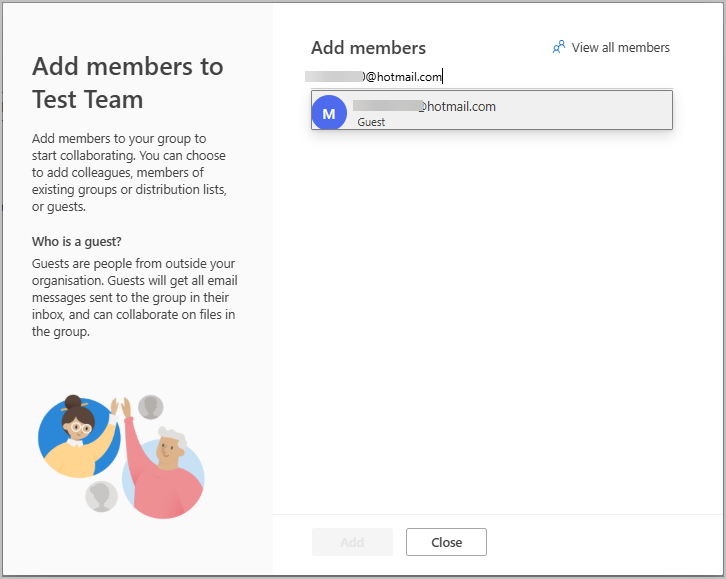
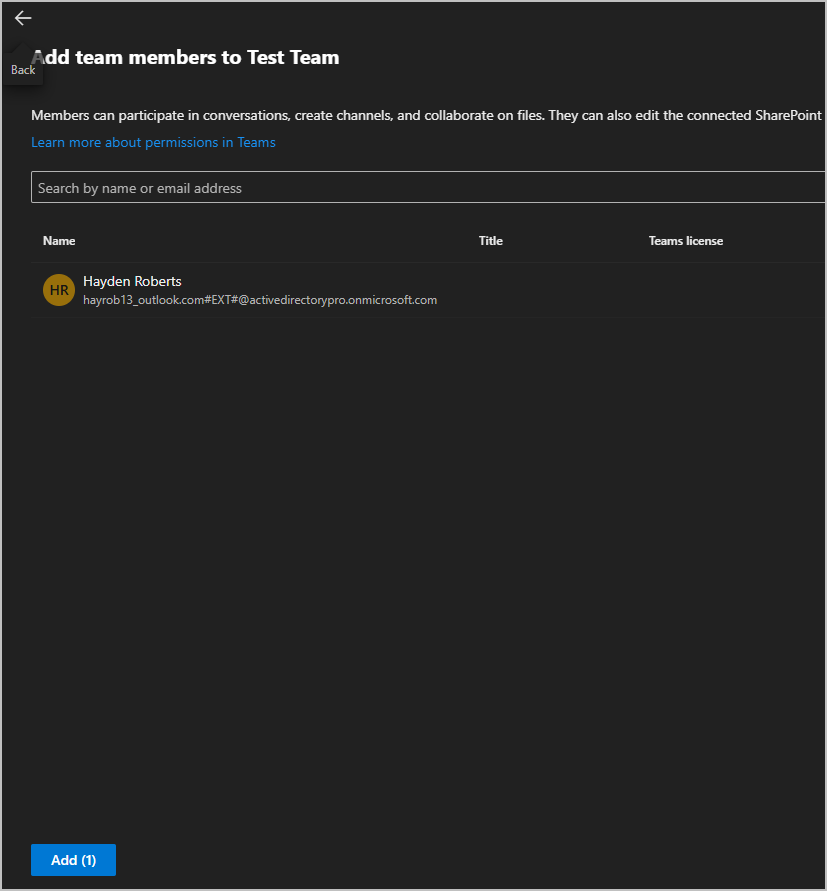
Search for and select the guest user, then select Add to finish.
Add Guest Account to a group using Outlook
Section titled “Add Guest Account to a group using Outlook”To add a guest user to a group in outlook, the group must be a Microsoft 365 Group (Not a distribution or security group)
-
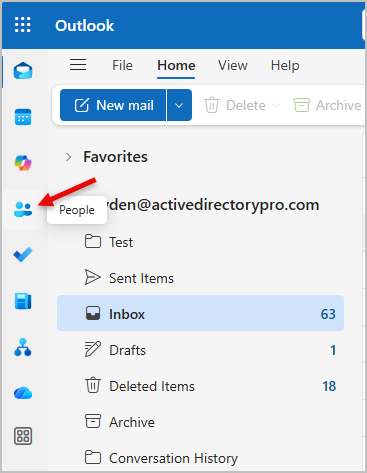
Open outlook, on the left side select the people icon.
-
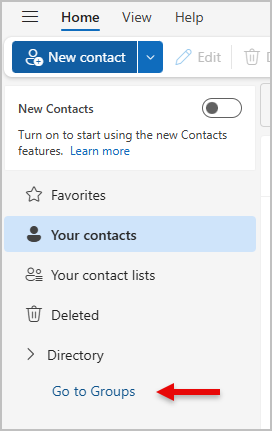
Click on Go to Groups
-
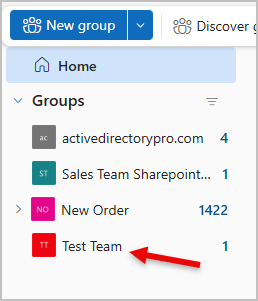
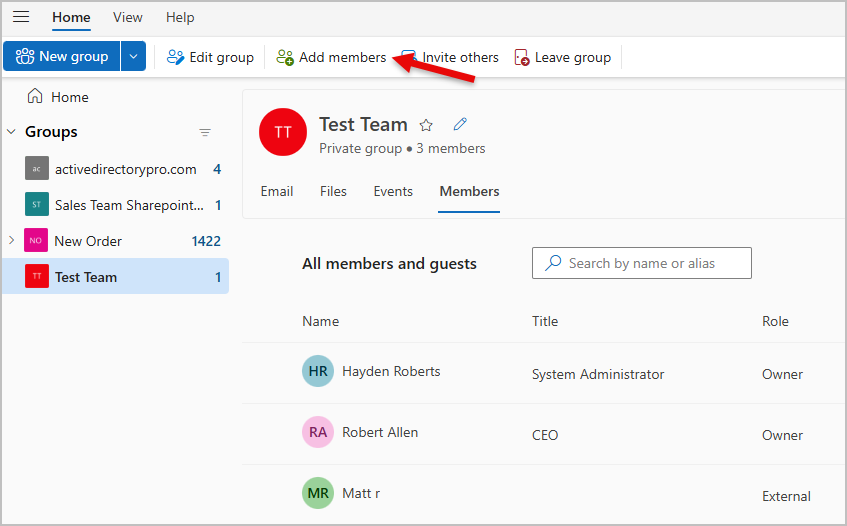
Find the group you want to add the guest account. I am selecting the group Test team
-
Select Add members at the top of the page.
-
Search for the guest account you want to add, then click add to add the account.
Tip: You may need to type the full email address for it to show up.