Set Your Organizations Password Policy in Microsoft 365
Setting a password policy in Microsoft 365 helps keep your organization secure by controlling how passwords are created and when they expire. In this article, ill show you the basic password policies and how to change them.
Default Password Policy Settings for Cloud Only accounts
Section titled “Default Password Policy Settings for Cloud Only accounts”The default settings for Microsoft 365 accounts.
- Minimum length: 8 characters
- Maximum length: 256 characters
- Complexity required:
- 3 of the following 4:
- Uppercase letters (A–Z)
- Lowercase letters (a–z)
- Numbers (0–9)
- Symbols (!, $, #, etc.)
- Password history: Last password cannot be reused immediately
- Password expiration: 90 days (by default)
- Password expiration notification: 14 days before expiry
Modify Password Expiration Policy
Section titled “Modify Password Expiration Policy”-
Log into the Microsoft 365 Admin Center
-
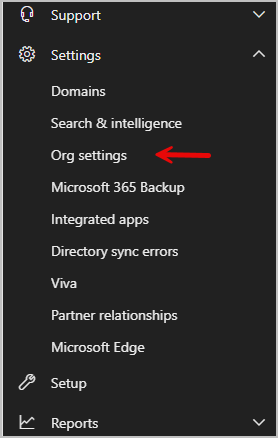
On the left, go to Settings > Org Settings
-
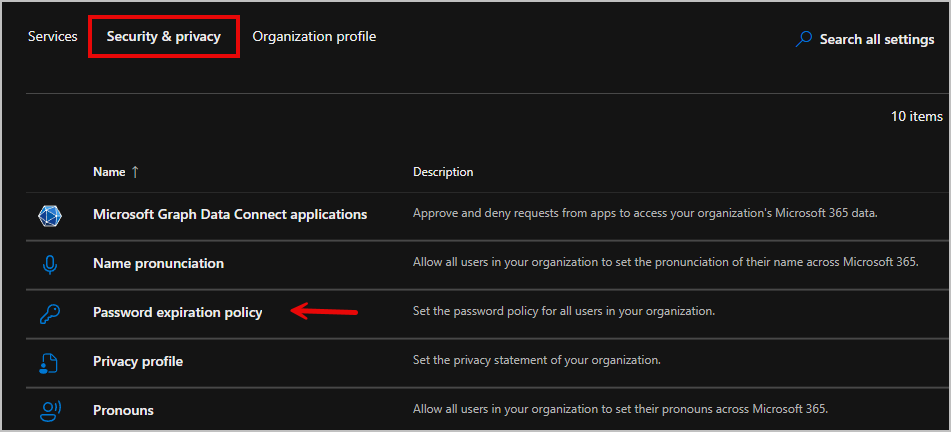
Select the Security & privacy tab, then go to Password expiration policy
-
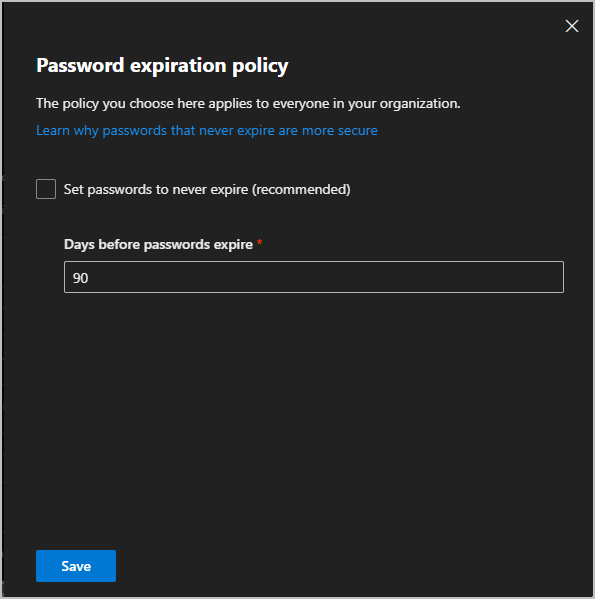
Here you can choose whether passwords never expire or set how many days they last. Pick the option you want, then click save.
How to set password complexity
Section titled “How to set password complexity”Password complexity is enabled by default for cloud accounts and you cannot disable or customize the settings.
How to set password length
Section titled “How to set password length”Microsoft enforces 8 character minimum for passwords and you cannot change this setting.
How to set Lockout threshold
Section titled “How to set Lockout threshold”-
Sign into the Entra Admin Center
-
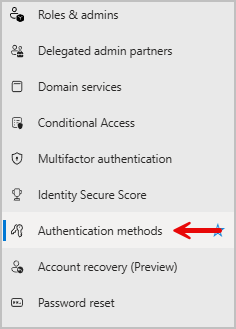
Go to Entra ID > Authentication methods
-
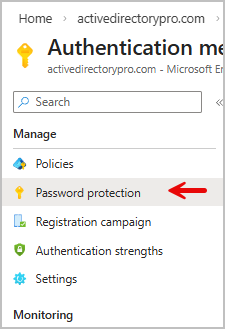
Go to Password Protection under the manage tab.
-
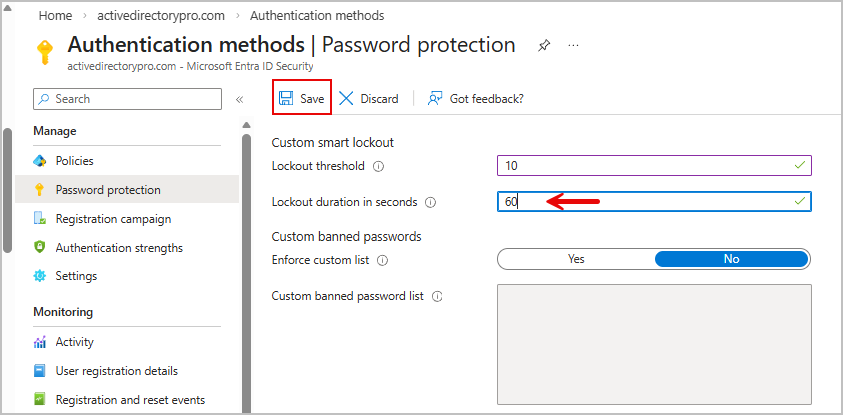
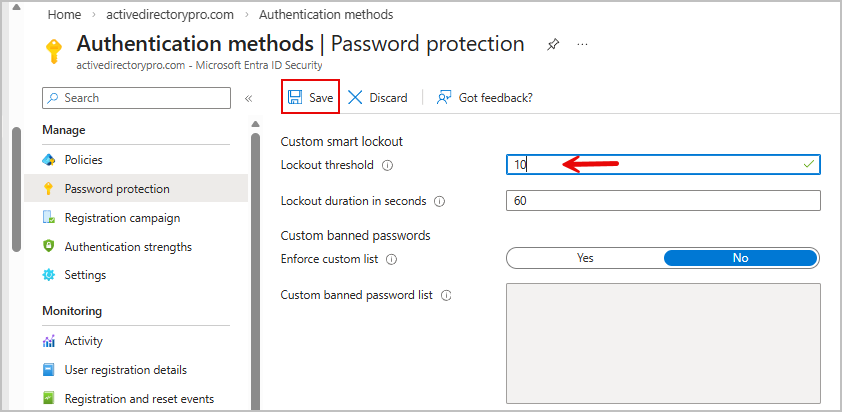
From here you can change the lockout threshold. Click save when done
How to set Lockout duration
Section titled “How to set Lockout duration”-
Sign into the Entra Admin Center
-
Go to Entra ID > Authentication methods
-
Go to Password Protection under the manage tab.
-
You can change the lockout duration here, select save when done.