
Add Custom Domain to Microsoft 365
In this guide, you’ll learn how to add a custom domain to your Microsoft 365 Tenant. You will also learn how to verify your domain with a DNS text record.
Prerequisites
Section titled “Prerequisites”- To add, modify, or remove domains, you must be a Domain Name Administrator of a business or enterprise plan.
- A purchased domain name from a domain registrar
- Access to the domain registrar to verify domain ownership and add DNS records
Add a Custom Domain
Section titled “Add a Custom Domain”-
Sign into the Microsoft 365 Admin Center
-
Navigate to
Setting>Domains.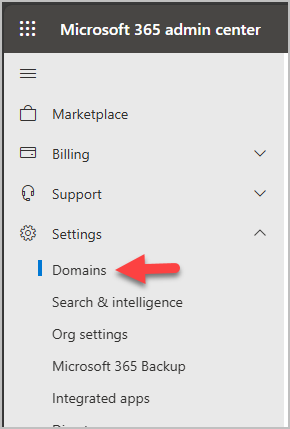
-
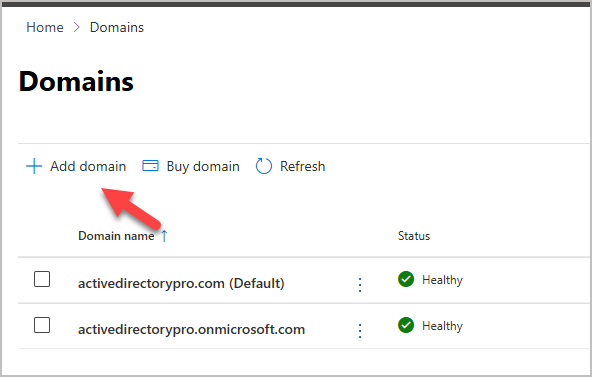
Click Add Domain
-
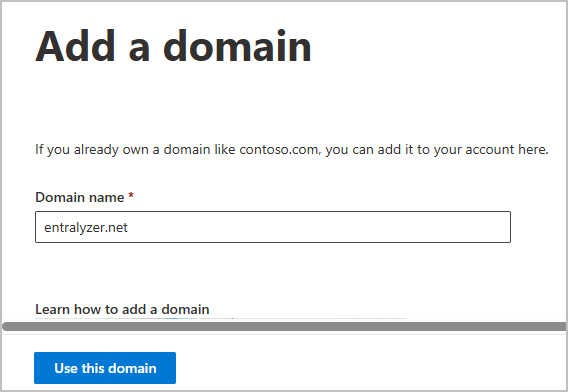
Enter the name of the domain you want to add, then select Use this domain. In this example, I’ll be adding the domain name entralyzer.net.
-
On the
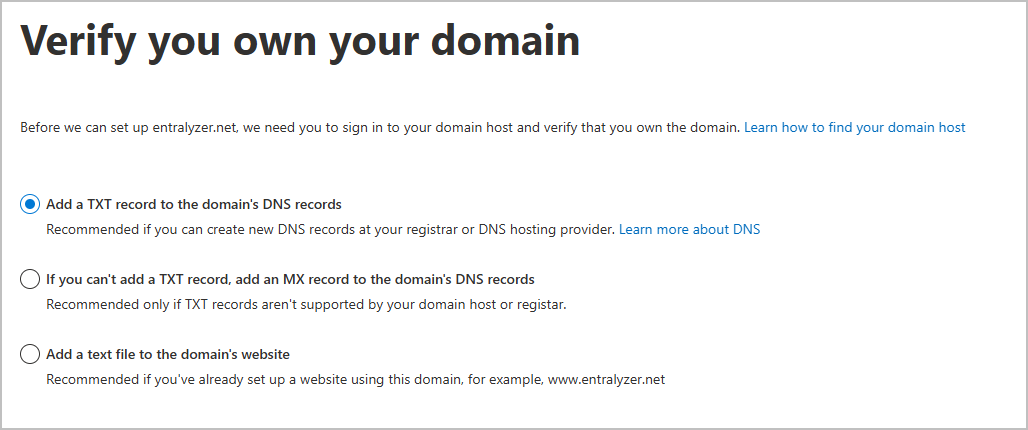
Verify you own your domainpage, you have three options to verify domain ownership.- Add a TXT record to the domains DNS records
- This requires access to the DNS records at your domain registrar
- If you can’t add a TXT record, add an MX record to the domains DNS records.
- This would require the same access as number 1.
- Add a text file to the domain’s website.
- Recommended if you’ve already set up a website using this domain.
In this example, I’ll walk through adding a TXT record.
- Add a TXT record to the domains DNS records
-
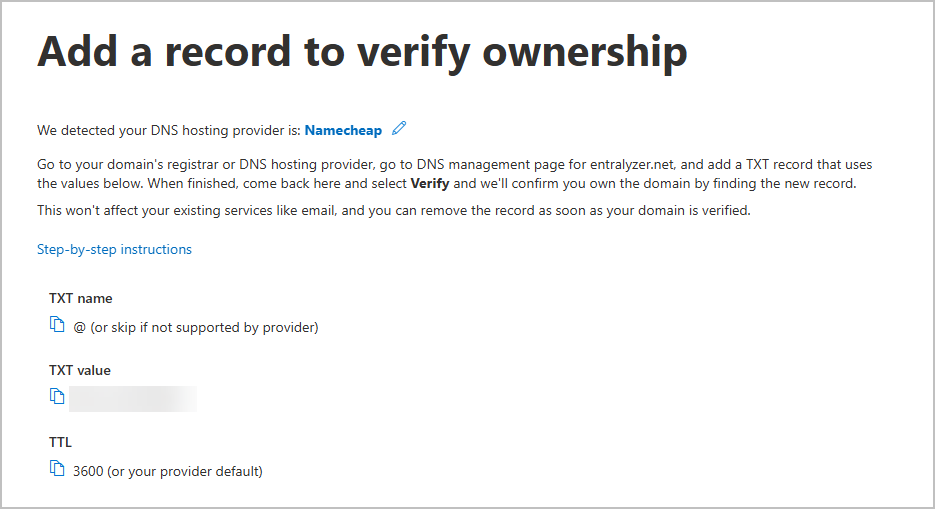
On the
Add a record to verify ownershippage, you are provide the TXT record details that need added to your domain registrar.Example TXT record provided by Microsoft
Add DNS TXT Record
Section titled “Add DNS TXT Record”-
Login to your domain registrar
-
Go to the domain DNS settings
-
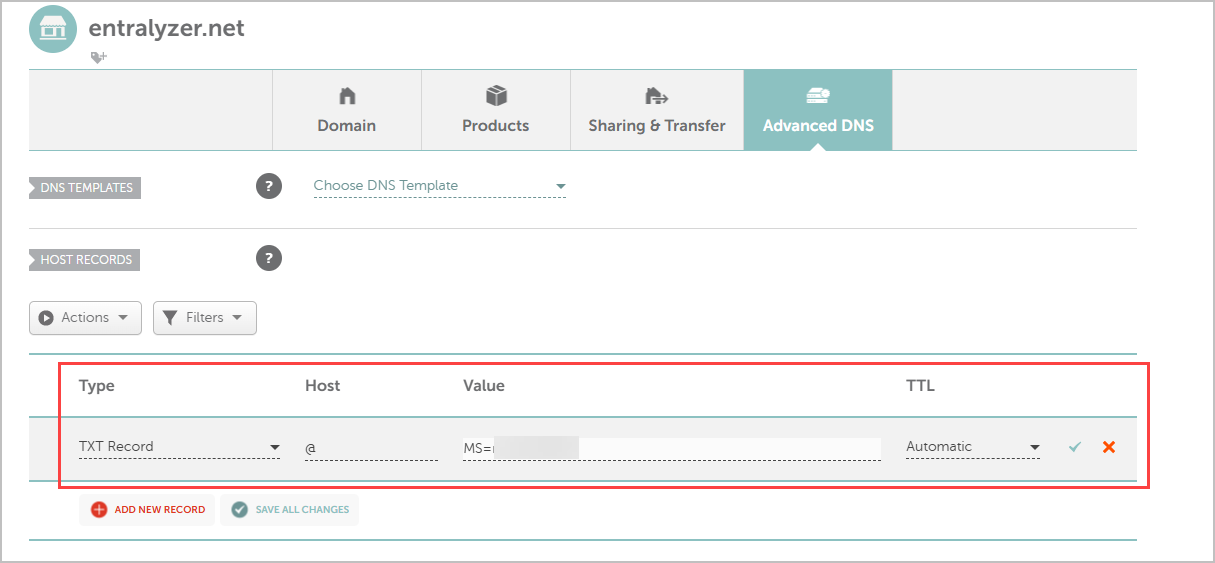
Add New DNS record
-
Enter the provided DNS TXT record details and save the changes
-
-
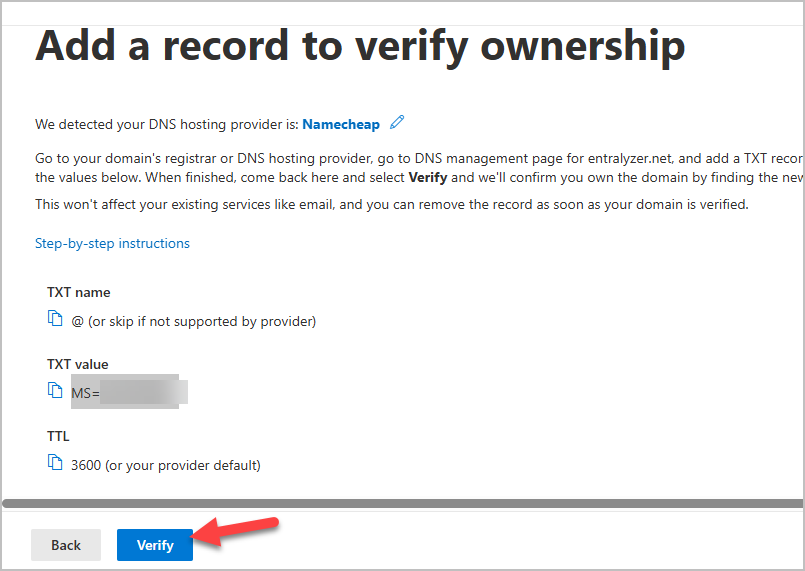
When you have added the DNS TXT record to your domain registrar go back to the Microsoft 365 domain setup page and click Verify.
-
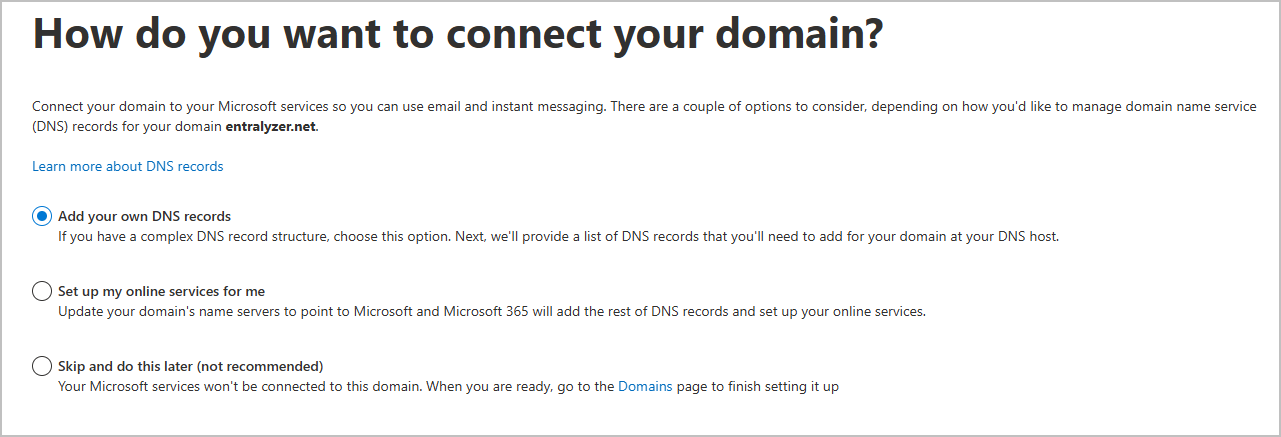
On the
How do you want to connect your domain?page, you are asked how you want to add additional DNS records. These additional records are needed for email, spam protection and other Microsoft services to work with your custom domain. Choose one of the following options:- Add your own DNS records
- If you have a complex DNS record structure, choose this option.
- Set up my online services for me
- Update your domain’s name servers to point to Microsoft and Microsoft 365 will add the rest of the DNS records.
- Skip and do this later
- Your Microsoft services won’t be connected to your custom domain. You can come back and finish the set up at a later time.
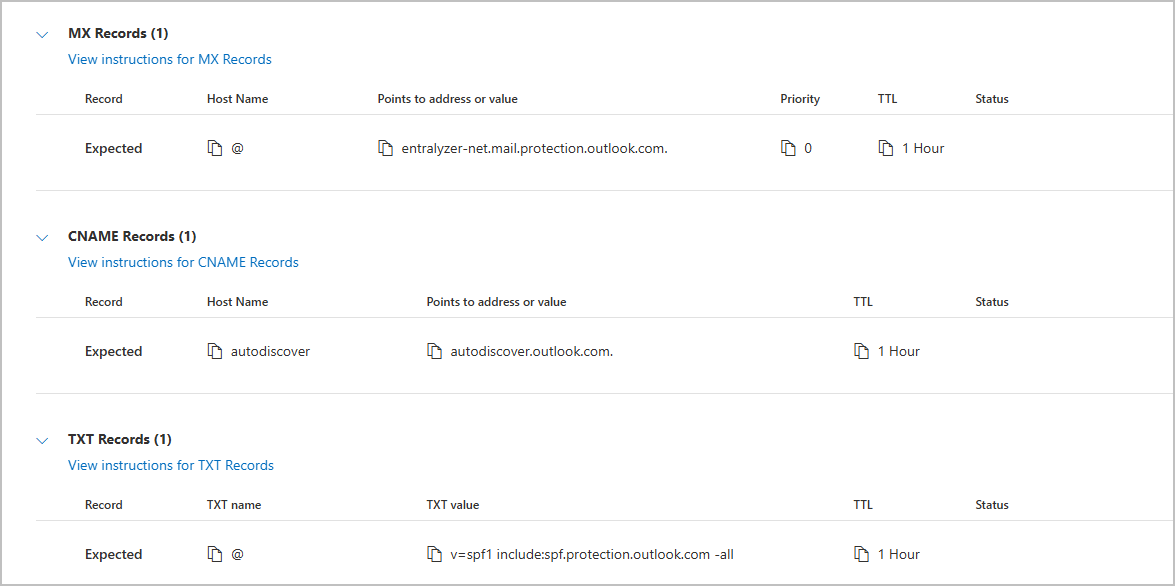
If you choose to add your own dns records you will get a list of DNS records you will need to manually add to your registrar.
Example DNS records
I walk through adding the mx records in a another article.
- Add your own DNS records
-
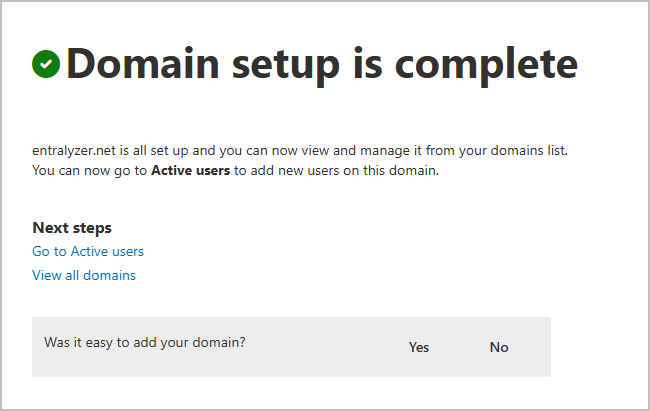
Select Finish and the domain setup is complete.
Manage or Change Domain Settings
Section titled “Manage or Change Domain Settings”If you did not complete the setup or need to check your list of custom domains go to Settings > Domains.
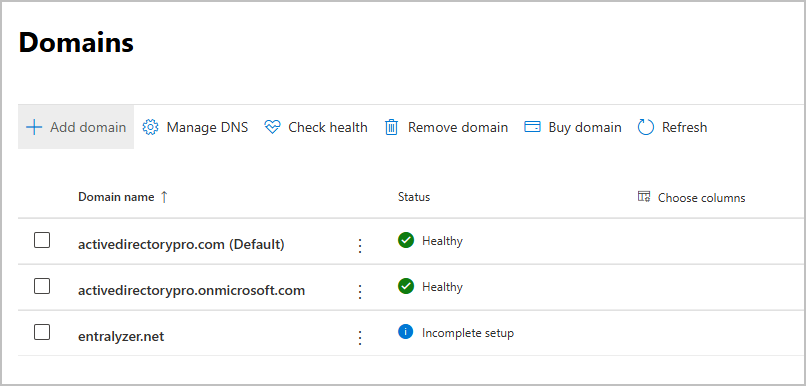
From this page you can select a domain and choose from the provided options.
Domain registrar List
Section titled “Domain registrar List”These guides walk through adding the DNS records for the various domain registrars.
- Connect your DNS records at IONOS
- Connect your DNS records at 123-reg.co.uk
- Connect your DNS records at Amazon Web Services
- Connect your DNS records at Cloudflare
- Connect your DNS records at GoDaddy
- Connect your DNS records at Namecheap
- Connect your DNS records at Network Solutions
- Connect your DNS records at OVH
- Connect your DNS records at web.com
- Connect your DNS records at Wix