
Add Another Domain to Microsoft 365
Adding a second domain to Microsoft 365 allows your users to to have multiple email address (for example, @entralyzer.com and @entralyzer.net) without creating separate tenants. In this guide, you’ll learn how to add and verify an additional domain, configure DNS records, and assign the domain to users and services such as Exchange Online and Teams.
How to Add Another Domain
Section titled “How to Add Another Domain”In this example, the domain entralyzer.com is already added and I want to add entralyzer.net as a second domain.
-
Sign into the Microsoft 365 Admin Center
-
Navigate to
Setting>Domains.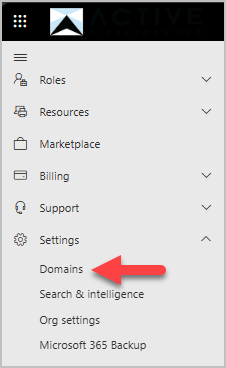
-
Click Add Domain
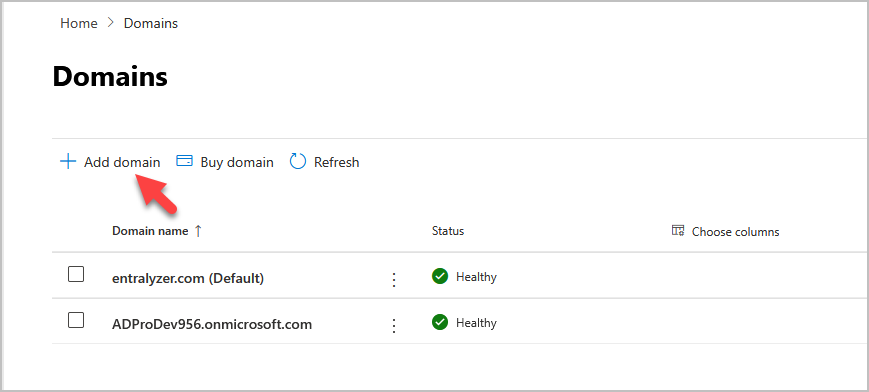
-
Enter the name of the other domain, then select Use this domain.
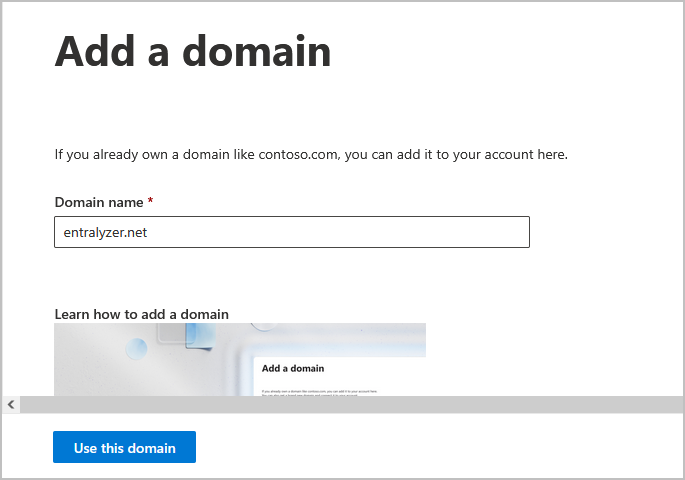
-
The
Verify you own your domainpage gives you three options to verify domain ownership.
insert video or link
- When you have verified your domain and added DNS records you can now assign users an email.
Add Email Alias for users
Section titled “Add Email Alias for users”To receive email on the secondary domain you will need to add an email alias to each user.
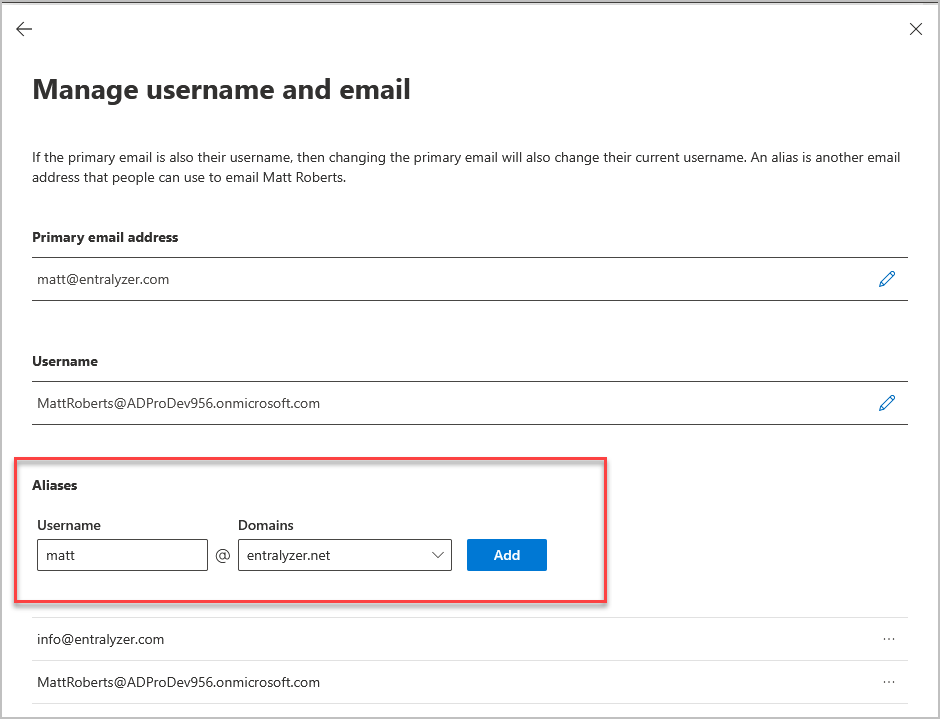
In this example, the users primary email is matt@entralyzer.com and I’m adding a secondary email matt@entralyzer.net.
-
Go to
365 Admin center>Users -
Click Active users
-
Find the user and click the account
-
Click on Manage username and email
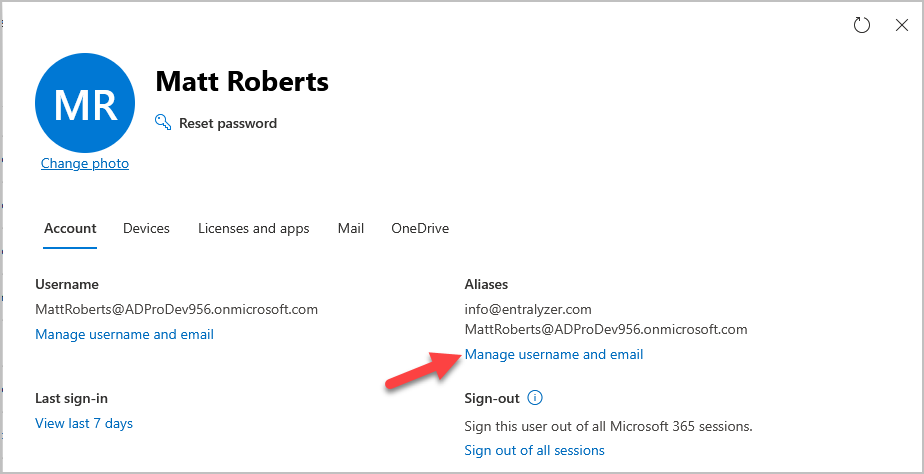
-
Enter a username, select the domain and then click Add then click Save changes
-
All done. The user can now send and receive email using the secondary email address.