Add Tenant to Entralyzer
Add Microsoft 365 Tenants
Section titled “Add Microsoft 365 Tenants”Our product is built using the Microsoft identity platform to establish a trust relationship between the software and your Microsoft tenant. We do not store your username and password. In addition, we do not collect any user data. This is an on-prem tool, and no data is sent back to our servers.
-
Go to
SettingsthenTenant/Domain Settings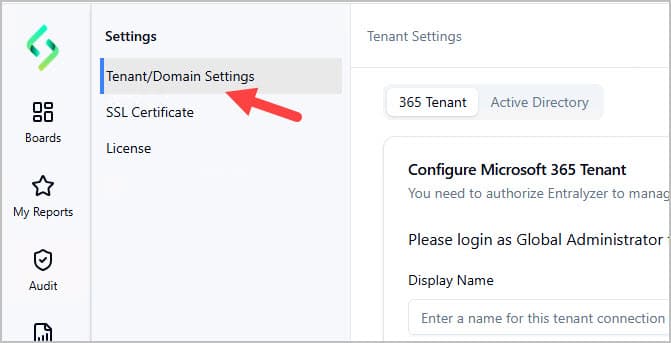
-
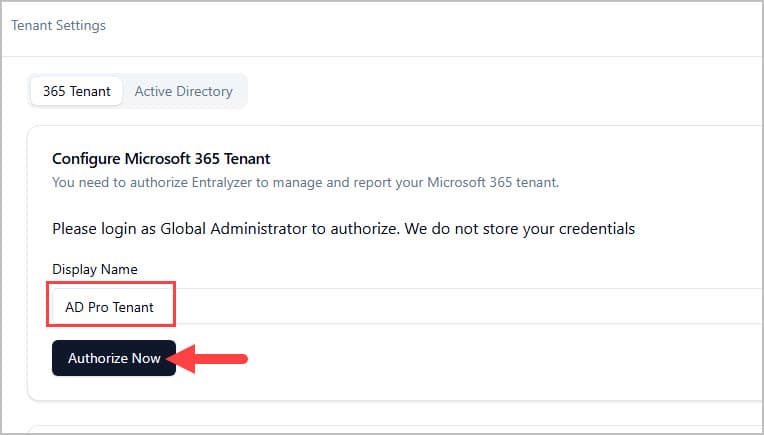
Enter a display name for your tenant and click “Authorize Now”.
-
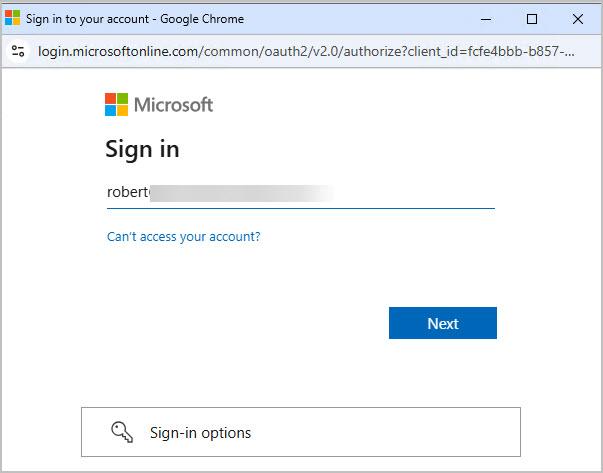
You will be prompted to sign in with your Microsoft account.
-
After you sign in you will be prompted to accept the permissions.
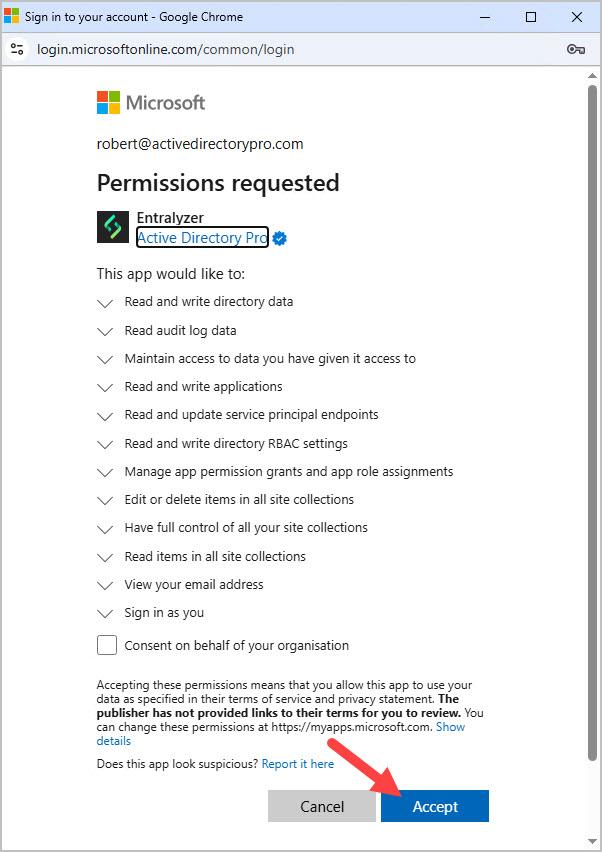
After clicking “Accept” wait about 10-15 seconds and then check the “Connected Tenants” section. If it shows connected you can start using the application.
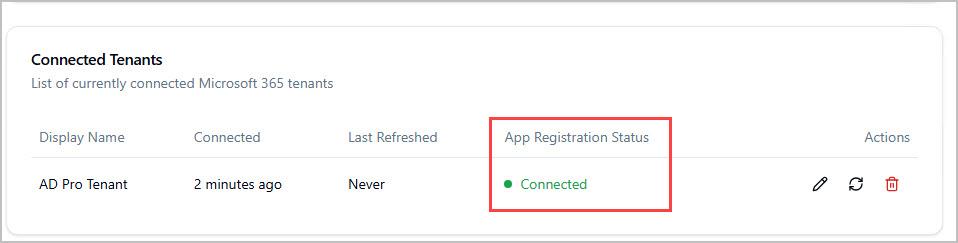
To add additional tenants repeat these steps.
Add Active Directory Connections
Section titled “Add Active Directory Connections”-
Under Settings Click the “Active Directory” tab.
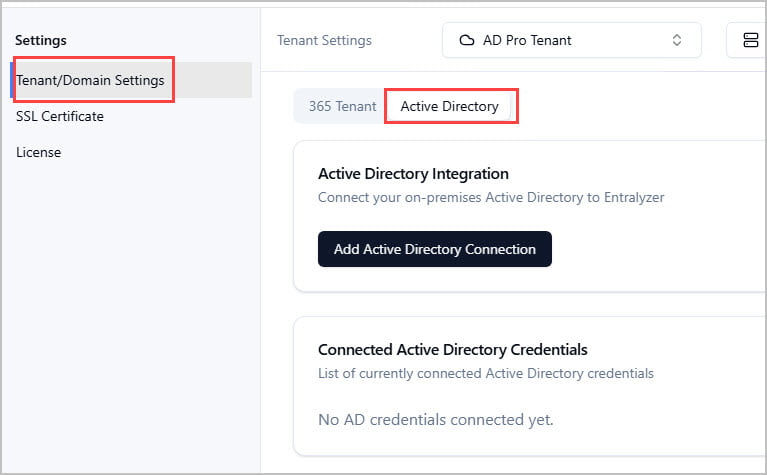
-
Click “Add Active Directory Connection”.
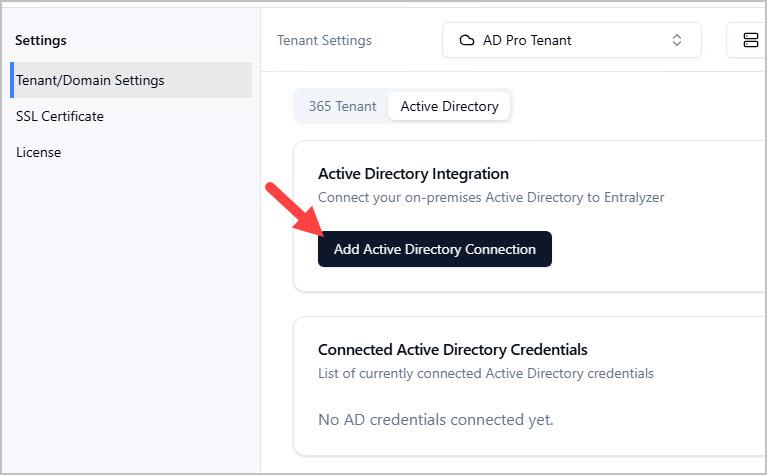
Enter your domain controller details and click “Test Connection” then click “Add”.
App Registration API Permissions
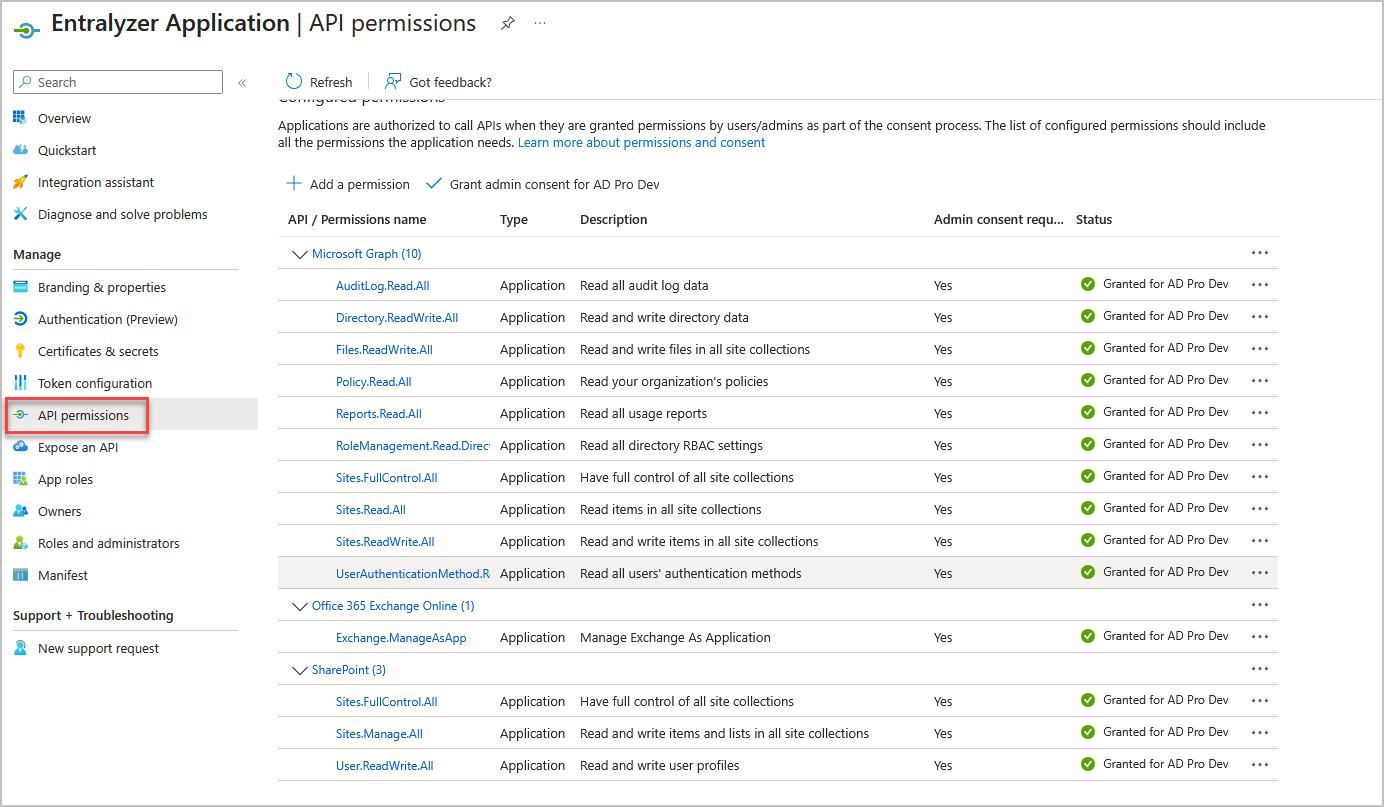
Section titled “App Registration API Permissions”Entralyzer uses various Graph APIs to collect data from your tenant. It requires the following permissions.
-
Microsoft Graph
- AuditLog.Read.All
- Directory.ReadWrite.All
- Files.ReadWrite.All
- Policy.Read.All
- Reports.Read.All
- RoleManagement.Read.Directory
- Sites.FullControl.All
- Sites.Read.All
- Sites.ReadWrite.All
- UserAuthenticationMethod.Read.All
-
Office 365 Exchange Online
- Exchange.ManageAsApp
-
SharePoint
- Sites.FullControl.All
- Sites.Manage.All
- User.ReadWrite.All
You can view the permissions by going to Entra ID > App registration > Entralyzer Application > API permissions