
Get Guest User Sign in Logs in Microsoft 365
Do you need to check whether a guest user has signed in, or review a guest user’s sign-in history? In this guide, you’ll learn how to get the sign-in logs for guest users in Microsoft 365.
Check Guest User Logon history with Entra Admin Center
Section titled “Check Guest User Logon history with Entra Admin Center”-
Sign into the Entra Admin Center
-
Click on
Monitoring & health>Sign-in logs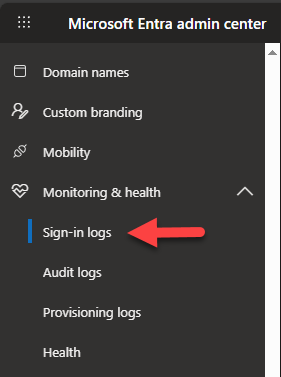
-
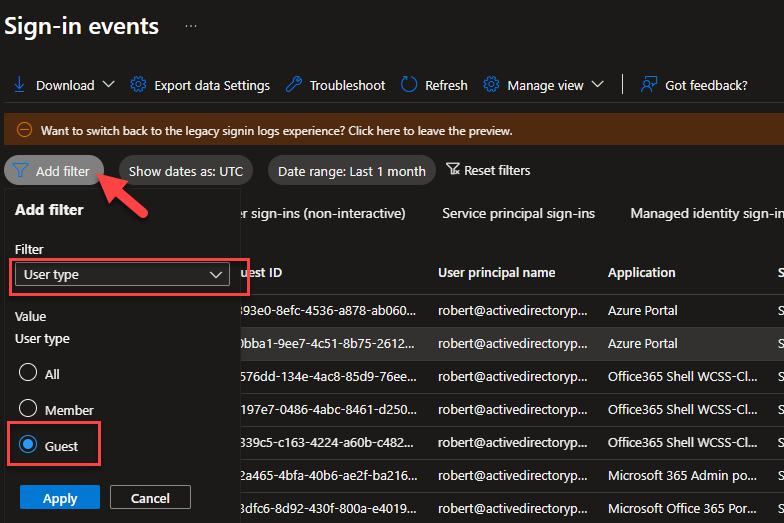
You will need to add a filter to display only guest users.
Click Add filter select User Type and then Guest. Click Apply to activate the filter.
-
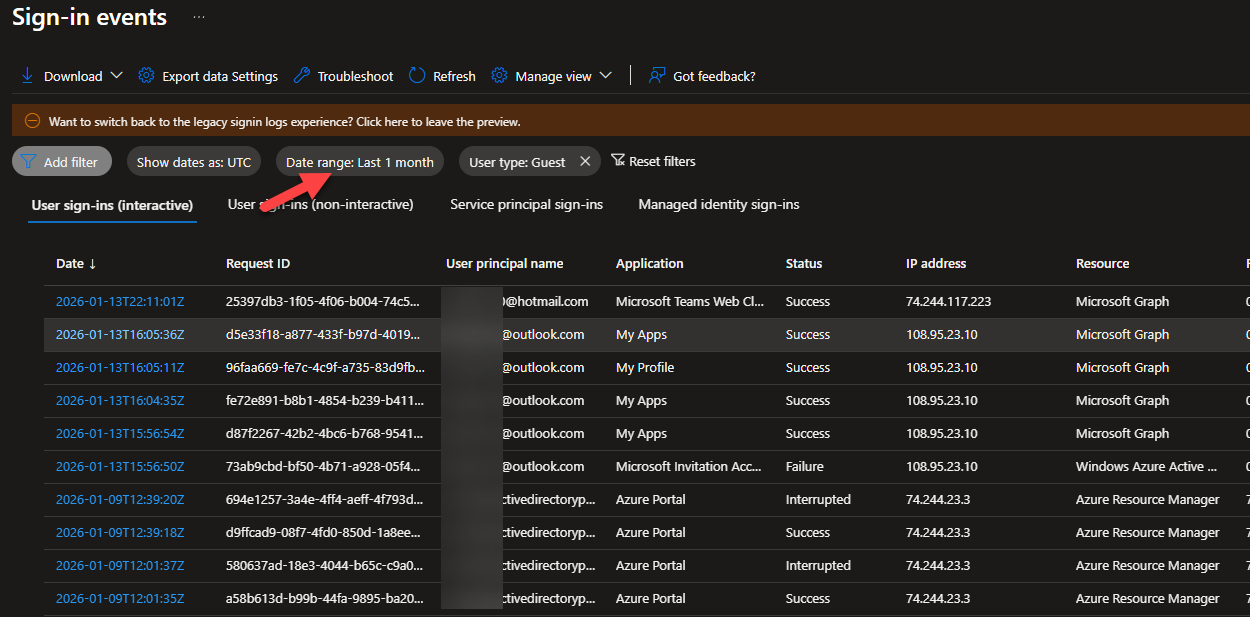
You should now have a list of guest users and their sign in history.
Note: You can adjust the date range by clicking the date range button.
Get Guest User Sign-in Logs with PowerShell.
Section titled “Get Guest User Sign-in Logs with PowerShell.”- Install Microsoft Graph Beta
Install-Module Microsoft.Graph.Beta- Connect to Microsoft Graph
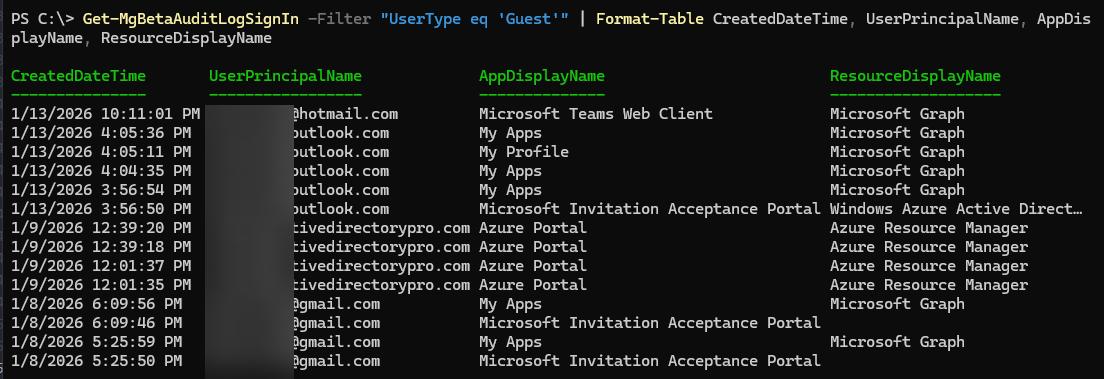
Connect-MgGraph -Scopes AuditLog.Read.All- Run the following command.
Get-MgBetaAuditLogSignIn -Filter "UserType eq 'Guest'" | Format-Table CreatedDateTime, UserPrincipalName, AppDisplayName, ResourceDisplayNameExample
- To export the report to csv run this command. Change
c:\myfolder\to a path on your local computer.
Get-MgBetaAuditLogSignIn -Filter "UserType eq 'Guest'" | Format-Table CreatedDateTime, UserPrincipalName, AppDisplayName, ResourceDisplayName | Export-Csv -Path c:\myfolder\guestusers.csv -NoTypeInformation