Get User Group Membership in Microsoft 365
Sometimes you need to quickly see which groups a user belongs to. It could be for troubleshooting access issues, auditing permissions, or cleaning up old accounts. In this article you will learn how to check a user’s group membership in Microsoft 365 Admin Center, PowerShell, and the Entralyzer app.
Option 1: Get User Group Membership in the Admin Center.
Section titled “Option 1: Get User Group Membership in the Admin Center.”-
Sign into the Entra Admin Center
-
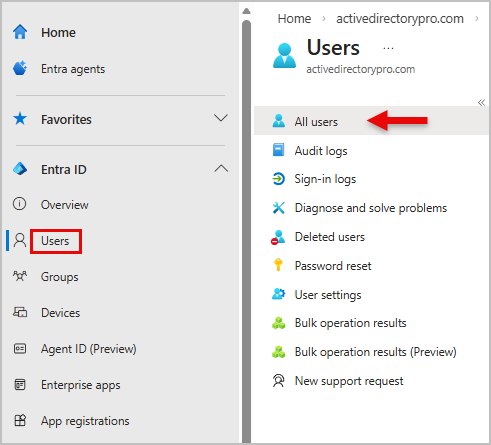
Go to Users > All Users
-
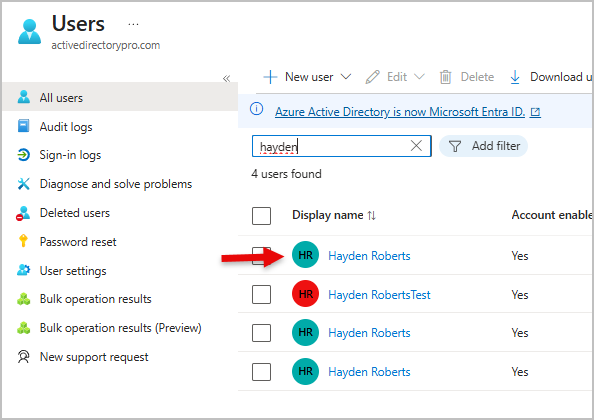
Search for the user you want to find group membership of.
-
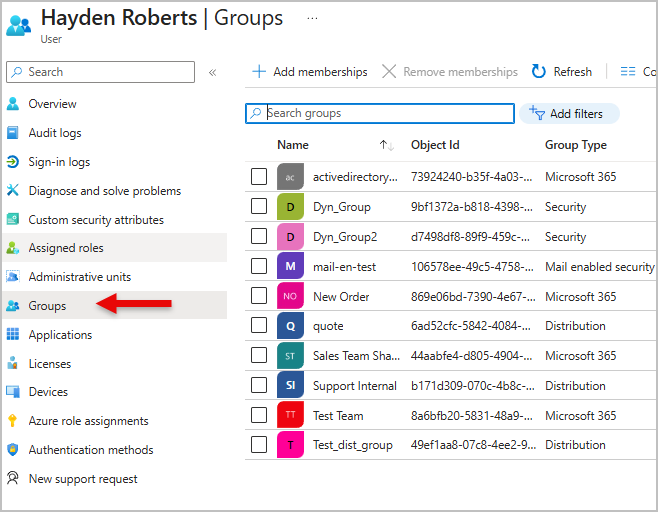
Select the user account, then open the Groups tab. You will see a list of all the groups the user is a member of.
Option 2: Get User Group Membership using PowerShell.
Section titled “Option 2: Get User Group Membership using PowerShell.”-
Install Microsoft Graph (skip to step 2 if already installed)
Terminal window Install-Module -Name Microsoft.Graph -Scope CurrentUser -
Connect to Microsoft graph
Terminal window Connect-MgGraph -Scopes User.ReadWrite.All, Directory.AccessAsUser.All -
Get the users group membership
Terminal window Get-MgUserMemberOfAsGroup -UserId user@domain.com -All | Select-Object DisplayName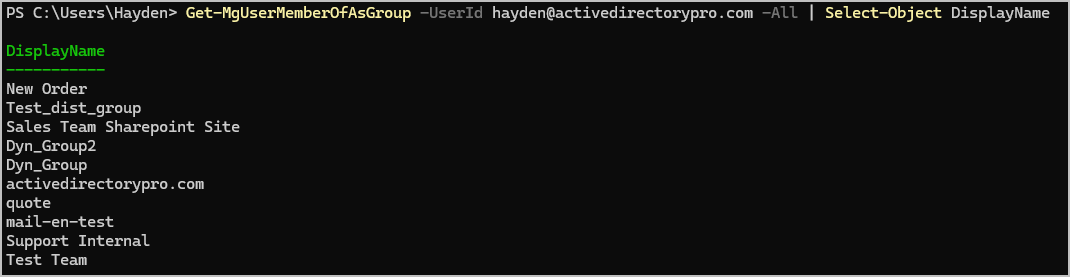
Option 3: Get User Group Membership using Entralyzer
Section titled “Option 3: Get User Group Membership using Entralyzer”-
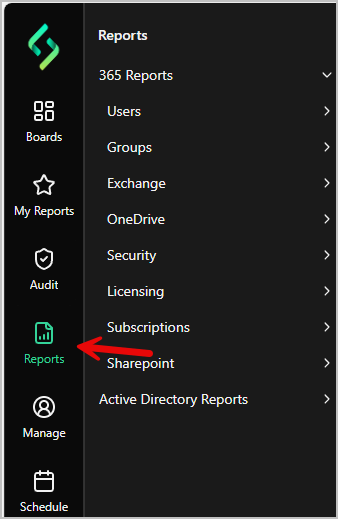
Select Reports on the left.
-
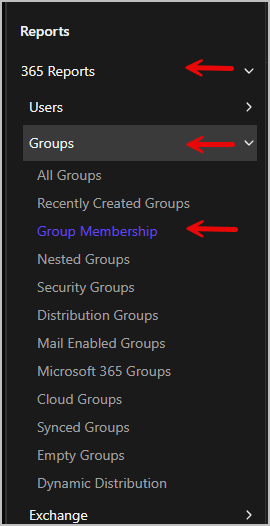
Go to 365 Reports > Groups > Group Membership
-
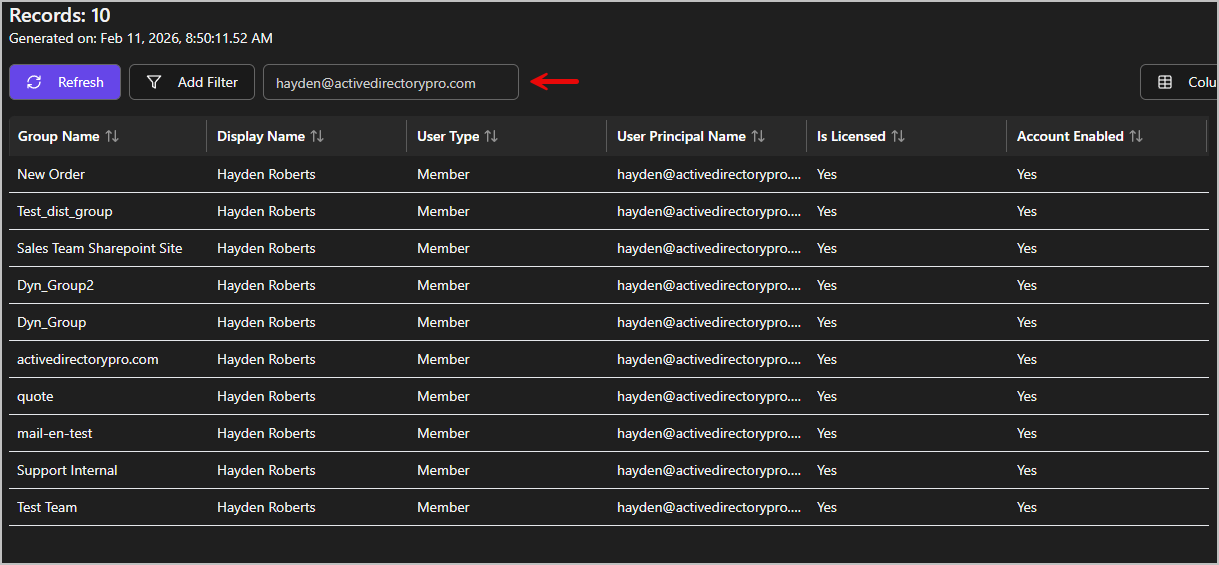
Search for the user you want to check.