
Disable user in Microsoft 365 (Block sign-in)
In this guide, you’ll learn how to disable and block a Microsoft 365 user sign in.
When an employee leaves your organization, one of the first steps is to block the user from signing in to prevent unauthorized access. Next, reset their password. You can also sign the user out of all Microsoft 365 services.
Step 1. Block user sign-in
Section titled “Step 1. Block user sign-in”Blocking someone prevents anyone from signing in as this user, and is a good idea when you think their password or username may have been compromised. When you block someone, it immediately stops any new sign-ins for that account, and if they’re signed in, they’ll be automatically signed out from all Microsoft services within 60 minutes. This won’t stop the account from receiving mail, see step 3 to block email access.
-
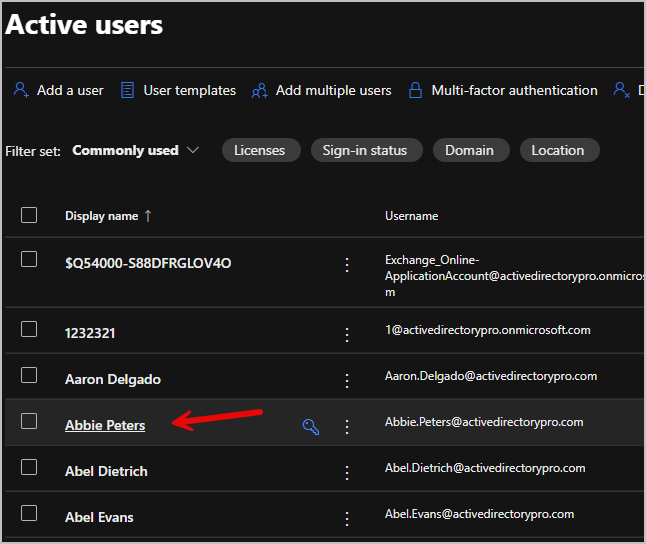
Log into the Microsoft 365 Admin Center and go to
Users>Active Users -
Click on the user account you want to block from signing in.
-
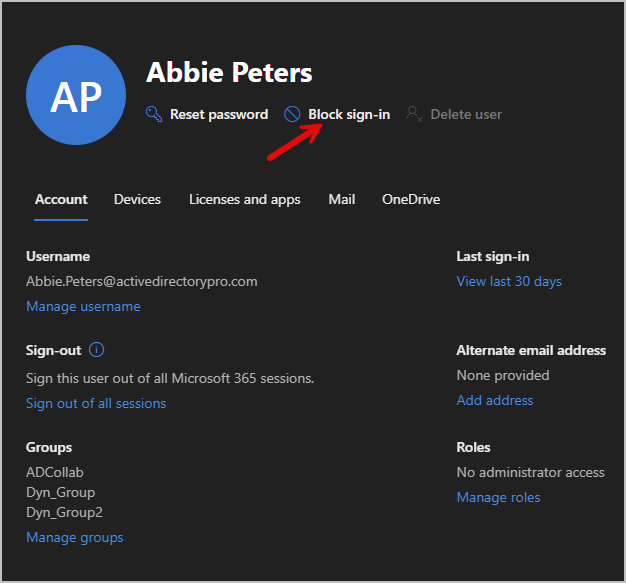
Select Block sign-in at the top of the page.
-
Select the box Block this user from signing in then Save changes
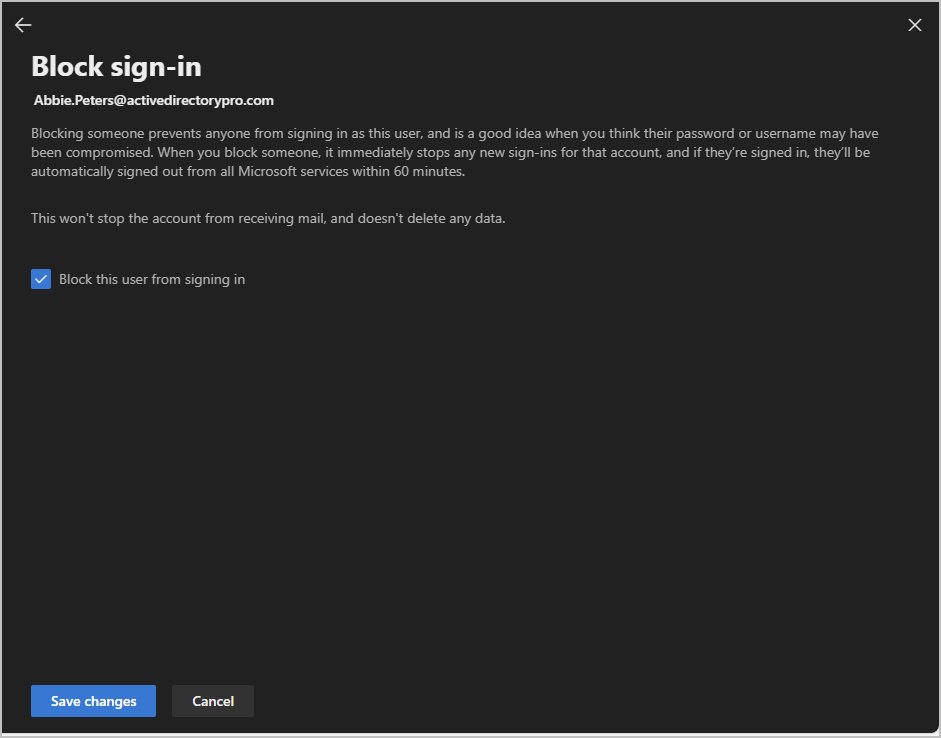
It could take up to 60 minutes to sign the account out of all microsoft services.
Step 2. Reset user password
Section titled “Step 2. Reset user password”-
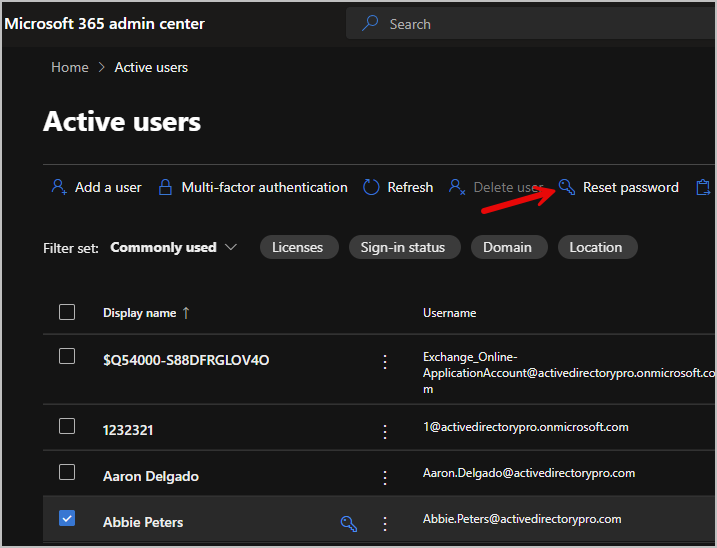
Log into the Microsoft 365 Admin Center and go to
Users>Active Users -
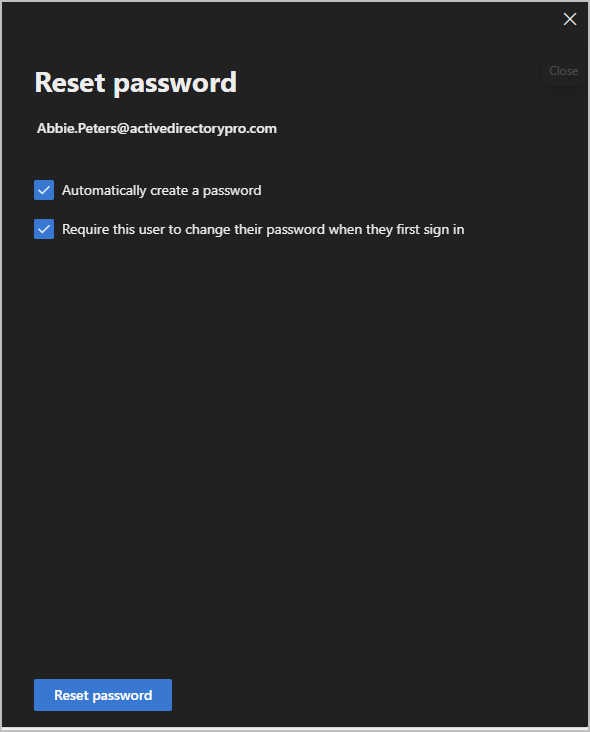
Select the user, then click reset password at the top of the page.
-
You can set a new password and require a password change at the next sign in.
-
The account will now be signed out and forced to make a new password next login.
Step 3. Block email access
Section titled “Step 3. Block email access”If the user has a mailbox you can block access with the following steps.
-
Log into the Microsoft 365 Admin Center
-
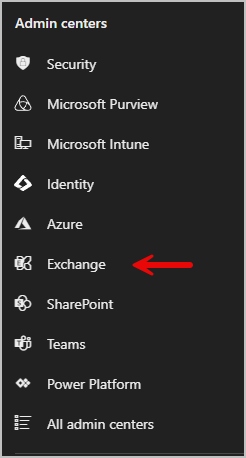
On the left side under Admin Centers Select Exchange
-
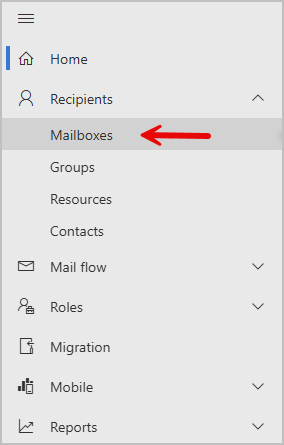
Go to Recipients > Mailboxes
-
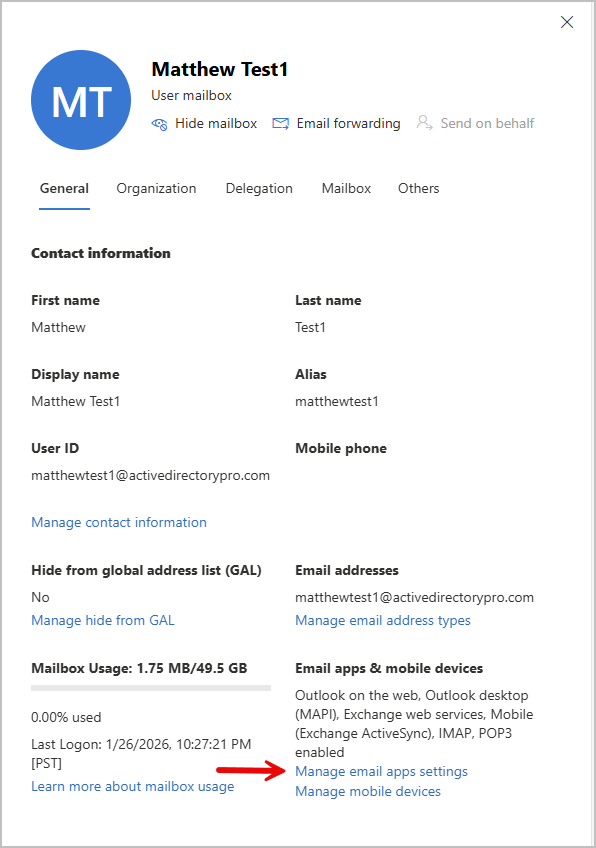
Select the mailbox you want to block access to.
-
Under Email apps & Mobile Devices select Manage email app settings
-
On the Manage email apps settings page, turn off all email app access by switching each option to Off:
-
Outlook desktop (MAPI)
-
Exchange Web Services
-
Mobile (Exchange ActiveSync)
-
IMAP
-
POP3
-
Outlook on the web
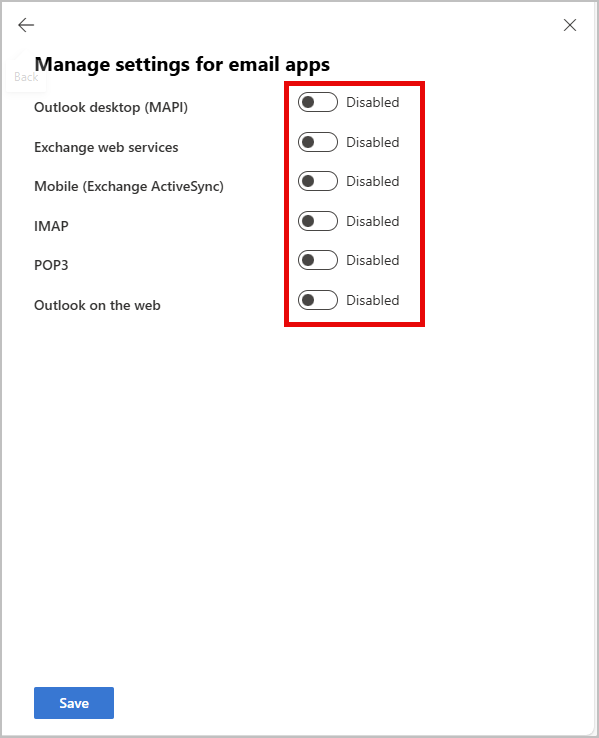
Click Save to block email access for this account.