
Delete Microsoft 365 User Account
In this guide, you’ll learn how to delete Microsoft 365 user accounts. You will also learn how to permanently delete users and delete multiple users at once using PowerShell.
Delete User in 365 Admin Center
Section titled “Delete User in 365 Admin Center”In this example, the account will be deleted and moved to the recycle bin for 30 days. After 30 days it is permanently deleted.
-
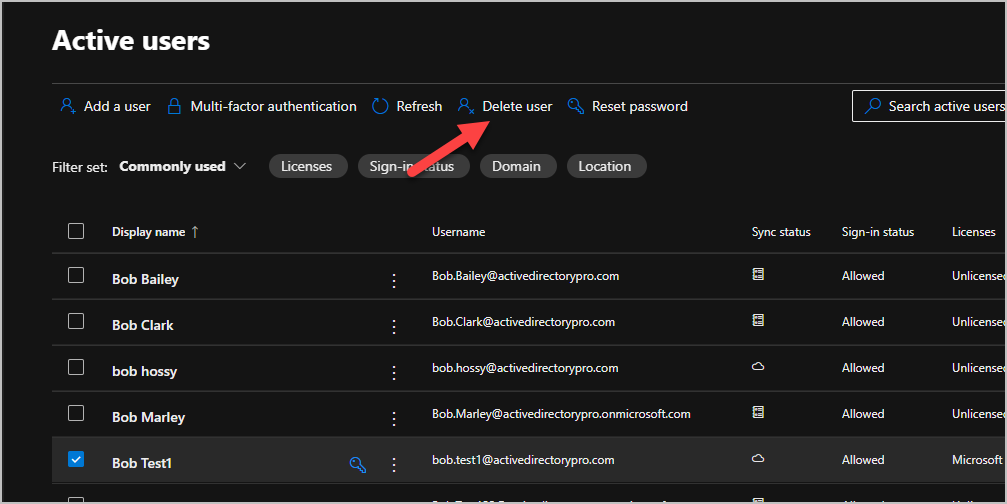
Log into the Microsoft 365 Admin Center and go to
Users>Active Users -
Select the account you want to delete and click the Delete user button.
-
If the account has a license, mailbox and OneDrive you will a few options.
- License: The license will be unassigned and available for other user.
- Make their email aliases available immediately: This option will remove any aliases on the account.
- Remove delegate access from their mailbox: This option will remove any delegated permissions assigned to the mailbox (send on behalf, full permissions, etc)
- Give another user access to the users OneDrive files for 30 days after the user is deleted
- Give another user access to this user’s email: This will convert the users mailbox to a shared mailbox. This is useful if you need to keep access to the users email for longer than 30 days.
After making your selections click Delete user
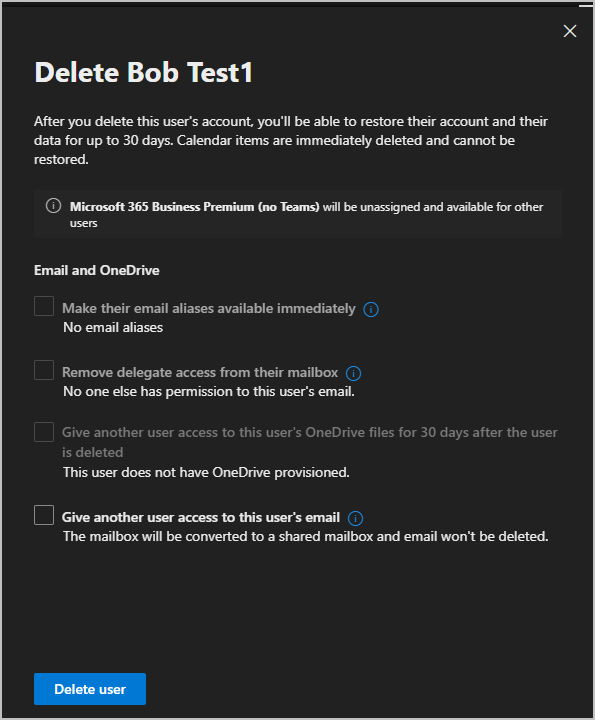
Depending on what you selected you will get additional instructions for completing the deletion.
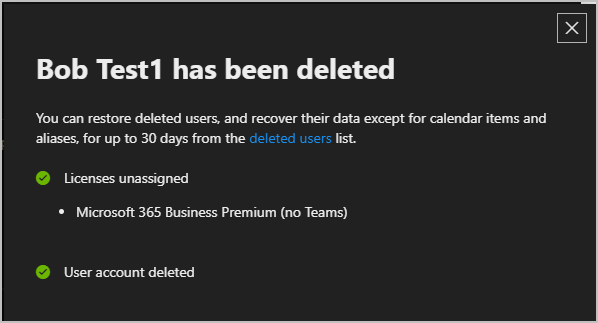
That completes the steps for deleting a user.
Permanently delete 365 users
Section titled “Permanently delete 365 users”When you delete a user in the Microsoft 365 admin center, the account is not permanently deleted right away, it is kept for 30 days in case you need to restore it. To permanently delete the user, follow the steps below.
-
To view your deleted users go to Microsoft 365 Admin Center and go to
Users>Deleted Users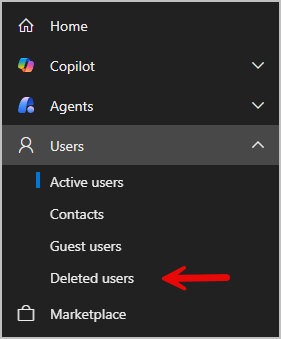
-
Select the account you want permanently deleted and find the User ID. The User ID is the long string of letters and numbers shown next to the email address.
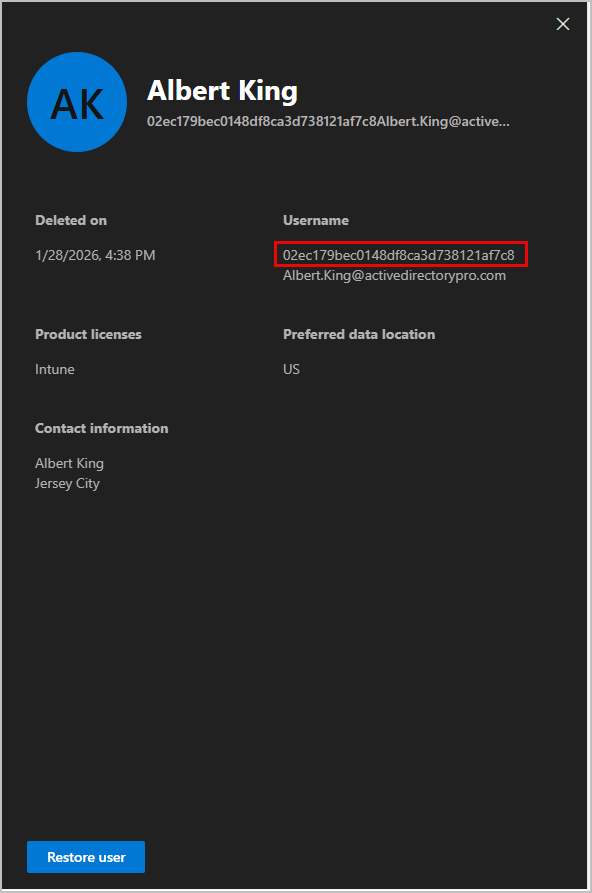
You can also easily find the user ID with this powershell command.
Terminal window Get-MgDirectoryDeletedItemAsUser -All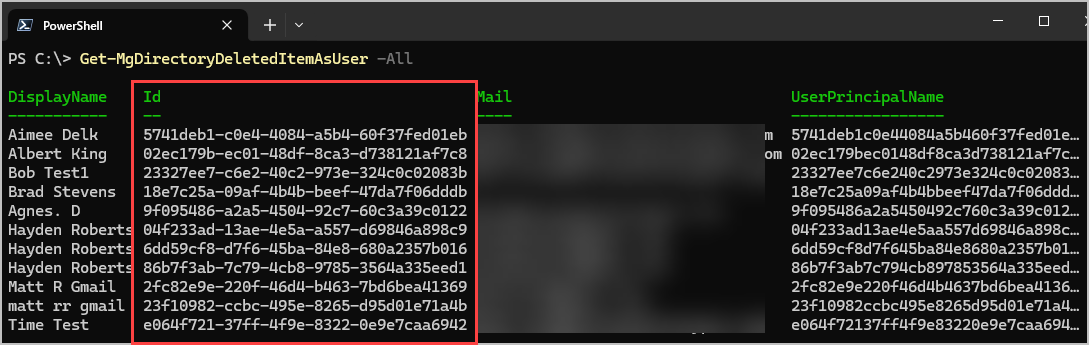
-
Open PowerShell and install Microsoft Graph (skip if you already have it install)
Terminal window Install-Module -Name Microsoft.Graph -Scope CurrentUser -
Connect to graph
Terminal window Connect-MgGraph -Scopes User.ReadWrite.All -
Enter the command below and change the User ID to the ID of the account you want to permanently delete.
Terminal window Remove-MgDirectoryDeletedItem -DirectoryObjectId "User ID"
Delete Multiple users with PowerShell
Section titled “Delete Multiple users with PowerShell”If you need to delete multiple users at once you can use PowerShell and a csv file.
-
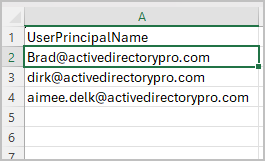
Start by creating a CSV file with a UserPrincipalName column, then enter the UPN of the users you want to remove.
-
Install and connect to Microsoft Graph.
Terminal window Install-Module -Name Microsoft.Graph -Scope CurrentUserConnect-MgGraph -Scopes User.ReadWrite.All -
Use the command below to soft delete all users, and be sure to update the file path to where you saved the CSV file.
Terminal window $users = Import-Csv "C:\IT\DeleteUser.csv"foreach ($user in $users) {Remove-MgUser -UserId $user.UserPrincipalName} -
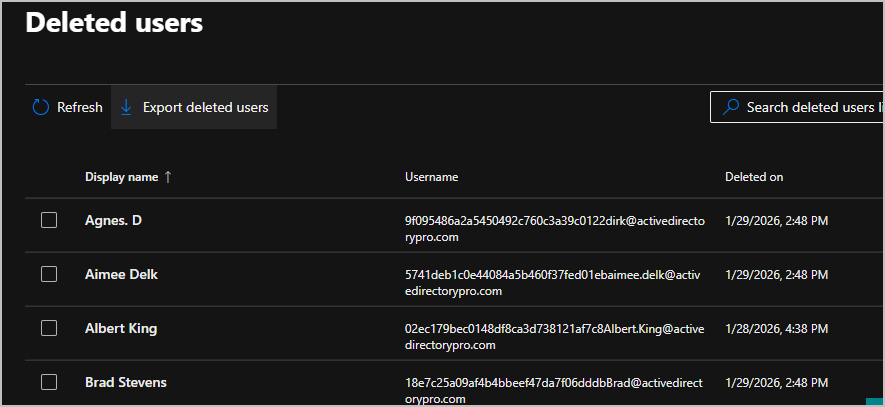
Those accounts will now be moved to the deleted user section in the Admin Center.
-
If you want to permanently delete the accounts instead. Use this command instead. Make sure to change the path to where your CSV is saved. (The accounts must be soft deleted before they can be permanently deleted)
Terminal window foreach ($user in $deletedUsers) {Remove-MgDirectoryDeletedItem -DirectoryObjectId $user.Id}
Conclusion
Section titled “Conclusion”Deleting a Microsoft 365 user removes sign-in access and associated licenses, but you need to make some decisions on how to handle the users data. Mailboxes, OneDrive content, and other data are retained or deleted based on retention policies, legal holds, and offboarding actions taken beforehand. Following a defined deletion process ensures access is revoked correctly while required data is preserved or transferred to other staff members.