
Assign or unassign licenses to 365 users
In this guide, you’ll learn how to assign or unassign a license to Microsoft 365 user accounts.
Assign licenses by using the Licenses page
Section titled “Assign licenses by using the Licenses page”-
Sign into the Microsoft 365 Admin Center
-
Go to
Billing>Licenses -
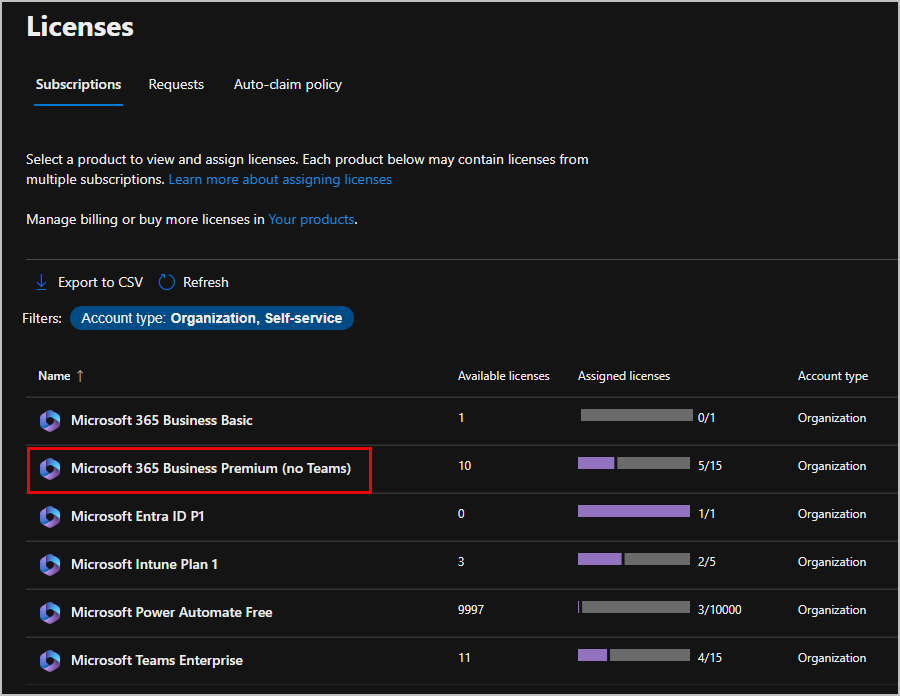
Select the license you want to give a user, in this example I will be giving a user the Microsoft 365 Business Premium
-
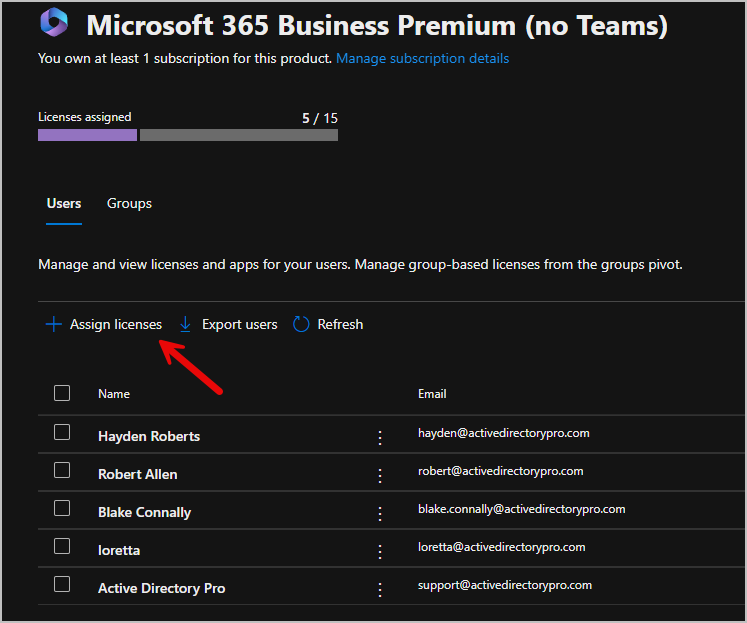
Select Assign Licenses
-
In the Assign licenses to users pane, type the users name you want to add and select it from the list, you can add up to 20 users. Then choose Turn apps and services on or off to decide which apps they can access.
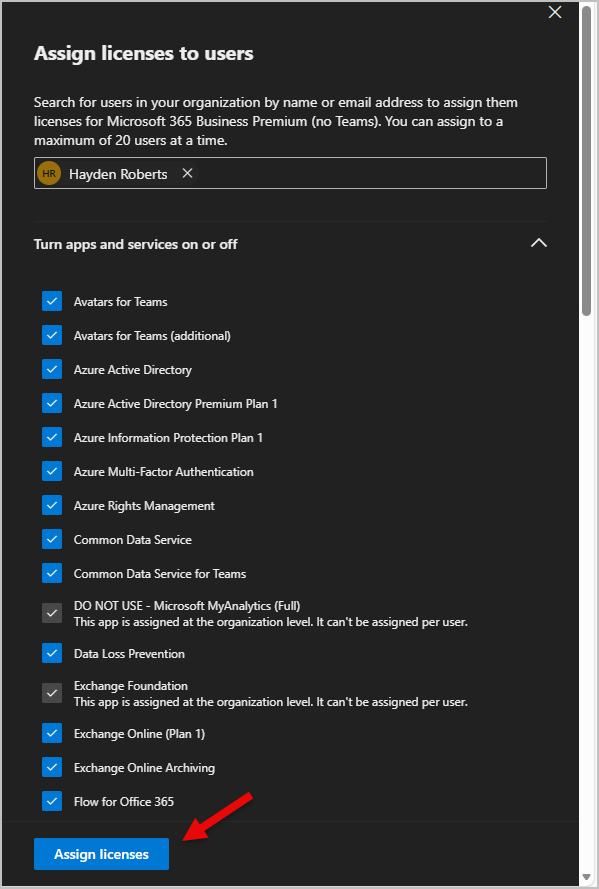
The selected users will now be assigned the license.
Add or Remove Apps a user has access to
Section titled “Add or Remove Apps a user has access to”This section is for users who already have a Microsoft 365 license. It explains how you can choose which apps and services the user can use by turning them on or off, without changing the license they already have.
-
In the Microsoft 365 Admin Center, go to Billing, then select Licenses.
-
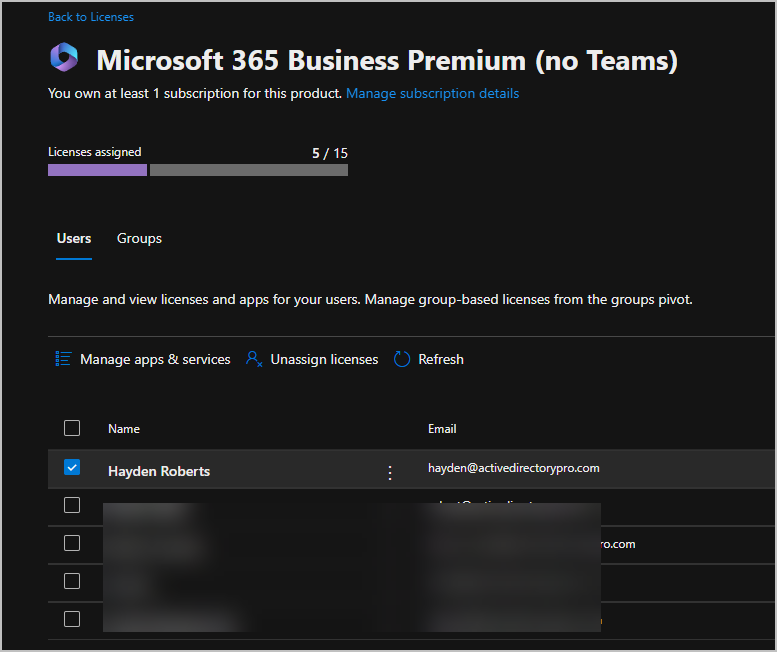
On the Licenses page, select the user you want to update.
-
Once selected you will see the apps and services where you can give or remove access to that user. In this example I removed the Common Data Service for Teams service.
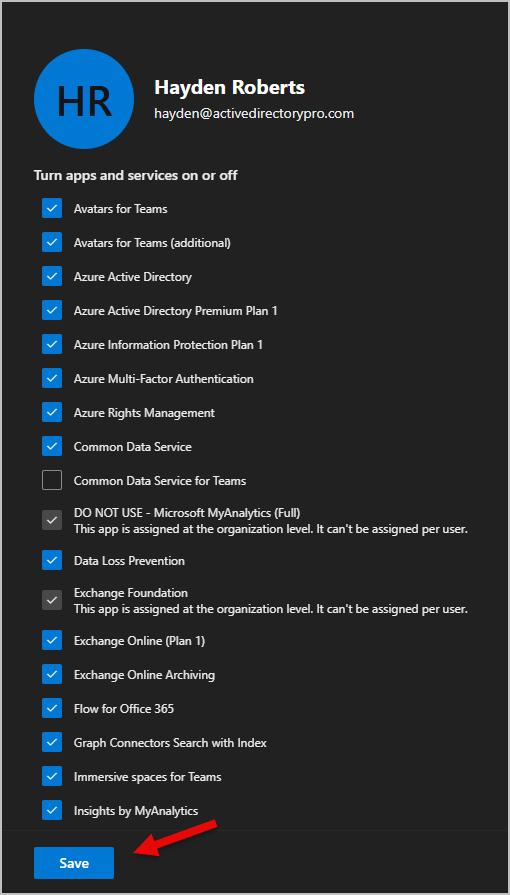
Select save when finished.
Unassign licenses by using the Licenses page
Section titled “Unassign licenses by using the Licenses page”-
In the Microsoft 365 Admin Center, go to Billing, then select Licenses.
-
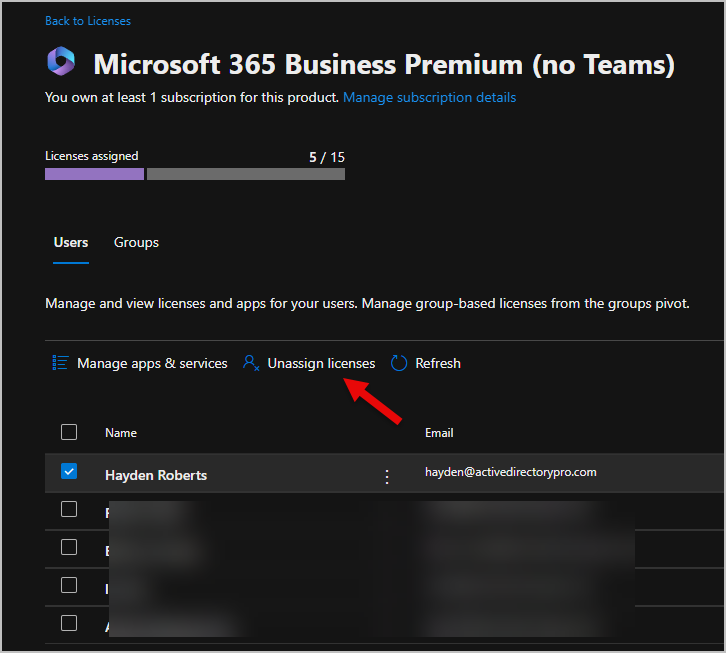
Click the user who has a license you want to unassign.
-
Select Unassign licenses
Assign licenses to multiple users
Section titled “Assign licenses to multiple users”-
In the Microsoft 365 Admin Center go to
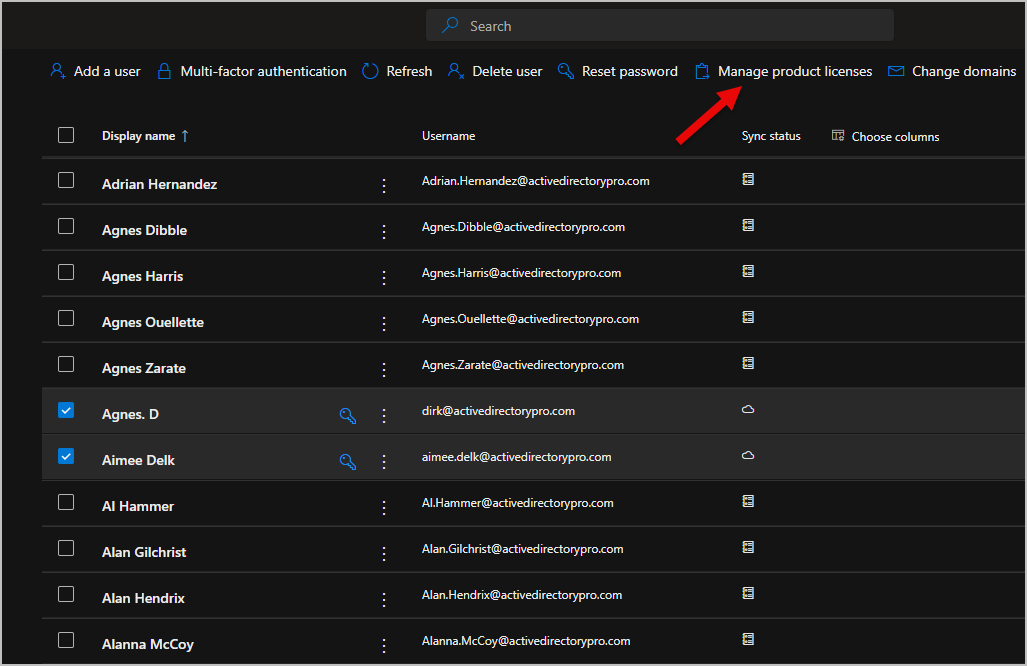
Users > Active Users -
Select the users you want to assign a license to, then select Manage product licenses at the top.
-
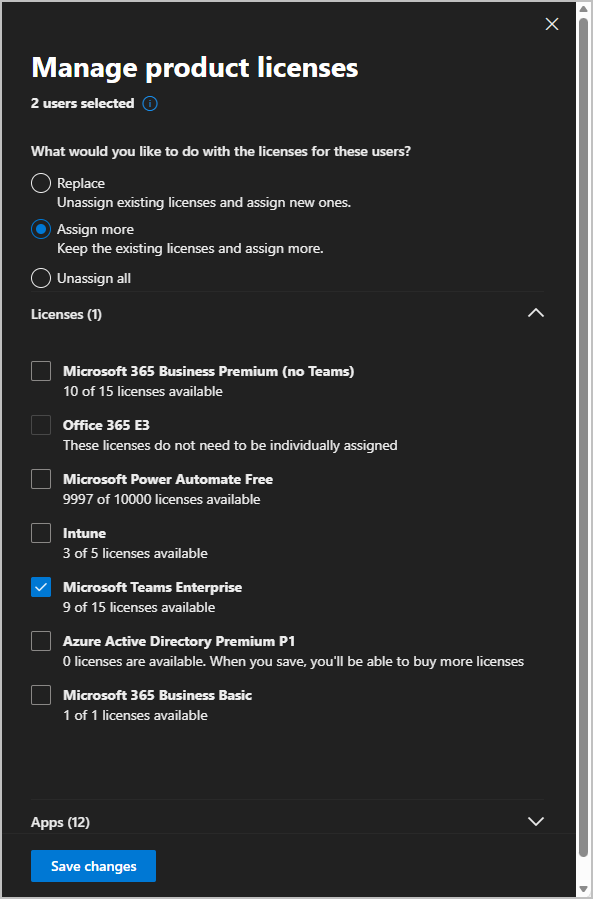
Select Assign more then select the license you want to add to the users then click save.
What Happens to User Data When a Microsoft 365 License Is Removed?
Section titled “What Happens to User Data When a Microsoft 365 License Is Removed?”- When you remove a license from a user, their Exchange Online data is kept for 30 days. If the license isn’t added back during that time, the data is permanently deleted. Unless your organization uses retention policies, anything covered by those policies is still kept for compliance and discovery purposes.
- Files stored in OneDrive for Business are not deleted when a license is removed. The files are only deleted if the user account is deleted from the Microsoft 365 admin center or removed through Active Directory sync.
- When you remove the license, the user’s mailbox can no longer be found or searched using eDiscovery tools like Content Search or eDiscovery.
- If you have an Enterprise plan, Exchange Online lets you keep a deleted user’s mailbox data by turning it into an inactive mailbox.