
Add a User Profile Photo to Microsoft 365
In this guide, you’ll learn how to add a profile photo to Microsoft 365 and 365 applications.
How to add your photo to Microsoft 365
Section titled “How to add your photo to Microsoft 365”-
Choose a photo you want to use and save it somewhere you can easily access. Make sure the file is under 4 MB and is a PNG, JPG, or GIF image.
-
Log into Microsoft 365
-
Click the circle at the top middle of the page that shows your initials or a person icon.
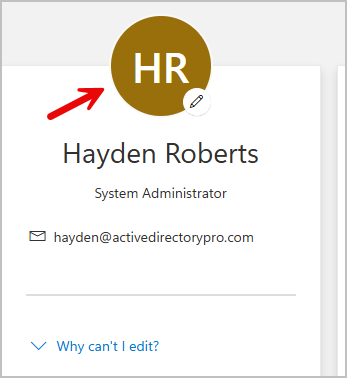
-
Select Add Photo
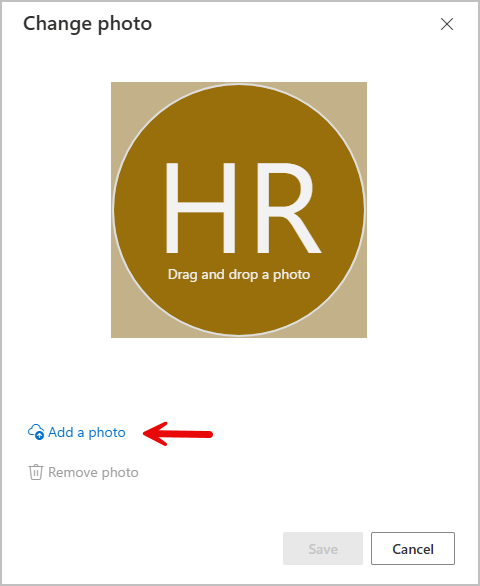
-
Browse to where your photo is saved and add it. Then click save.
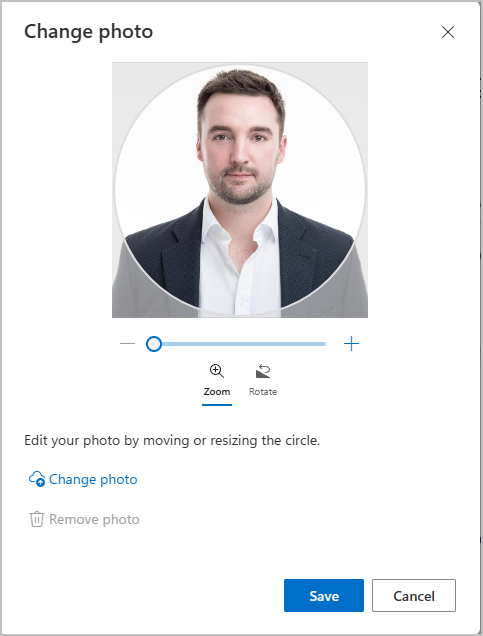
-
Below is an example of the profile picture displayed in Outlook.
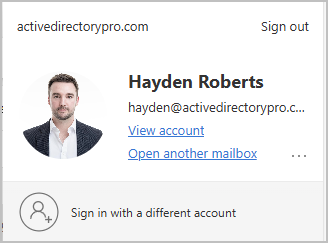
Change others users photo as an admin
Section titled “Change others users photo as an admin”If you are a Microsoft admin you can use the 365 Admin Center or powershell to add photos for other users.
-
Log into the Microsoft 365 Entra Admin Center
-
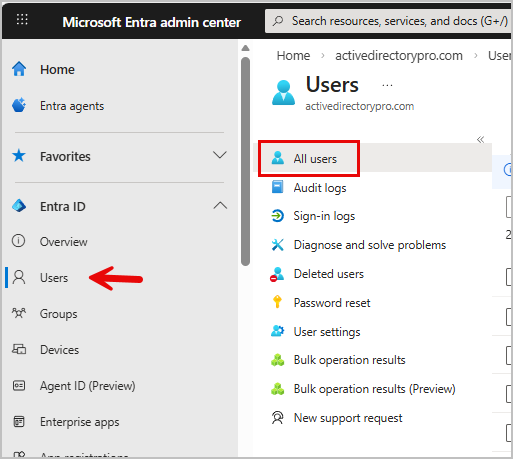
Go to Users > All Users
-
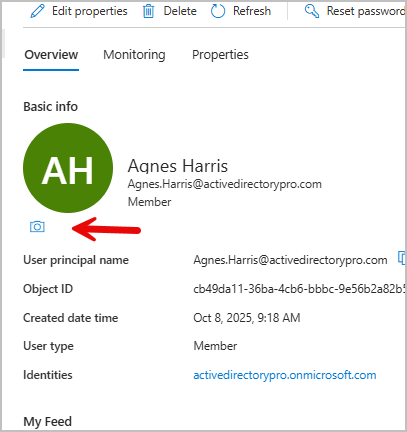
Find the user you want to change, click their display name to open their details. When the panel opens, select the camera icon under the current photo or initials.
-
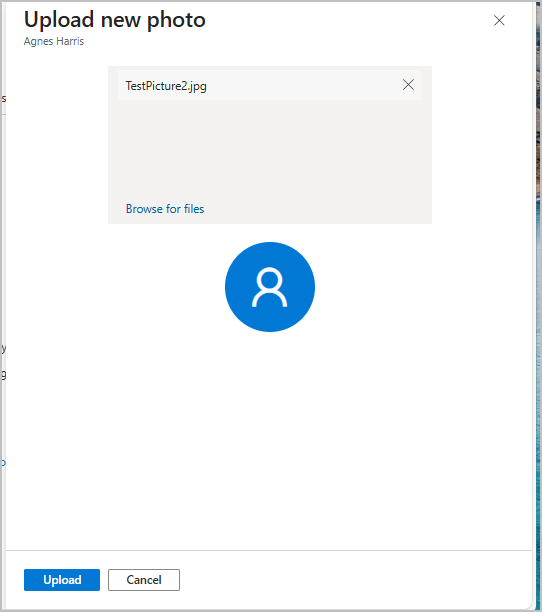
Browse to the photo you are going to use and add it. Select Upload when done.
-
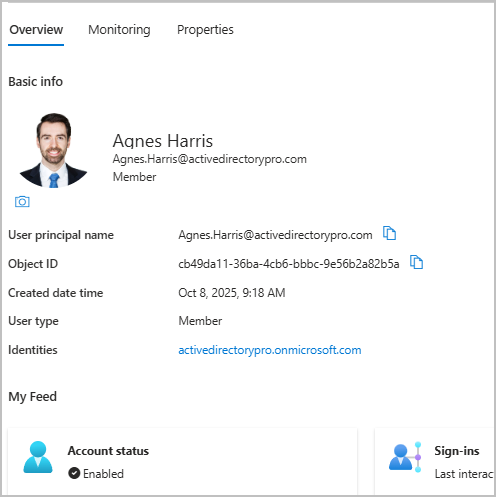
The photo will now be changed.
Add user photos in Microsoft 365 using PowerShell
Section titled “Add user photos in Microsoft 365 using PowerShell”-
Install Microsoft Graph (skip to step 2 if already installed)
Terminal window Install-Module -Name Microsoft.Graph -Scope CurrentUser -
Connect to Microsoft graph
Terminal window Connect-MgGraph -Scopes User.ReadWrite.All, Directory.AccessAsUser.All -
Change user photo
Terminal window Set-MgUserPhotoContent -UserId <UPN> -InFile "<PhotoPathAndFileName>"
Remove user photos with PowerShell
Section titled “Remove user photos with PowerShell”-
Make sure you are connected to Microsoft Graph.
-
Remove user photo.
Terminal window Remove-MgUserPhoto -UserId "<UPN>"
Conclusion
Section titled “Conclusion”Managing profile pictures in Microsoft 365 is a simple task once you know where to look. You can easily add or change your own photo, update other users photos through the admin center and PowerShell. Keeping profile pictures up to date helps users recognize each other and keeps your organization looking professional.